# DispatchSEO - complete documentation
Every page of https://dispatchseo.com/docs, concatenated in reading order.
Generated from source, so it always matches the live site.
For a shorter index with one-line page descriptions, see https://dispatchseo.com/llms.txt
Repository: https://github.com/NeoZi12/dispatchseo (AGPL-3.0)
Pages in this file, in order:
1. What DispatchSEO is (Getting started)
2. How it works (Getting started)
3. Cloud or self-hosted (Getting started)
4. Install on your computer (Installation)
5. Install on a VPS (Installation)
6. Local development (Installation)
7. Install Claude Code (Setup)
8. The setup wizard, step by step (Setup)
9. Google Search Console (Setup)
10. Keyword data sources (Setup)
11. Publishing and GitHub (Setup)
12. Connect your site (Setup)
13. Day to day (Using it)
14. The dashboard, page by page (Using it)
15. Automations and modes (Using it)
16. Agent commands (Using it)
17. Concepts and glossary (Reference)
18. MCP tools (Reference)
19. Environment variables (Reference)
20. Schedules (Reference)
21. Architecture (Reference)
22. Troubleshooting (Help)
23. Common questions (Help)
24. Security and your data (Help)
25. Upgrading and backups (Help)
---
# What DispatchSEO is
> An SEO manager your Claude Code agent drives - research, content that ships as pull requests, and rank tracking, on infrastructure you own.
Source: https://dispatchseo.com/docs/introduction
DispatchSEO turns Claude Code into the person who handles your SEO.
Your agent researches keywords, writes the guide, and opens a pull request
against your site's repo. DispatchSEO is the backend it works against: the
queue of ideas waiting for your yes or no, the rankings, the Search Console
numbers, the schedules that make it happen without you asking, and the
dashboard where you approve things.
You spend a few minutes a week. It does the rest.
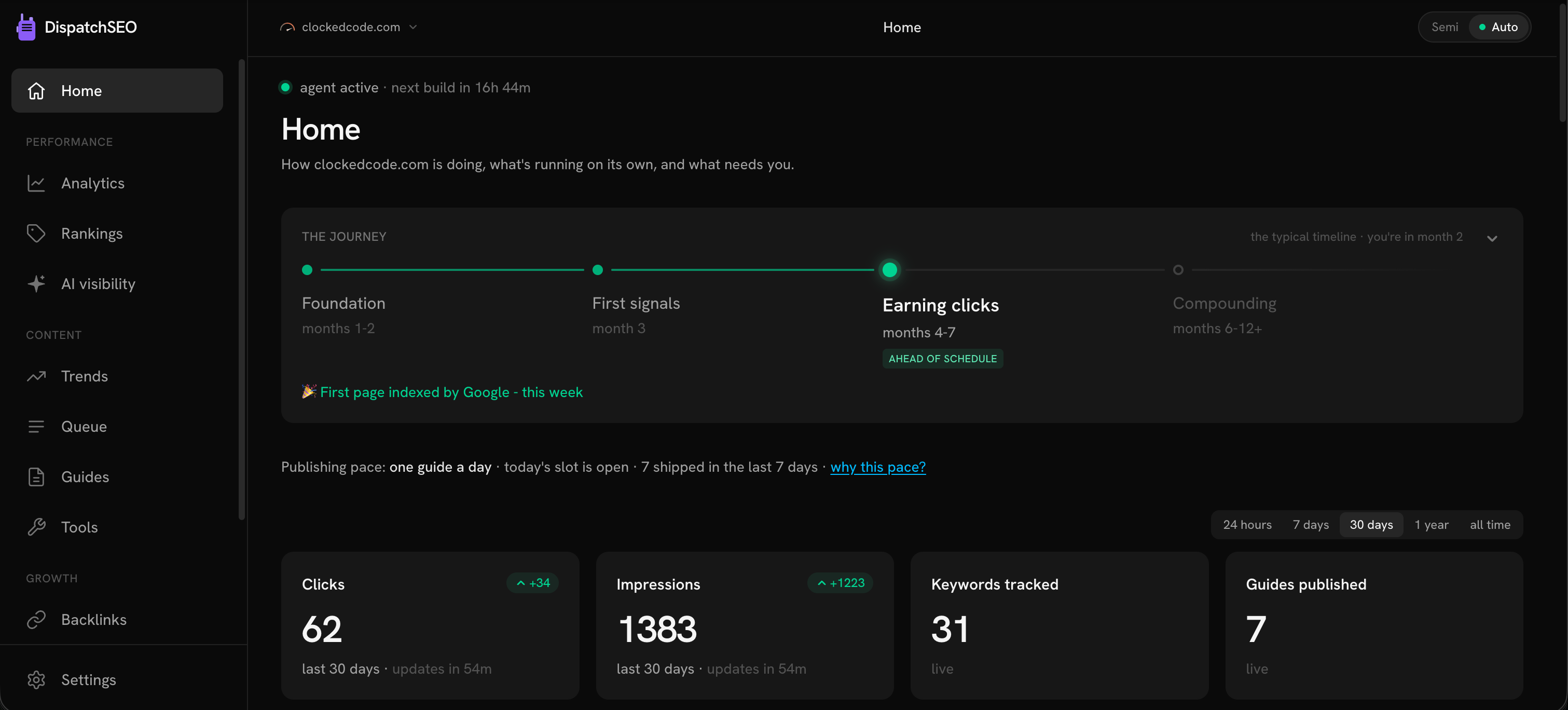
## The part that makes it different
Every other AI SEO tool has the same problem: it doesn't know your product. So
it crawls your homepage, infers what you probably do, and writes from that
guess. You can feel it in the output.
Your agent doesn't have that problem. It has your codebase open. It knows what
you built, who it's for, and which claims are actually true.
So DispatchSEO doesn't try to be a writer. It gives that agent the half it's
missing - real search data, a place to keep state between sessions, schedules
that fire while you sleep, and a human approval gate - and gets out of the way.
The backend is deliberately boring. It stores things, it runs jobs on a timer,
and it asks you before publishing. Every judgement call - which keyword is
worth chasing, what angle to take, whether a draft is any good - happens in
your agent, where your product knowledge already lives.
## The loop
Once a week it mines your Search Console data, Google Autocomplete, and
what it already knows about your product. Each idea lands in a queue with
the reasoning attached: the keyword, why it looks winnable, the angle.
Each idea is a card on the dashboard. Approve, reject, or drag it up the
queue. Or turn on automatic mode and skip this step entirely.
Every morning, one approved idea becomes a real PR against your repo -
checked against the live search results first, and run through a sameness
reviewer so your twelfth guide doesn't read like your third.
Daily rank checks, hourly Search Console snapshots, index verification.
When a scheduled job breaks, you get a red banner and an email rather
than silence.
## Who this is for
You'll get value out of this if:
- **Your site's source lives in a Git repo.** Content arrives as pull requests,
so this has to be true.
- **You already pay for Claude Code.** Your agent is the engine, and it runs on
the plan you have. DispatchSEO never bills you for agent usage.
- **You'd rather own the thing than rent it.** One Docker command, your
machine, your data, AGPL-3.0.
## Who this is not for
Being honest saves you an install:
- **WordPress, Webflow, Ghost, or any database-backed CMS.** There's no repo to
open a pull request against. This will not work, and there's no workaround
planned.
- **Anyone wanting content published without review.** You can turn that on -
but the whole design assumes a human who occasionally says no.
- **Anyone expecting results in two weeks.** SEO doesn't work that way, and the
product tells you so on the dashboard rather than pretending otherwise.
## What it costs
Nothing, unless you want paid data. The tiers stack:
| Tier | Price | What you get |
| --- | --- | --- |
| Search Console only | **$0** | Rankings from GSC, keyword ideas from Autocomplete and your own impression data |
| + SerpApi free key | **$0** | Live search-result checks, real positions weekly (250 free lookups a month) |
| + DataForSEO | pay per call | Search volume, keyword difficulty, domain rating |
Free mode finds keywords you can win. Paid mode also knows which ones are
worth winning. See [Keyword data sources](/docs/keyword-data) for the detail.
## Where to go next
Pick an install path and get it running.
The moving parts, in plain English.
Two ways to run it. What actually differs.
Every page here is available as plain markdown - add `.md` to any docs URL.
The whole documentation set in one file lives at
[/llms-full.txt](https://dispatchseo.com/llms-full.txt), and there's an index
at [/llms.txt](https://dispatchseo.com/llms.txt).
---
# How it works
> The moving parts - your agent, the backend, your repo - and which one is responsible for what.
Source: https://dispatchseo.com/docs/how-it-works
There are three pieces. Knowing which does what makes everything else in these
docs easier to follow.
| Piece | Runs where | Responsible for |
| --- | --- | --- |
| **Your Claude Code agent** | Your machine, or GitHub Actions | Thinking. Research, judgement, writing. |
| **DispatchSEO** | Your Docker install, or dispatchseo.com | Remembering. State, schedules, the approval gate. |
| **Your site's repo** | GitHub | Publishing. Content lands here as pull requests. |
The split matters: DispatchSEO never writes a word of content and never
decides what's worth writing. It holds the queue, the numbers, and the timer.
## Why the agent does the thinking
Traditional SEO tools start from a disadvantage. They know your domain name
and whatever they can scrape off it. Everything they suggest is downstream of
a guess about what your product does.
Your agent has your repo open. It has read your code, your README, your
existing posts. When it evaluates whether "self-hosted analytics" is a keyword
you can credibly rank for, it isn't guessing - it knows whether you actually
built that.
That's the whole architectural bet. The expensive, hard-to-fake part
(understanding the product) is already solved on your side, so the backend
only has to supply the part your agent genuinely lacks: memory between
sessions, search data, and a schedule.
## How your agent talks to the backend
Over [MCP](https://modelcontextprotocol.io) - the Model Context Protocol.
DispatchSEO exposes an MCP server at `/api/mcp`. Your agent connects to it
once, and from then on it can read and write the same state the dashboard
shows: the queue, tracked keywords, published pages, rankings, Search Console
stats, backlink prospects.
```bash
claude mcp add dispatchseo --transport http https://your-install/api/mcp \
--header "Authorization: Bearer YOUR_PROJECT_KEY"
```
The bearer token does double duty: it authenticates the request *and* selects
which site you're working on. One DispatchSEO install can manage any number of
sites, and the token is what tells them apart.
There are no "generate an article" or "look up this keyword's volume" tools on
the server. Your agent does research with its own tools - including
DataForSEO's own MCP server, which the pipeline wires up for you - and uses
DispatchSEO to remember the results. That boundary is deliberate and enforced
in the codebase.
Anything the dashboard can do, your agent can do over MCP, and the reverse.
Approving an idea, reordering the queue, merging a PR, changing settings - all
available from chat. See the [MCP tools reference](/docs/mcp-tools) for all 52
of them.
## How work happens without you
Three kinds of scheduled job keep things moving:
Weekly, your agent derives keyword candidates from your product and your
Search Console data, checks them, and files the good ones as pending
suggestions.
Daily, it takes the oldest approved idea and builds it into a pull request
- at most one guide per day, permanently.
Rank checks run daily, Search Console snapshots every few hours, and index
verification sweeps confirm Google actually picked the page up.
Where those jobs run depends on how you installed:
- **Self-hosted with Docker**: a cron container fires the backend jobs, and a
builder container runs headless Claude Code for the content work. Nothing on
the internet needs to reach your machine.
- **Everything else**: GitHub Actions workflows in your own repo, on their own
schedules.
Either way the schedules are the same. [Schedules and jobs](/docs/schedules)
has the full table.
## How content reaches your site
Never by pushing to your main branch. Always as a labeled pull request.
An approved idea becomes a branch, a commit, and a PR with the target keyword,
the angle, and the search-results reasoning in the description. In
semi-automatic mode you press Merge. In automatic mode, a PR whose checks pass
merges itself.
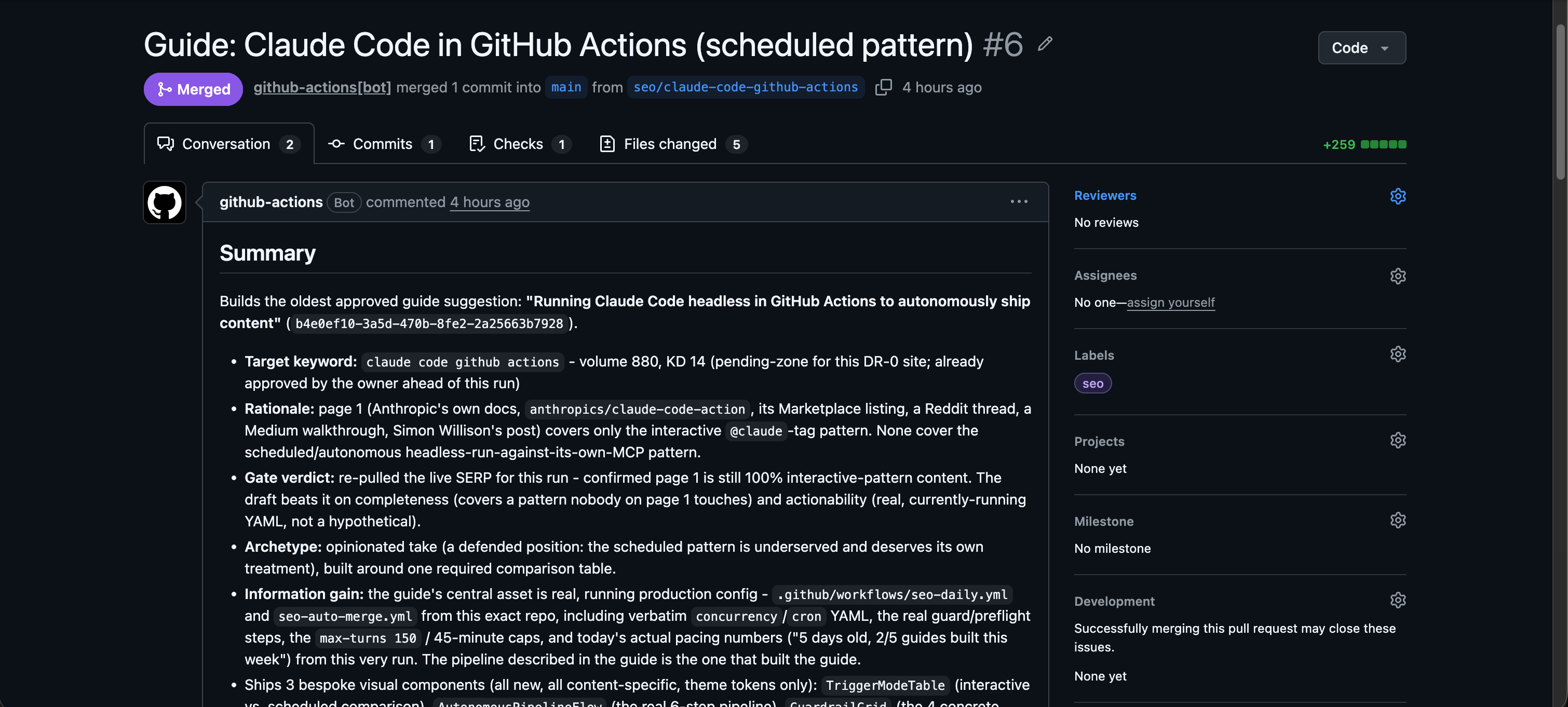
After it merges, DispatchSEO logs the page, asks Google to index it, and
starts tracking its keyword. [Publishing and GitHub](/docs/publishing) covers
the mechanics.
## What stops it publishing junk
Volume alone is easy to game, so several gates sit in front of the builder:
- **A quality bar** - a search-volume floor, plus a difficulty ceiling that
scales with how strong your domain actually is, so a new site isn't sent
after keywords it cannot win.
- **A live search-results check** before writing, so the guide is built against
what's actually ranking today.
- **A sameness gate** that compares the draft to your own published corpus and
rejects it if it reads like a re-skin of something you already have.
- **A pace limit** of one guide per day, permanently.
- **You**, by default.
[Automations and modes](/docs/automations) explains each one and what you can
turn off.
## Next
Decide which way to run it.
Every term this product uses, defined.
For self-hosters and contributors.
---
# Cloud or self-hosted
> Two ways to run DispatchSEO, what actually differs between them, and how to pick without regretting it later.
Source: https://dispatchseo.com/docs/choosing-how-to-run-it
Self-hosting has no feature limitations. Everything the paid cloud does, this
repo does today, in your own accounts, at $0.
That's the honest headline, and it's worth stating before anything else,
because the answer to "which is better" is usually "whichever you'll actually
keep running."
## The short version
One Docker command on a machine you control. Your database, your Google
credentials, your data. Costs nothing beyond the machine.
We run it. Search data is bundled into the bill, Google connects with one
click, and there's no machine to keep awake.
## What actually differs
| | Self-hosted | Cloud |
| --- | --- | --- |
| Features | All of them | All of them |
| Price | $0 | Subscription |
| Where data lives | Your machine | Our Postgres |
| Keyword and SERP data | Bring your own keys, or run free on Search Console only | Bundled into the subscription |
| Google Search Console | Create a service account, paste the JSON | One click, OAuth |
| GitHub connection | A merge token you create | One-click GitHub App install |
| Who keeps it running | You | Us |
| Upgrades | You pull a new image | Automatic |
| Backups | Yours to take | Handled |
| Schedules run when | Your machine is awake | Always |
Both run the same code from the same repo. The cloud sells convenience, not
capability.
## Pick self-hosted if
- You have a machine that can stay on - a $5 VPS, a Raspberry Pi, a desktop
that doesn't sleep.
- You want your Search Console credentials and your data to stay yours.
- You're comfortable pasting a service-account JSON once.
- You like paying $0.
The setup is longer, mostly because of Google's service-account flow. Budget
about twenty minutes for the whole thing, most of it in the Google Cloud
console.
## Pick cloud if
- You don't want to run or maintain a machine.
- You'd rather one bill covered the search data than manage a DataForSEO
balance.
- The Google service-account dance is not how you want to spend your evening.
Both versions run on your Claude Code subscription. Neither one bills you for
agent usage, and neither can work without it.
## The laptop question
You can absolutely install this on a laptop to try it, and plenty of people
do. Just know what you're signing up for: **schedules only run while the
machine is awake.**
That's less bad than it sounds. Missed schedules are delays, not failures -
content builds catch up on their own when the machine wakes, and the health
checks only flag a job that missed its window while the stack was actually
running. You'll never be warned about a job that was simply powered off.
But day to day, something that stays on is better. A cheap VPS is the usual
answer, and [the VPS guide](/docs/vps) covers it including a domain with
automatic HTTPS.
## Can I switch later?
Yes, in both directions, with some manual work.
Your content is the part that matters and it never lived in DispatchSEO
anyway - it's in your own Git repo, committed and merged. Moving means
standing up the other version, reconnecting Search Console and GitHub, and
re-running research. The rankings history stays behind unless you move the
database yourself.
[Upgrading and backups](/docs/upgrading) covers moving a self-hosted install
between machines.
## Next
One command, no cloud accounts.
Recommended for daily use.
Nothing to install.
---
# Install on your computer
> One command starts the whole product on any machine with Docker. Open the URL it prints and the setup wizard takes over.
Source: https://dispatchseo.com/docs/docker-compose
Before the install, check the [four things you need](/docs#before-you-start) -
it takes ten seconds and saves a wasted hour. The one that catches people
out: your site's code has to live in a GitHub repo, because every article
arrives as a pull request. WordPress and other database-backed CMSes can't
work that way.
Docker is the free program that runs DispatchSEO in its own sealed box -
you install it once and never touch it again.
- **Mac / Windows:** download
[Docker Desktop](https://docs.docker.com/get-docker/), install it like
any app, and open it once - you'll see a whale icon appear in the menu
bar (Mac) or system tray (Windows). The whale means it's running.
- **Linux:** paste this in a terminal:
```bash
curl -fsSL https://get.docker.com | sh
```
To confirm it's ready, this should print a version number:
```bash
docker --version
```
Open a terminal. On Mac that's the **Terminal** app (press `Cmd+Space`, type
"terminal"). On Windows press Start, type "powershell", and open **Windows
PowerShell** - just install [Git](https://git-scm.com/downloads/win) first
if you haven't (the command fetches the code with it).
Run it from any plain folder (your Desktop is fine) - **not inside your
website's own repository**. It creates a new `dispatchseo` folder where
DispatchSEO itself lives; your site's code is never touched, you'll just
point at it later from the setup wizard.
```bash
git clone https://github.com/NeoZi12/dispatchseo &&
cd dispatchseo &&
sh start.sh
```
**On Windows**, paste this version instead - same thing, PowerShell-friendly.
The `cd ~` first means it installs into your user folder no matter where
the window opened (some PowerShell windows start in a system folder git
can't write to):
```powershell
cd ~; git clone https://github.com/NeoZi12/dispatchseo; cd dispatchseo; .\start.cmd
```
The first boot downloads the prebuilt images (or builds them from source
when it cannot) - a few minutes. Re-runs take seconds.
Go to the URL the command printed - usually
[http://localhost:4005](http://localhost:4005). If the page doesn't answer
right away, give it ~20 seconds and refresh.
Choose a dashboard password and the setup wizard walks you through the
rest: your site, Search Console, keyword data, and connecting Claude Code.
That's the install. Everything below is reference.
## Installing on a VPS instead?
Even shorter - one line installs everything, Docker included, and one
`.env` line puts the dashboard on your own domain with automatic HTTPS.
See [Install on a VPS](/docs/vps).
## Laptop or always-on machine?
**We highly recommend a machine that stays on** - a ~$5/month VPS with 1 GB
of RAM, a Raspberry Pi, or a desktop that never sleeps - for anything past
trying DispatchSEO out. DispatchSEO works on schedules, and schedules only
run while the machine is on, so a laptop that sleeps every night means the
automation is only running part-time.
Here's the honest breakdown of what that costs you on a laptop: content
builds catch up on their own when the machine wakes (the builder checks
what's due every 10 minutes), and Search Console stats mostly catch up too
(the hourly sync re-reads the last few days on each pass). The one real,
permanent loss is rank history - positions are sampled live once a day, so
a day the machine slept through is a gap in the chart forever, with no way
to backfill it.
And a delay is never dressed up as an error: the health checks know the
difference between "this job broke" and "the machine was off" - a red
banner or alert email only ever means something failed while the stack
was actually running.
Nothing on the internet needs to reach the machine either way, so a home
computer behind a normal router works without any port forwarding - the
recommendation above is purely about uptime, not reachability.
## What's running
| Container | Job |
| --- | --- |
| `app` | Dashboard, MCP server at `/api/mcp`, cron endpoints |
| `postgres` | Your data - persists in the `dispatch-pgdata` volume |
| `postgrest` | REST layer between app and database, internal network only |
| `migrate` | One-shot schema apply on every boot (idempotent, exits when done) |
| `cron` | Triggers rank checks, GSC snapshots, and weekly research on schedule |
| `builder` | Headless Claude Code - builds guides and tools, runs research (below) |
Check on it any time - these (and every command below) run inside the
`dispatchseo` folder the install created:
```bash
docker compose ps # everything except the one-shot migrate should be running
docker compose logs app
docker compose logs builder
```
## The builder: automatic content, no public URL
The `builder` container is your own Claude Code running headlessly inside
the stack. Every 10 minutes it asks the backend what's due and runs it: the
daily guide build, weekly keyword research, approved tool builds, the weekly
AI-visibility scan - and on auto-mode projects it merges green guide PRs. It
only makes outbound connections (to GitHub and Anthropic), which is why a
localhost install is fully automatic with no tunnel or domain.
Turning it on is one token, and there are two ways to hand it over.
**Easiest - paste it on the dashboard.** On the wizard's final screen (or the
Home "Turn on automatic builds" card any time later), run `claude setup-token`
on your own computer and paste the `sk-ant-oat...` token it prints into the
field there. No terminal on the server, no file to edit - the builder picks it
up within a few minutes, nothing to restart.
**Terminal alternative.** Prefer an env var? In the `dispatchseo` folder
(on Windows, run these in **Git Bash** - it comes with Git; the one-liners
below use bash syntax PowerShell doesn't have):
**a.** Create the token (builds run on your existing Claude subscription -
DispatchSEO bills nothing):
```bash
claude setup-token
```
**b.** Save it, with your `sk-ant-oat...` token swapped in (the first part
checks you're in the right folder before writing anything):
```bash
[ -f start.sh ] &&
echo "CLAUDE_CODE_OAUTH_TOKEN=sk-ant-oat-PASTE-YOUR-TOKEN-HERE" >> .env ||
echo "Wrong folder - run this inside the dispatchseo folder"
```
**c.** Start the builder and check on it:
```bash
docker compose up -d builder && docker compose logs builder --tail 5
```
Either way, the builder either starts polling for work or tells you exactly
what it's still waiting for, and GitHub access reuses the token from the
wizard's Connect GitHub step - nothing to configure twice.
## Configuration
Only `CRON_SECRET` is required, and `start.sh` generates it. Everything
else - dashboard password, MCP token, Search Console, DataForSEO - is
handled in the setup wizard, not in env vars. The optional overrides are
annotated in
[`.env.docker.example`](https://github.com/NeoZi12/dispatchseo/blob/main/.env.docker.example).
Two you might want:
```bash
DISPATCH_PORT=4005 # host port the dashboard is published on
POSTGRES_PASSWORD= # your own database password - set BEFORE the first start
```
## Upgrading
```bash
git pull && sh start.sh
```
On Windows, in PowerShell: `git pull; .\start.cmd`
The script rebuilds what changed; schema changes apply automatically on
boot. Your data lives in the `dispatch-pgdata` volume and survives rebuilds.
Back up before big upgrades:
```bash
docker compose exec postgres pg_dump -U dispatch dispatchseo > backup.sql
```
## Uninstall
```bash
docker compose down # stop, keep data
docker compose down -v # stop and DELETE ALL DATA
```
---
# Install on a VPS
> One line installs everything - Docker included - and one .env line puts the dashboard on your own domain with automatic HTTPS.
Source: https://dispatchseo.com/docs/vps
Any provider works (Hetzner, DigitalOcean, Vultr, ...); a 1 GB Ubuntu or
Debian box is enough. About five minutes end to end.
Open a terminal on your own computer (the **Terminal** app on Mac,
**PowerShell** on Windows - `ssh` is built in) and paste this, with the IP
swapped for yours - it's the address your VPS provider shows in its dashboard and
emailed you at signup:
```bash
ssh root@your-server-ip
```
Type `yes` if it asks about a fingerprint, then the password your
provider gave you (or nothing, if you set up an SSH key). Your prompt
changes - you're now typing on the server.
One line - it installs Docker if the server doesn't have it, fetches
DispatchSEO, and boots the stack:
```bash
curl -fsSL https://dispatchseo.com/install.sh | sh
```
Re-running the same line later is also the upgrade command. (Prefer to do
it by hand? `git clone https://github.com/NeoZi12/dispatchseo && cd
dispatchseo && sh start.sh` is all the script does.)
When it finishes, the stack is listening on port 4005 of the server - but
only locally. Don't open that port to the internet; the next step gives
the dashboard a proper HTTPS address instead.
You already own a domain - your website's - so this is one DNS record and
one line in `.env`.
One thing before the steps: everywhere below, `dispatch.your-domain.com`
is a placeholder. Keep the `dispatch` part, replace `your-domain.com`
with the domain you actually own. If your website is `acme.com`, your
dashboard's address will be `dispatch.acme.com`.
Never touched DNS before? The record part, spelled out:
**a. Open your domain's DNS settings.** They live wherever your domain is
managed - usually the registrar you bought it from (Namecheap, GoDaddy,
Porkbun, ...), or Cloudflare / Vercel if you've pointed the domain's
nameservers there. Log in, pick the domain, and look for the section
called **DNS**, **DNS records**, **Manage DNS**, or **Zone editor** -
every host has one, the name just varies.
**b. Add one A record.** Click **Add record** and fill the form like
this (Cloudflare shown - other hosts have the same fields under slightly
different names):

- **Type:** `A`
- **Name** (some hosts call it Host): `dispatch`
- **IPv4 address** (some hosts call it Value or "Points to"): your
server's IP - the same one you SSH into. The screenshot shows a
placeholder; put your real one.
- **Proxy status** (Cloudflare only): switch it to **DNS only**, the grey
cloud - exactly as in the screenshot. Orange "Proxied" blocks the
certificate handshake in the next step.
- **TTL:** leave whatever it already says.
Save the record. That creates `dispatch.your-domain.com`, the address
every command below uses.
**c. Confirm it landed.** After a few minutes, run this on your own
computer (your domain swapped in) - it should print your server's IP:
```bash
ping -c 1 dispatch.your-domain.com
```
**d. Tell DispatchSEO the domain** - your domain swapped in here too:
```bash
cd dispatchseo &&
echo "DOMAIN=dispatch.your-domain.com" >> .env &&
sh start.sh
```
That's it. The stack now includes its own HTTPS proxy: it fetches the
certificate, renews it forever, and `start.sh` prints your new address.
From now on the dashboard is a bookmark, from any device - and opening
it is the next step.
Three situations you might hit - skip any that aren't you:
**"I opened the https address and nothing loads."** Some VPS providers
ship a firewall in their control panel that blocks all ports by default.
Open the panel and allow TCP ports **80** and **443** (inbound, from
anywhere):
- Hetzner: Cloud Console → your server → **Firewalls**
- DigitalOcean: **Networking → Firewalls**
- AWS / Lightsail: the instance's **security group** / Networking tab
Servers without a panel firewall need nothing - Docker opens its own
ports, even past `ufw`. To check from your own computer:
```bash
curl -I https://dispatch.your-domain.com
```
Any `HTTP/...` reply means you're through; a hang means the firewall is
still in the way.
**"This server already runs Nginx, Traefik, or another Caddy."** If you
don't know what those are, you don't have one - skip this. For those who
do: ports 80/443 are yours, so don't set `DOMAIN`. Point your existing
proxy at `localhost:4005` and tell DispatchSEO its public address:
```bash
cd dispatchseo &&
echo "APP_URL=https://dispatch.your-domain.com" >> .env &&
sh start.sh
```
**"DNS hasn't landed yet and I want to see it now."** On your own
computer - not the server - run:
```bash
ssh -L 4005:localhost:4005 root@your-server-ip
```
Keep that window open and browse
[http://localhost:4005](http://localhost:4005) - it's an encrypted tunnel
straight to the dashboard (some registrars take up to an hour to publish
the record). Peek only, though: finish the wizard at your `https://`
address, so the commands it generates carry your real domain instead of
localhost. Close the window and the tunnel is gone.
Open `https://dispatch.your-domain.com` in your browser (the certificate
can take a minute after DNS lands - just refresh). Choose a dashboard
password, and the setup wizard starts.
The wizard is the actual product setup - your site, Google Search
Console, keyword data, publish mode, connecting Claude Code, and turning
on automatic builds. It takes about 10 minutes, checks every step on the
spot, and saves your progress, so you can close the tab and come back.
Every screen is covered in
[The setup wizard, step by step](/docs/setup-wizard) if you want to read
ahead.
One server-flavored note for the wizard's last screen: **the builder
token is created on your own computer**, not the server - `claude
setup-token` opens a browser login, which a machine without a screen
can't do. The wizard shows the exact paste for the server, and its
checklist flips green when the builder checks in.
That's the whole install. When the wizard unlocks the dashboard, this
machine takes over - and since it never sleeps, the schedules fire on
time.
---
# Local development
> Run DispatchSEO from source with pnpm for hacking on the code itself.
Source: https://dispatchseo.com/docs/local-development
For working on DispatchSEO itself. If you just want to *use* it, the
[Docker Compose](/docs/docker-compose) path is simpler.
## Run from source
```bash
git clone https://github.com/NeoZi12/dispatchseo
cd dispatchseo
pnpm install
cp .env.local.example .env.local # fill in Supabase + the three secrets
pnpm dev # dashboard on localhost:3000
```
You'll need a Supabase project (free tier is fine) with the migrations
applied - paste `supabase/migrations/setup.sql` into its SQL Editor. The
annotated env template explains every variable.
## Checks
```bash
pnpm build
```
That's the typecheck - run it before opening a PR. There is no separate
lint or test setup; the build is the gate.
## Where things live
| Path | What |
| --- | --- |
| `src/app/api/[transport]/route.ts` | The MCP server - every tool registers here |
| `src/lib/` | All logic - dashboard actions and MCP tools both call into it |
| `src/app/(dashboard)/` | The password-gated dashboard pages |
| `src/app/api/cron/` | The scheduled jobs |
| `supabase/migrations/` | Numbered, additive, applied manually |
| `CLAUDE.md` | The conventions - written for agents, useful for people |
One hard rule from the codebase: anything the dashboard can do must also be
possible over MCP, and vice versa. A feature isn't done until both exist -
see [CLAUDE.md](https://github.com/NeoZi12/dispatchseo/blob/main/CLAUDE.md)
for the full conventions.
Contributions: issues before PRs, and you must understand every line you
submit. Details in
[CONTRIBUTING.md](https://github.com/NeoZi12/dispatchseo/blob/main/CONTRIBUTING.md).
---
# Install Claude Code
> Claude Code is the agent that does the actual work. Here is how to get it on your computer, from nothing, on any operating system.
Source: https://dispatchseo.com/docs/install-claude-code
DispatchSEO doesn't write your content. Your Claude Code does. This
dashboard is its memory and its schedule, and the place you approve
things - the researching and writing happen in Claude Code, running on
your own Claude subscription.
So the setup wizard can't finish until Claude Code exists on your
computer. Never installed it? Start here. About five minutes, and none of
it needs you to know how to program.
## First, check your Claude plan
Claude Code is **not** part of the free Claude plan. There is no way around
this one, so check before you spend time on the rest of the page.
| Your plan | Claude Code |
|---|---|
| Free | Not included |
| Pro | Included |
| Max | Included |
| Team | Included |
| Enterprise | Included on current plans - older contracts have seat types that may not, so check with whoever manages your account |
On the free plan, Pro is the cheapest way in. Check or change your plan at
[claude.com/pricing](https://claude.com/pricing).
The terminal is a window where you type commands instead of clicking
buttons. It's already on your computer - nothing to install.
- **On a Mac:** press `Cmd` + `Space`, type `Terminal`, press `Enter`.
- **On Windows:** press the Start button, type `PowerShell`, and click
**Windows PowerShell**. Take the ordinary one, not "ISE", and you don't
need to run it as an administrator.
- **On Linux:** press `Ctrl` + `Alt` + `T`, or find Terminal in your
applications.
A window opens with some text and a blinking cursor. That's all it needs
to look like. Everything below is copy, paste, press `Enter`.
Copy the line for your system, paste it into the terminal, press `Enter`,
and wait. It prints a lot of text - that's normal.
**On a Mac or on Linux:**
```bash
curl -fsSL https://claude.ai/install.sh | bash
```
**On Windows,** in PowerShell:
```powershell
irm https://claude.ai/install.ps1 | iex
```
That's the whole install. It updates itself from here on, so this is a
one-time thing.
Prefer a package manager? `brew install --cask claude-code` on a Mac and
`winget install Anthropic.ClaudeCode` on Windows both work, but neither
auto-updates - upgrading is on you, with `brew upgrade claude-code`. Older
guides tell you to use `npm install -g`; skip that. It still works, but
Anthropic has deprecated it in favor of the command above.
Close the terminal window completely and open a new one. This matters -
the install changes a setting your old window has already read, so a
still-open window will claim nothing happened.
In the new window, type:
```bash
claude --version
```
A version number means you're done. If you get `command not found`
instead, the next section fixes it in one line.
Type `claude` and press `Enter`. The first run sends you to a browser to
sign in to your Claude account. After that, Claude Code is ready and you
can go back to the setup wizard.
## When the terminal says "command not found"
On a Mac or Linux you see `command not found: claude`; on Windows,
`'claude' is not recognized`. Both mean the same harmless thing: Claude
Code installed fine, your terminal just doesn't know where to look for it
yet.
The installer prints the exact fix at the end of its output, so scroll up
in that window if it's still open. Otherwise paste the line for your
shell:
```bash
# Mac (the default shell there is zsh)
echo 'export PATH="$HOME/.local/bin:$PATH"' >> ~/.zshrc && source ~/.zshrc
```
```bash
# Most Linux systems (bash)
echo 'export PATH="$HOME/.local/bin:$PATH"' >> ~/.bashrc && source ~/.bashrc
```
Then open a **new** terminal window and try `claude --version` again.
Two more errors look alarming and aren't:
- **A wall of HTML, or `syntax error near unexpected token`** - the
download served a web page instead of the install script. Usually a
network blip, occasionally a country Anthropic doesn't support yet. Try
again, or use the Homebrew or WinGet command above instead.
- **`'&&' is not a valid statement separator`** - you pasted a Mac command
into Windows PowerShell. Check which shell you're in: a PowerShell
prompt starts with `PS C:\`, plain Command Prompt starts with `C:\`.
Anthropic keeps a full list of install errors and their fixes at
[code.claude.com/docs/en/troubleshoot-install](https://code.claude.com/docs/en/troubleshoot-install).
## Get your setup token
Two places ask you to paste a token that starts with `sk-ant-oat`: the
hosted wizard's "Connect your Claude Code" step, and the Docker install's
automatic builds. The token is how a server runs Claude Code as you,
without you sitting there.
With Claude Code installed, run:
```bash
claude setup-token
```
It opens a browser, asks you to approve, then prints the token in the
terminal. Copy the whole thing and paste it where you were asked.
Three things to know:
- It's printed once and never saved to a file. Lose it and you run the
command again; a fresh one works the same.
- It lasts a year, then you generate a new one the same way.
- It needs a paid plan, same as the rest of this page.
## Install the GitHub CLI
Only self-hosted installs need this. The hosted version at dispatchseo.com
does its GitHub work through the DispatchSEO GitHub App instead, so skip
this section if you're on the hosted plan.
`gh` is GitHub's own command-line tool. Your agent uses it to open pull
requests and set the secrets your automations need.
```bash
# Mac
brew install gh
```
```powershell
# Windows
winget install --id GitHub.cli --source winget
```
On Windows, open a brand-new terminal **window** afterwards; a new tab in
the same window won't find it.
On Linux, follow GitHub's install page for your distribution:
[github.com/cli/cli/blob/trunk/docs/install_linux.md](https://github.com/cli/cli/blob/trunk/docs/install_linux.md).
Then connect it to your GitHub account:
```bash
gh auth login
```
Answer the prompts: **GitHub.com**, then **HTTPS**, then let it
authenticate in your browser. The defaults are right at every step.
## Only copy these commands from official pages
Install commands are the one thing here worth being fussy about. Copy them
from this page, from
[code.claude.com](https://code.claude.com/docs/en/setup), or from the
[anthropics/claude-code](https://github.com/anthropics/claude-code)
repository - not from a search ad, and not from a site you have never
heard of. Fake install pages for popular developer tools are a real trick,
and an install command is exactly the thing you do not want to take from a
stranger.
Commands drift over time. If something here doesn't match Anthropic's own
setup page, trust theirs and
[tell us](https://github.com/NeoZi12/dispatchseo/discussions) so this page
gets fixed.
## Back to setup
Claude Code installed and signed in? Go back to the setup wizard - it
saved your place, so you'll land on the step you left. The
[wizard walkthrough](/docs/setup-wizard) covers every screen if you want
to read ahead.
---
# The setup wizard, step by step
> What each wizard screen asks for, why, and what to do when a step gets stuck.
Source: https://dispatchseo.com/docs/setup-wizard
The wizard starts the first time you open your dashboard. It checks each
step on the spot and saves your progress as you go: close the tab
whenever, and it reopens exactly where you stopped.
## On dispatchseo.com (the hosted version)
The hosted wizard is shorter - about 5 minutes, 5 steps - because the
platform does the installing for you:
1. **Add your site** - name and domain. No repo field here; that comes
from the GitHub App in the next step.
2. **Connect GitHub** - one click installs the DispatchSEO GitHub App on
your site's repo. The platform then commits the pipeline into the repo
and manages PRs through the App - no tokens to create or paste.
3. **Connect your Claude Code** - run `claude setup-token` on your
computer and paste the token it prints. It's stored as a secret on
**your repo**, never on our side, and builds run on your own Claude
Code subscription. Never installed Claude Code?
[Do that first](/docs/install-claude-code) - it's about five minutes,
and this step's command won't exist until you have.
4. **Connect Google Search Console** - one click, sign in with the Google
account that has access to your property, pick the property. Read-only,
revocable any time. No service account needed.
5. **Publish mode** - decide whether pages ship only after you merge them
(semi-automatic) or fully on their own.
Then the finale installs everything itself and shows live progress until
your site's first data lands. Keyword data is included in your plan -
there is nothing to set up for it.
The rest of this page describes the **self-hosted** wizard, which has a
few more steps because your own install does the work the platform does
on the hosted version.
## Step 1 - Add your site
Name, domain, and GitHub repo of **your website** - the site you want
Google traffic for, not the machine DispatchSEO runs on. The repo is the
`owner/repo` part of its GitHub URL. Then one question: does your site have
a blog? "Not sure" is a valid answer - Claude checks the repo and decides
during setup.
## Step 2 - Connect Google Search Console
This is where your ranking and traffic numbers come from. DispatchSEO
reads them through a **service account** - a robot Google account that it
signs in as. You create one once and it works for every site you ever add.
The wizard walks you through it with direct links: create a Google Cloud
project, enable the Search Console API, create the service account,
download its key file, and paste the file's contents into the wizard. The
key is stored encrypted in your own database.
Then you add the service account's email as a user in Search Console
(the wizard shows the exact clicks) and press **Verify connection** - it
asks Google right then and tells you if it worked. Google occasionally
takes a few minutes to catch up; you can continue and it re-checks on its
own.
This is the fiddliest step in the whole setup, and the only one that leaves
the app. If you want every click spelled out - including what to do when
your site isn't in Search Console yet and you need to add a DNS record to
prove you own it - [Google Search Console](/docs/search-console) is the
same walkthrough at full length.
## Step 3 - Pick a keyword data source
Two choices, switchable later in Settings:
- **DataForSEO (paid, recommended):** real Google search volumes and
difficulty scores - the same data most SEO tools resell. Pay as you go;
a typical site costs $2-5/month, and new accounts get $1 free.
- **Free mode ($0 forever):** Claude finds opportunities in your own
Search Console data and Google's autocomplete suggestions. If you go
free, the wizard offers one optional upgrade: a free SerpApi key
(250 searches/month, no credit card) that lets Claude look at the real
Google results page before writing, to judge whether a keyword is
winnable.
Whatever you pick, the wizard verifies the credentials against the real
service before saving them.
## Step 4 - Claude Code
Nothing to do here - it just explains the division of labor: Claude Code is
the brain, DispatchSEO is its memory and dashboard. The connection itself
happens at the finish line.
## Step 5 - Publish mode
Should anything go live without you?
- **Semi-automatic (recommended to start):** Claude researches and builds
on its own, but you approve ideas and click Merge on finished pages. A
few minutes of your attention a week.
- **Automatic:** everything runs itself; pages that pass their checks
publish without anyone touching them. You can watch and undo from the
dashboard.
There's a Semi/Auto toggle in the dashboard's top bar, so this is never a
final answer.
## Step 6 - Connect GitHub
Claude ships pages as GitHub pull requests, and this step gives DispatchSEO a
GitHub token so it can work with them. The wizard links you to a pre-filled
GitHub page, you press Generate, paste the token, and it's verified against
your repo before saving (encrypted, like everything else).
**Whether you can skip it depends on your install.** On a hosted install
(Vercel), the pipeline runs as GitHub Actions inside your own repo, so your
pages get built and the pull requests open either way - the token only adds
one-tap merging, and skipping just means you merge each PR on GitHub
yourself.
On a **Docker install using the bundled builder**, the token is how the
builder reaches your repo at all: it clones with it. Skip it and nothing
gets built - there are no pull requests waiting for you on GitHub, because
none were ever opened. The skip button is still there for the one case that
needs it (a Docker install on a public URL that lets GitHub-hosted workflows
do the building instead), but for everyone else on Docker, this step is
required.
One thing GitHub asks that the wizard can't answer for you: the token's
expiration. Whatever you pick, merging quietly stops working on that date,
and on a Docker install so does automatic building. Pick a window you'll
actually remember, or choose **No expiration** and treat the token like the
password it is. When it does expire, nothing breaks loudly - you just come
back to this step and paste a new one.
## Step 7 - The honest timeline
A month-by-month picture of what SEO actually looks like, so a quiet first
month reads as "on schedule" instead of "broken". Just read it.
## The finish line: two pastes
The last screen gives you two things to copy:
1. **A terminal command** that connects your Claude Code to this project.
Run it inside your site's repo folder.
2. **A chat message** to paste into Claude Code itself (open the repo,
type `claude`, paste). This one does the actual install.
From that second paste, your agent takes over: it writes the automation
workflow files into your repo, sets the repo secrets, opens one pull
request with all of it, personalizes the backlink playbook for your
product, and kicks off your first keyword research. You approve its steps
in the chat as it goes. It's safe to re-run if anything is interrupted.
Both pastes assume Claude Code and the GitHub CLI (`gh`) are already on
your computer. If they aren't - or if a command comes back
`command not found` - [installing both](/docs/install-claude-code) is a
one-time, five-minute detour.
Docker installs get one more item on the same screen: **turning on
automatic builds**. Two pastes - a token created on your own computer
(`claude setup-token`), then that token pasted into the field on this same
screen (no terminal on the server needed) - and the wizard's checklist flips
green when the builder makes its first check-in.
## Which key is which
Setup hands you four different secrets, and they look alike enough to mix
up. You never have to memorize or file any of them - the dashboard shows
each one again wherever it's needed - but when you're staring at a field
wondering which string goes in it:
| Key | Starts with | What it's for | Where it comes from |
| --- | --- | --- | --- |
| Agent key (MCP token) | a long random string | How your Claude Code talks to this dashboard | Generated for you; already inside the `claude mcp add` command the wizard hands you. Also on Settings. |
| Cron key | a long hex string | Lets the scheduled jobs call your backend | Generated for you; the install sets it as a repo secret. You never paste it by hand. |
| GitHub token | `ghp_` | Lets the Approve button merge your pull requests | You create it on GitHub in step 6. |
| Claude token | `sk-ant-oat` | Docker only - lets the bundled builder run Claude Code for you | You create it by running `claude setup-token` on your own computer. |
All four are stored encrypted in your own database.
## Live progress, and what "stuck" actually looks like
The wizard tracks all of it live. When the pipeline PR is open, it shows
**"Your move: merge the pipeline PR"** with a direct link - merging that PR
is your one required click. The agent then verifies the full checklist
(workflows on the main branch, permissions, labels, secrets) and reports
back over MCP; the backend double-checks it independently. The dashboard
only unlocks once everything genuinely works. If the wizard says
it's still waiting, the agent isn't done yet - check its chat.
---
# Google Search Console
> Connect free rankings and traffic data with a Google service account.
Source: https://dispatchseo.com/docs/search-console
Search Console is DispatchSEO's free data backbone: real impressions,
clicks, and positions for your site, snapshotted hourly. Connecting it
takes a service account - a Google robot identity that can read your
Search Console data without your password.
The setup wizard walks you through all of this with a check button at the
end - this page is the same walkthrough in document form, every click
spelled out. It's a one-time ritual: the same service account works for
every site you ever add.
## Create the service account
1. Open [console.cloud.google.com](https://console.cloud.google.com) and
sign in with the Google account that can see your site in Search
Console.
2. **Create a project:** click the project picker in the top bar → **New
project** → name it `dispatchseo` → **Create**. (Already have any
project? Reusing it is fine.)
3. **Turn on the API:** open
[the Search Console API page](https://console.cloud.google.com/apis/library/searchconsole.googleapis.com)
and click **Enable**.
4. **Create the account:** open
[Service Accounts](https://console.cloud.google.com/iam-admin/serviceaccounts),
click **Create service account**, name it `dispatchseo`, click
**Create and continue**, skip the roles screen (**Continue**), click
**Done**. It needs no permissions - it just needs to exist.
5. **Download its key:** click the account you just made → **Keys** tab →
**Add key** → **Create new key** → pick **JSON** → **Create**. A
`.json` file downloads. That file is a password for your search data -
keep it out of screenshots, chats, and git.
## Grant it access to your site
1. On the service account's page, copy its **email** - it ends in
`.iam.gserviceaccount.com`.
2. Open [Search Console](https://search.google.com/search-console), pick
your site, then **Settings → Users and permissions → Add user**.
Site not listed? It isn't in Search Console yet - add it first: click
**Add property**, choose the **Domain** type, enter your domain, and add
the DNS record Google shows you wherever your domain is registered
(Namecheap, Cloudflare, GoDaddy, ...). Verification is usually instant;
then continue with the steps above.
3. Paste the email, set Permission to **Full**, click **Add**.
## Give it to DispatchSEO
Open the downloaded `.json` file in any text editor, select **all** of
it, and paste it where the setup wizard (or the dashboard's **Connect
Search Console** card) asks. Press **Verify connection** - it asks Google
right then and tells you whether it worked. If Google says no at first,
wait a few minutes and verify again; permissions can lag.
Env-var installs can set it directly instead:
```bash
GSC_SERVICE_ACCOUNT_JSON=... # the whole JSON, single line
GSC_SITE_URL=sc-domain:example.com # or https://example.com/ for URL-prefix properties
```
Within an hour the first snapshot lands and the dashboard's Search traffic
page starts filling in. Historical data backfills from what Google exposes
(up to ~16 months).
## The data tiers
Search Console is the free floor. The tiers stack - start free, add keys
when you want more signal:
| Tier | Price | What you get |
| --- | --- | --- |
| Search Console only | $0 | Rankings from GSC, keyword ideas from Autocomplete plus your own impression data |
| + SerpApi free key | $0 | Live SERP checks, real positions weekly (250 free searches/month) |
| + DataForSEO | pay per call | Search volume, keyword difficulty, domain rating |
Free mode finds keywords you can win. Paid mode also knows which ones are
worth winning.
---
# Keyword data sources
> The three stacking tiers for keyword data - what each costs, what it unlocks, and how to switch later.
Source: https://dispatchseo.com/docs/keyword-data
DispatchSEO never has just one keyword data source. It has three, and they
stack: everyone starts on the free floor, and you add a key only when you
want a sharper signal than the free tier gives you.
Free mode finds keywords you can win. Paid mode also knows which ones are
worth winning. Neither is wrong - it depends whether you'd rather spend time
or money finding out.
## The three tiers
| Tier | Costs | You get |
| --- | --- | --- |
| **Search Console only** (default) | $0 | Rankings from GSC, keyword ideas from Google Autocomplete plus your own impression data |
| **+ SerpApi key** | $0 (250 searches/month) | Live SERP checks: real positions weekly, page-1 recon before writing |
| **+ DataForSEO** | pay per call, prepaid | Search volume, keyword difficulty, domain rating |
### Search Console only
This is where every project starts, and it's a real, working mode - not a
crippled trial. Your agent mines keywords two ways: Google Autocomplete
(free, no key, works everywhere) and your own Search Console impressions
(queries Google already shows your pages for, which is the single best
signal that a keyword is reachable).
What you don't get here is a number. No search volume, no difficulty score -
your agent judges a keyword by what it can see in the actual results, not by
a database estimate. That's a real limitation for prioritizing between fifty
candidates, but it's not a limitation for finding good ones.
Nothing to set up. This is simply what happens with no keys connected. See
[Google Search Console](/docs/search-console) for how the GSC connection
itself works.
### + a free SerpApi key
One optional upgrade while staying at $0: a [SerpApi](https://serpapi.com)
key gives your agent a live look at the actual Google results page before it
writes anything. If page 1 is thin forum posts and old listicles, the
keyword is winnable. If it's five major brands and a review site, skip it.
That's a judgment call no autocomplete list can make for you.
The free tier is 250 searches a month, no credit card. It also unlocks real
weekly rank tracking through a live SERP check, instead of relying on Search
Console's impression-weighted average position (which is real data, but
lagged and not a true rank).
Add the key any time in Settings, or during the wizard's keyword-data step -
see
[Step 3 of the setup wizard](/docs/setup-wizard#step-3-pick-a-keyword-data-source).
### + DataForSEO
The paid tier, and the only one with real numbers: monthly search volume,
keyword difficulty (KD), CPC, and domain rating for your own site. This is
what lets your agent rank fifty keyword candidates by how much traffic
they're actually worth and how hard they'll actually be to win, instead of
reasoning from the SERP alone.
A typical site tracking around 30 keywords spends about $2-5/month. New
DataForSEO accounts start with free trial credit, no card required.
Free-tier DIY means exactly that: every project brings its own DataForSEO
account, and every call bills that project's own balance -
`credsForProject()` in `src/lib/dataforseo.ts` is the one place this is
resolved. Only the **default project** (the instance's first site) falls
back to the `DATAFORSEO_LOGIN` / `DATAFORSEO_PASSWORD` environment
variables, if they're set. Every other project needs its own connected
account or its own env fallback doesn't apply. A project with no DataForSEO
connected gets `null` creds and every paid feature (rank checks, keyword
ideas, domain rating) skips gracefully - never an error, never a broken
cron. You'll see this reflected honestly on the dashboard: paid numbers
simply aren't there until a key is connected.
#### Getting the API password (the part that trips people up)
DataForSEO's login is your account email, but the password is **not** your
dashboard login password - it's a separate API password DataForSEO
generates for you.
Sign up at [app.dataforseo.com](https://app.dataforseo.com). New accounts
start with free trial credit, no card needed.
Go to [app.dataforseo.com/api-access](https://app.dataforseo.com/api-access)
and copy the password shown there. This is generated specifically for API
calls - it is not the password you use to log into the DataForSEO dashboard,
and using the wrong one is the single most common reason a connection fails
its first check.
DataForSEO hides it about 24 hours after signup. Click **Send by e-mail** on
the same page and it lands in your inbox.
Login (your account email) and API password go into the wizard's keyword-data
step, or Settings later. Both are checked live against DataForSEO before
saving, so a green check means tonight's rank check will actually work.
Because the API password isn't your dashboard login, it can't be used to
sign into or take over your DataForSEO account - it only makes API calls
against your own prepaid balance, and you can regenerate it any time to cut
DispatchSEO off.
## Watching what it costs
Once DataForSEO is connected, the `get_dataforseo_usage` MCP tool (and the
matching dashboard view) answers three questions:
- **Who's billed** - your own connected account, the platform's bundled plan
(cloud only), or nobody (nothing connected).
- **This month's spend**, when billed to the platform - month-to-date
against the plan's monthly budget.
- **Today's `check_serp` count**, against its daily cap (see below).
On a self-hosted project running its own DataForSEO account, usage isn't
metered here at all - it's your account, your balance, check it directly at
app.dataforseo.com.
If a cloud project's projected month-end spend starts closing in on its
plan's budget, a pacing governor thins the rank-check cadence automatically
(normal, then slowed, then weekly-only) so tracking degrades gracefully
instead of stopping mid-month the moment the budget is hit.
## The cloud version: bundled, capped, not metered
On the hosted product at dispatchseo.com, DataForSEO isn't something you
connect - it's bundled into the subscription (`DATAFORSEO_PLATFORM_LOGIN` /
`DATAFORSEO_PLATFORM_PASSWORD` server-side, never written into your repo,
never returned to a client). You get real search volume and difficulty
without ever touching an API password.
The trade-off is a rate cap, not a spend cap: `check_serp` (the live,
interactive "show me page 1 right now" tool) is capped at **30 calls a day**
per project on the shared plan. That's deliberate - a live SERP lookup is
cheap and meant for interactive research, and the real spend guard is the
monthly budget above, not this cap. Anything worth tracking on an ongoing
basis goes through `track_keywords` instead, which the daily rank cron
checks for you at no extra cost against the cap.
Connecting your own DataForSEO account on a cloud project is also possible,
and once connected it's billed and metered exactly like self-host - your own
account, your own balance, no platform cap.
## Changing your source later
The keyword source is a per-project setting, switchable any time in
Settings - it isn't a one-way decision made during onboarding. See
[Step 3 of the setup wizard](/docs/setup-wizard#step-3-pick-a-keyword-data-source)
for what the wizard itself asks, and the wizard always verifies new
credentials against the real service before saving them.
## Next
The free floor every tier builds on.
Where you pick a tier for the first time.
What using DispatchSEO looks like once it's running.
---
# Publishing and GitHub
> How an approved idea actually becomes a live page - the pull request, the checks, and who presses merge.
Source: https://dispatchseo.com/docs/publishing
DispatchSEO never touches your live site directly. Everything it ships goes
through GitHub, as a pull request, checked before it merges. This page covers
the mechanics: what opens the PR, what decides whether it merges itself, and
what happens after.
## The flow
1. You (or auto mode) approve a suggestion in the queue.
2. The builder picks up the oldest approved idea and opens a **pull request**
against your site's own repo, labeled `seo`.
3. Automated checks run against it - your repo's own build, a preview
deploy, a code review pass, and for tools a live functional test (below).
4. You review it, or it merges itself. Either way, once it merges, the page
goes live on your site's next deploy.
Never a direct push to your main branch. The label and the pull request are
the review surface - even in fully automatic mode, "merged a green PR" is a
different, safer claim than "committed straight to main," because it means
every gate below actually ran and passed before anything shipped.
## Publish modes
Whether that merge needs you is a per-project setting, not a fixed behavior:
- **Semi-automatic** (recommended to start): your agent researches and
builds on its own, but a PR only ships once you press **Merge** on the
dashboard.
- **Automatic**: PRs whose checks all pass merge themselves. You watch the
activity feed and can still undo from the dashboard.
Change it any time on [Automations and modes](/docs/automations), or from
the dashboard's Semi/Auto toggle in the top bar - see
[Step 5 of the setup wizard](/docs/setup-wizard#step-5-publish-mode) for what
it means when you first pick it. It's never a final answer.
## Auto-merge mechanics
The actual merging - even in automatic mode - is done by
`seo-auto-merge.yml`, a workflow the pipeline installs into your repo. It
runs on an hourly schedule plus whenever a check reports, so a PR usually
merges within a minute of its last check finishing, not on the hour.
Each pass, for every open PR labeled `seo`:
- It checks whether the project's `auto_merge` automation flag is actually
on right now (read live from the dashboard) - `off` means every eligible
PR just waits, checks and all.
- It classifies the PR by shape: a **guide** PR must touch only files under
your repo's declared publish directories (`.dispatchseo/publish-paths`, or
the reference-stack defaults); a **tool** PR must carry the
`tool-validated` label from the validation workflow below. Anything else -
a structural change, an unvalidated tool - waits for you no matter what
the checks say.
- It reads every check on the PR (your build, the preview deploy, code
review) into one verdict: any check still pending waits for the next pass,
any failing check leaves the PR for you, and **zero checks reported is
never treated as green** - no gate is the same as an unsafe gate.
- Only when every check has actually passed does it squash-merge and delete
the branch.
## Tool validation
Guide PRs merge on the checks above. Tool PRs get one more gate first, run by
`seo-tool-validate.yml`: a real production build, started for real, opened
in a headless browser, with every interactive element on the new tool's page
actually clicked and checked - inputs filled, outputs verified, edge cases
(empty input, garbage input) confirmed not to break it, zero console errors.
Pass, and the PR gets a `tool-validated` label; fail, and it gets
`tool-validation-failed` plus a comment naming exactly what broke.
That label is what `seo-auto-merge.yml` looks for before it will touch a
tool PR at all - a widget that merely builds is not the same claim as a
widget that was proven to work.
The validate job checks out and *runs* the tool PR's own code - code an LLM
wrote, in a PR that could in principle contain anything. So it deliberately
carries no secrets at all, not even the project's own MCP key: it can only
read and label, never merge or report outcomes. A separate `merge` job, on a
fresh runner that never checks out the PR's code, does the actual
squash-merge and phones the result home to the dashboard. Untrusted code and
write credentials never share a job.
## The one-tap Merge button
On the dashboard (and over MCP via `merge_pr`), an open, green PR gets a
one-click **Merge** button - useful in semi-automatic mode, where you're
approving the merge yourself instead of waiting on the workflow above.
It needs a GitHub token with write access to your repo (`GH_MERGE_TOKEN` on
a classic install, or the pasted token from the wizard's GitHub step on
Docker). Without one, the button degrades to a plain link to the PR on
GitHub - you can still merge it there, DispatchSEO just can't do it for you.
On a Docker install using the bundled builder, this same token is also how
the builder reaches your repo at all to open PRs in the first place - see
[Step 6 of the setup wizard](/docs/setup-wizard#step-6-connect-github) for
what happens if it's skipped there.
## After a PR merges
Three things happen automatically, no button to press:
1. **The page is logged** (`log_page`) - it enters the dashboard's Guides
list and the internal-linking picture your agent reads before writing the
next one.
2. **Indexing is requested** - the page joins the "Get it on Google" queue
for a Search Console indexing request, and DispatchSEO starts checking
whether Google actually picked it up.
3. **Its keyword starts being tracked** - it joins the daily rank-check
rotation, so its position shows up on Rankings without you doing anything
further.
A freshly logged page shows as "awaiting publish" until its URL actually
serves HTTP 200 - the merge and the live deploy aren't the same moment, and
DispatchSEO waits for the real one before calling a page live.
## Cloud vs self-host: connecting GitHub
The mechanics above are identical either way; only how DispatchSEO
authenticates to your repo differs:
- **Cloud**: one-click install of the DispatchSEO GitHub App on your repo.
The platform commits the pipeline and manages PRs through the App - no
tokens to create or paste.
- **Self-host**: you generate a personal access token once
(`GH_MERGE_TOKEN`, or pasted through the wizard) and DispatchSEO uses it
for merging, and on a Docker install, for the builder's own clone-and-push
access.
See [Cloud or self-hosted](/docs/choosing-how-to-run-it) for the full
comparison, and
[Step 6 of the setup wizard](/docs/setup-wizard#step-6-connect-github) for
exactly what that step asks for on a self-hosted install.
## Publishing pace
However fast ideas get approved, guides ship at a flat rate: **at most one
guide per UTC calendar day**, permanently - not "while the site is new," a
fixed ceiling. It's the single biggest protection against DispatchSEO ever
reading as scaled, templated content: a queue of ten approved guides still
surfaces as one PR a day, every day, whether the project is one week old or
two years old. Tools aren't rate-limited the same way - a validated tool PR
can ship the moment it passes.
## Next
Every toggle, including auto_merge, explained.
What approving and merging looks like week to week.
When the builder and auto-merge actually run.
---
# Connect your site
> The last step - one command into Claude Code, and your agent installs its own pipeline.
Source: https://dispatchseo.com/docs/connect-your-site
With the backend running, connecting your site is one paste. This is the
step where DispatchSEO stops being a dashboard and becomes a pipeline.
## What you need
- Your site's source in a **GitHub repo**. The pipeline ships content as
pull requests, so git-based sites only - WordPress and other
database-backed CMSes won't work.
- A **Claude subscription with Claude Code**. Your agent is the engine; it
runs on your existing plan.
## The one command
1. Log in to your dashboard and add your site as a project (the setup
wizard does this with you; this page exists for adding more sites
later).
2. The dashboard shows you a single command with your project's key
already filled in. Copy it.
3. On your own computer, open a terminal **in your website's repo
folder** (the folder with the `.git` in it) and paste the command. It
connects Claude Code to DispatchSEO and walks you through the rest,
explaining each thing it asks for before asking.
Your agent does the rest of the install itself: it connects to the MCP
server, reads the served instructions, writes its own workflow files into
your repo, and sets its own repo secrets. When it's done, your repo has a
content pipeline and the dashboard knows about your site.
## What happens after
1. **Your agent researches.** It mines keywords from your Search Console
data, Google Autocomplete, and what it already knows about your product.
Ideas land in the dashboard queue with reasoning attached.
2. **You approve, or don't.** Each idea is a card: the keyword, why it's
winnable, the angle. Approve, reject, reorder - or flip on auto mode and
skip the queue.
3. **The pipeline builds.** Every morning a GitHub Action turns the oldest
approved idea into a real pull request against your repo - a guide or a
small free tool, checked against the live SERP.
4. **It tracks what happened.** Daily rank checks, hourly Search Console
snapshots, index verification. When a job breaks, you get a red banner
and an email instead of silence.
## Multi-site
One deployment manages any number of sites. Each project gets its own MCP
token, its own data, its own settings - add the next site the same way,
from the dashboard.
---
# Day to day
> What using DispatchSEO actually looks like once setup is done - a few minutes a week, and where they go.
Source: https://dispatchseo.com/docs/day-to-day
Once the wizard finishes, DispatchSEO settles into a rhythm. Your part
takes a few minutes a week; here is where those minutes go.
## Ideas arrive in the queue
Once a week the agent researches keywords and files suggestions - each one
a card with the keyword, why it looks winnable, and the angle. You approve,
reject, or reorder them on the **Queue** page (or from Claude Code chat;
everything the dashboard does, the agent can do over MCP).
## Approved ideas become pull requests
The builder picks up the oldest approved idea (one guide a day at most -
publishing pace ramps up slowly on purpose) and opens a PR against your
site's repo. In semi-automatic mode you press **Merge** on the dashboard;
in automatic mode green PRs merge themselves and you just see "published"
in the activity feed.
## Numbers accumulate on their own
Rankings, clicks, and impressions land on the dashboard daily. The **Home**
page tells you which SEO stage you're in and what, if anything, needs you.
## Problems announce themselves
A failed job shows a red banner on Home, and emails you if you set up the
two-minute
[failure email](/docs/troubleshooting#get-emailed-when-something-breaks) -
worth it in automatic mode, where nobody's looking at the dashboard. No
news means it's working - see
[Troubleshooting](/docs/troubleshooting) when there is news.
Running on a laptop that sleeps? Missed schedules are delays, not
failures - content builds catch up on their own when the machine wakes,
and the health checks only flag a job that misses its window while the
stack is actually running. You'll never be warned about a job that was
simply powered off.
## A normal week
Open the dashboard once or twice, approve a couple of ideas, merge a couple
of PRs, glance at the charts. That's the product.
## Data tiers
The tiers stack - start free, add keys when you want more signal:
| Tier | Costs | You get |
| --- | --- | --- |
| **GSC-only** (default) | $0 | Rankings from Search Console, keyword ideas from Google Autocomplete + your own impression data |
| **+ SerpApi key** | $0 (250 searches/mo free) | Live SERP checks: real positions weekly, page-1 recon before writing |
| **+ DataForSEO** | pay per call, prepaid | Search volumes, keyword difficulty, domain rating - the "is this keyword worth winning" numbers |
Honest framing: free mode finds keywords you can win; paid mode also knows
which ones are worth winning. [Keyword data sources](/docs/keyword-data) has
the setup for each.
## Where to go from here
What every screen is for.
Hand over more, or less.
Driving it from Claude Code.
---
# The dashboard, page by page
> What each dashboard screen shows, what you can do there, and when to open it.
Source: https://dispatchseo.com/docs/dashboard
The sidebar groups pages by what they're for, not how they're built:
Performance, Content, Growth, System - with Home on its own at the top and
Settings (plus Billing on cloud) pinned at the bottom. This page walks
through every one of them, in that order.
## Home
`/dashboard` is the one screen built to answer "what needs me right now."
Everything else on it is either a status readout or a decision waiting on
you.

What it shows, top to bottom:
- An agent status pill (building, guides or tools queued, or an alert) once
the pipeline is wired in and at least one builder automation is on.
- Any banners worth interrupting you for: a failing background job, a
DataForSEO usage warning, a pipeline update waiting to be applied.
- The progress story - what stage the site is in and this week's movers.
- The publishing pace line (see
[Automations and modes](/docs/automations) for what it means).
- A stat row: search clicks, keywords tracked, guides published.
- The search traffic graph and a traffic-by-page breakdown.
- An Analytics teaser (Domain Rating, keyword rankings, clicks) that links
through to the full page.
- An AI visibility teaser.
- The trend radar - the newest subjects and ideas waiting on a call, with a
link to the rest on Trends.
- **Next actions** - PRs ready to merge (or already merging themselves),
pending suggestions waiting on your approve or reject, and the "Get it on
Google" indexing task for anything recently shipped.
- The backlink playbook's progress, and an activity log of what shipped
today and this week.
What you do there: approve or reject suggestions, merge a PR, fire a trend
scan, mark indexing requested, and work through the one-time setup cards.
**Initial setup** is a self-host concept: a stack of cards (connect
DataForSEO, connect Search Console, connect GitHub, fund the DataForSEO
account, set up alert email, install the pipeline, personalize the
backlink playbook) that disappear one by one as each step verifies itself.
On a cloud project the wizard does all of that in the background, so
instead you get a much smaller **Needs you** section with at most two
cards: reconnect the DispatchSEO GitHub App if it lost repo access, and
connect Google Search Console if you skipped it during setup. Everything
else is handled for you.
## Analytics
`/analytics` is the deep-numbers page - visit it for the weekly "how's it
actually going" review.
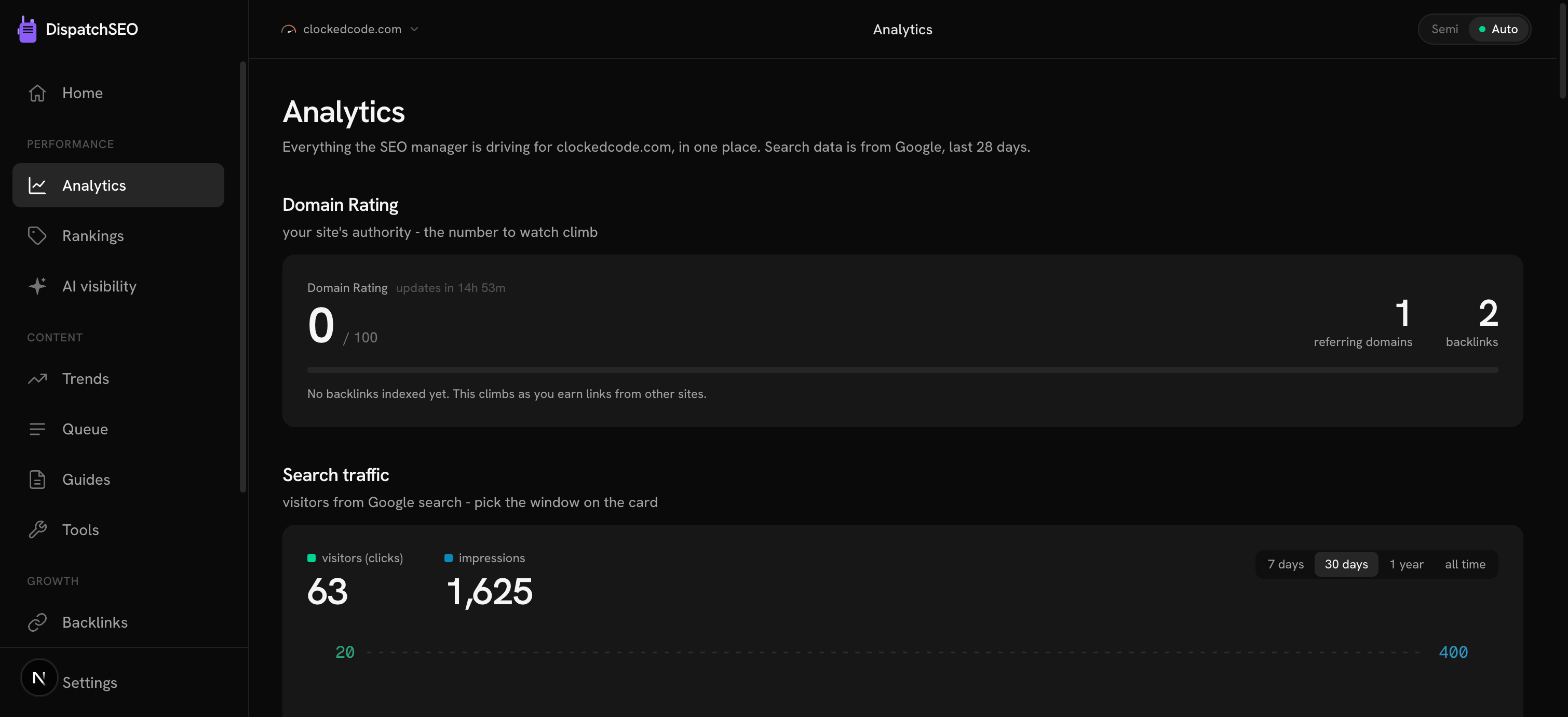
What it shows: Domain Rating, the search traffic chart with clicks,
impressions, average position and click-through rate (each with a
14-days-vs-the-14-before delta), traffic by page, a traffic-by-guide table,
a traffic-by-tool table, a keyword rankings table (top 20, with a link to
the full table), and top search queries. Nothing here is editable - it's
all read from Search Console and the nightly rank checks.
## Rankings
`/keywords` is the full keyword table behind the Analytics teaser: every
tracked keyword's current position, a 7-day and 30-day delta arrow, and a
30-day sparkline, next to its search volume and difficulty. A stat row
above it totals keywords tracked, how many sit in the top 10, the average
position, and how many moved up this week.
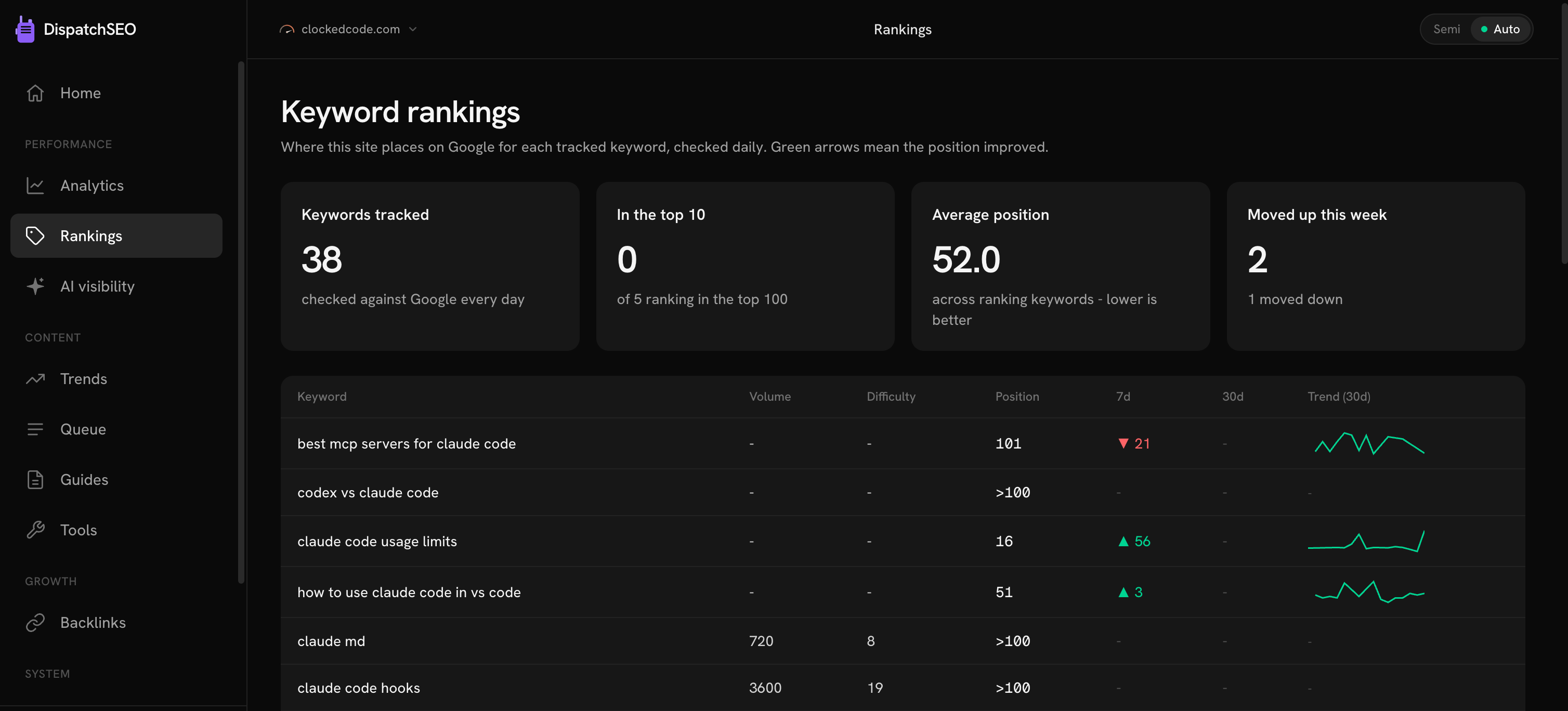
Read-only - keywords arrive from the weekly research run (or a manual
`/seo-research`). Open this page when you want to check whether one
specific keyword moved.
## AI visibility
`/ai` tracks whether AI assistants cite the site when they answer a
customer's question - the GEO half of SEO. It shows a stat tile per engine
(Google AI Overview, Claude, ChatGPT, Perplexity, Gemini), a citation-rate
trend over time, a "Cited instead of you" list of the domains AI answers
named when they didn't name this site, and a full query log you can expand
for the verbatim answer text and who got cited.
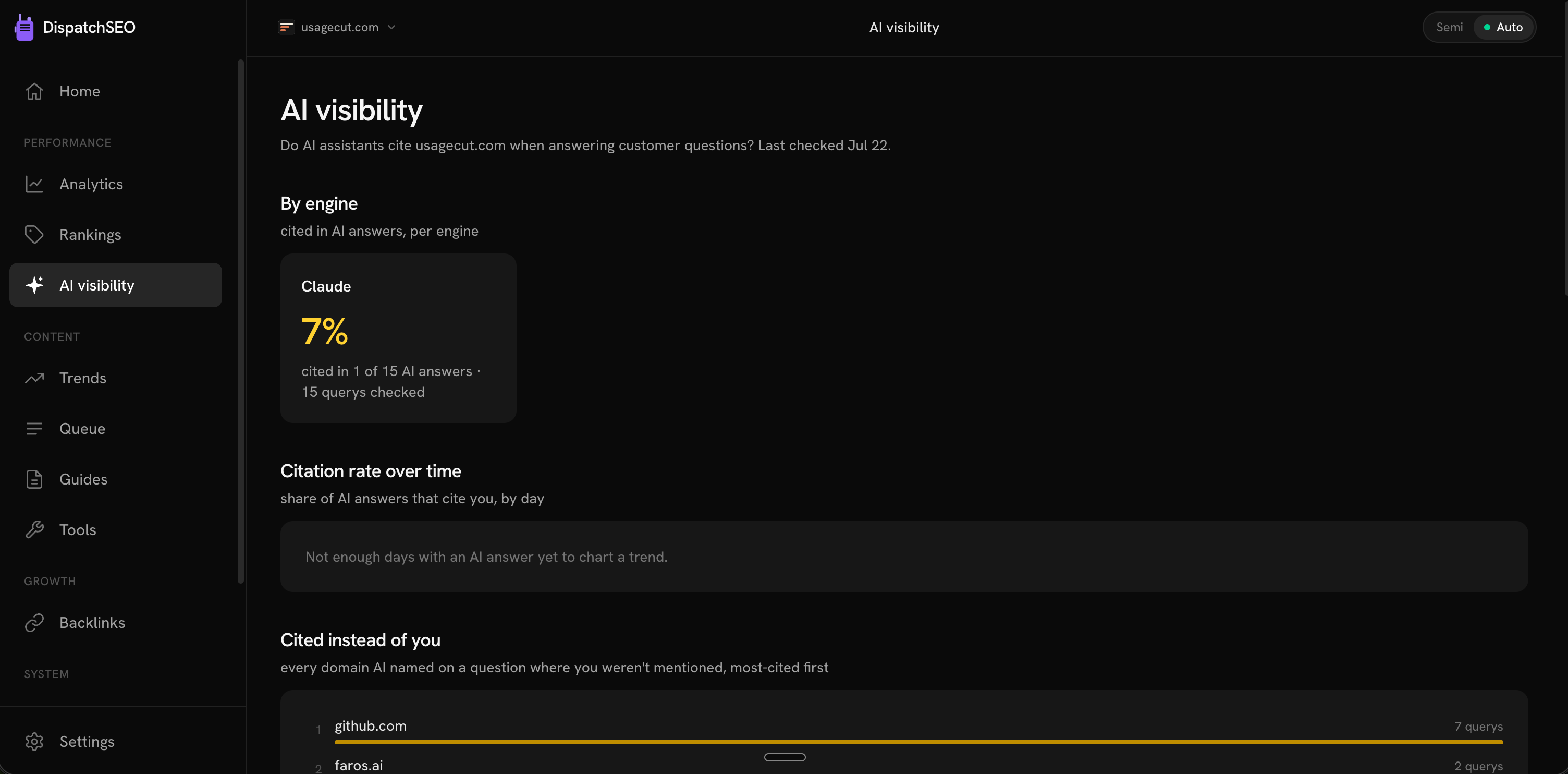
Google's AI Overview half rides the nightly rank check at no extra cost.
The other four engines come from a separate scan that runs weekly, every
Wednesday, on the owner's own Claude subscription.
## Trends
`/trends` is the two-stage trend radar in full. **On the radar** lists the
subjects a scan caught - launches, Reddit and Hacker News buzz, Google
Trends - as evidence, nothing more. Pick one and hit **Get takes** and 3-5
validated guide angles land under it in **Ideas - your call**, where you
add each to the queue or skip it. **In the build queue** shows approved
trend ideas and which morning each one ships; **Building now** and
**Shipped** track what's already in motion, the latter with the search
traffic each trend guide has earned.
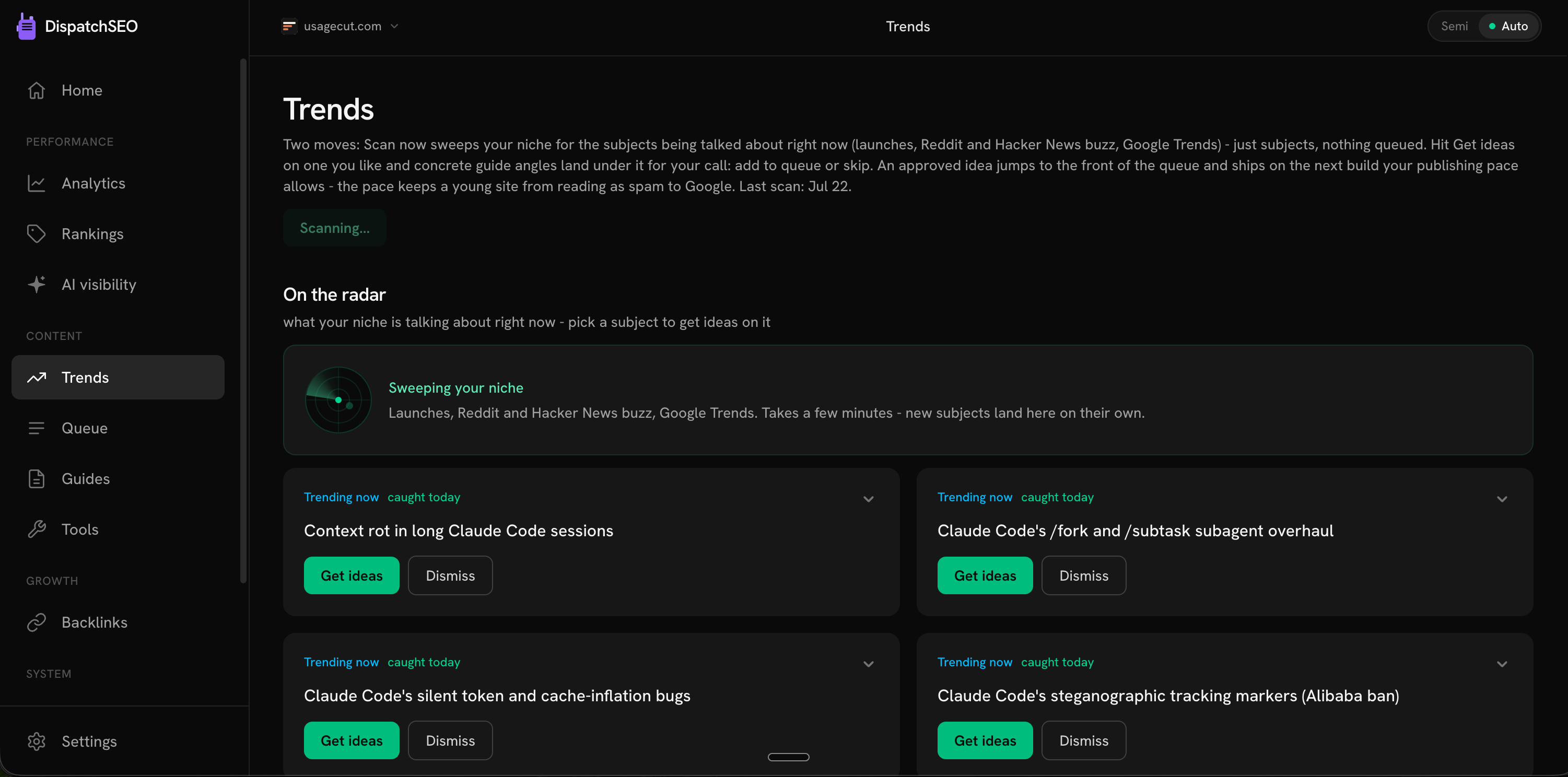
You do two things here: fire a scan (**Scan now**), and decide on what a
scan turns up. Hype decays by the day, so this is a page worth checking
often if you use it - nothing here builds without your approval.
## Queue
`/research` is the active build queue: the guide queue and the tool queue,
side by side, in build order - drag a row (or use the arrows on a narrow
screen) to reorder, and a pending row gets an inline approve button. A stat
row totals guides queued, tools queued, and how many have shipped so far.
An **Add your own idea** card lets you queue something the research run
didn't think of. A **History** section below keeps everything already
decided - shipped work and rejections, the latter with a **Restore**
button if you change your mind.
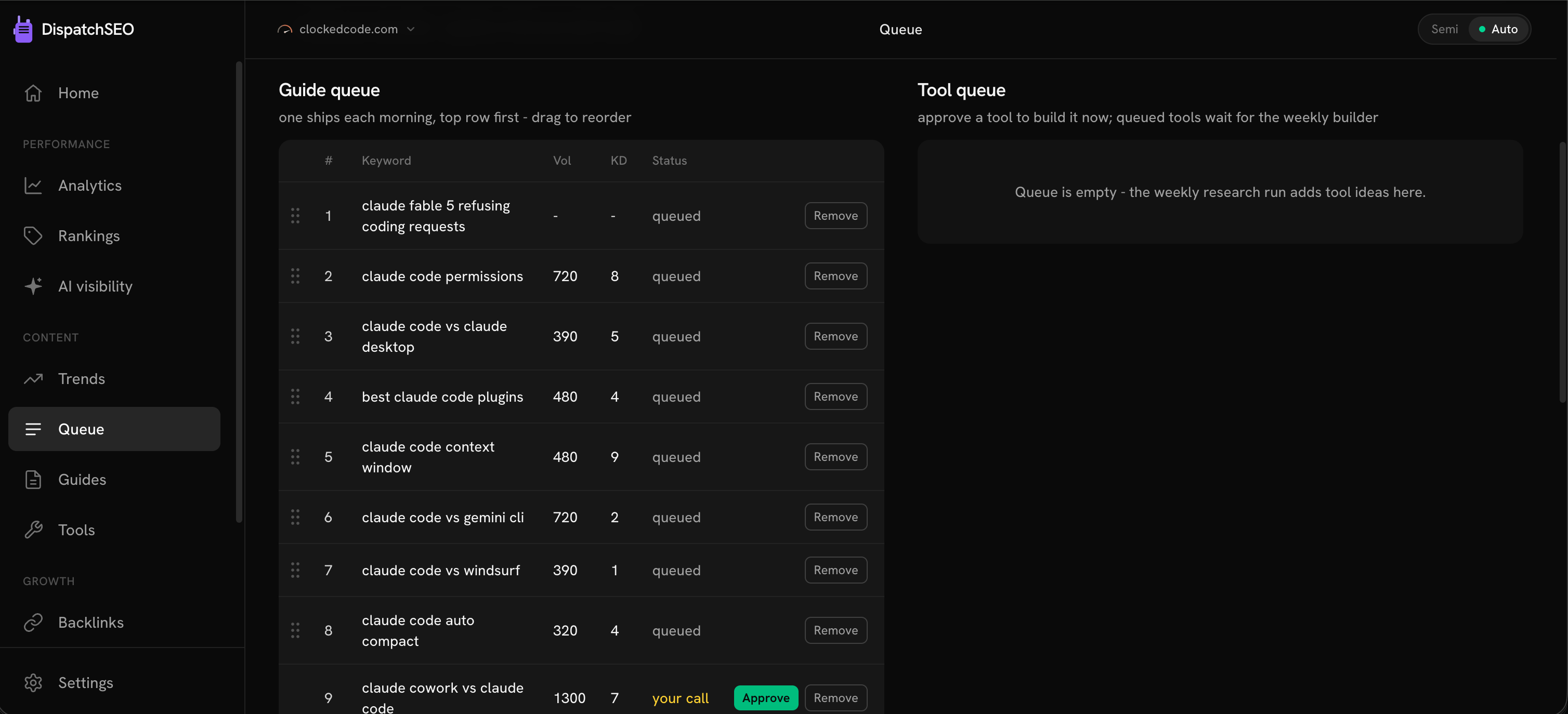
## Guides
`/pages` is the published ledger for guides only: every one shipped to the
site, newest first, with its Google/Bing index status and its clicks and
impressions over the last 28 days. A stat row totals guides published,
how many are indexed, and total clicks. Read-only - it fills in as the
daily builder ships pages.
## Tools
`/tools` is the same ledger for interactive tools, plus an **Add your own
idea** card (tool ideas can be queued directly from here, not only from
research). Same columns as Guides: index status, clicks, impressions.
## Backlinks
`/backlinks` is the backlink playbook: a curated list of the best free and
paid backlinks for this specific product, each with the exact copy to
paste, a link straight to the submission page, and (behind a disclosure)
step-by-step instructions plus a Claude for Chrome command that fills the
form for you. A progress meter tracks how many are done. Below that, a
**Do not buy** list names the traps that poison a backlink profile instead
of growing it, and a **Backlink prospects** table holds agent-researched
outreach targets from `/seo-backlinks`, where you track outreach status
per domain (a prospect stuck on "contacted" for 30+ days gets a stale-nudge
label).
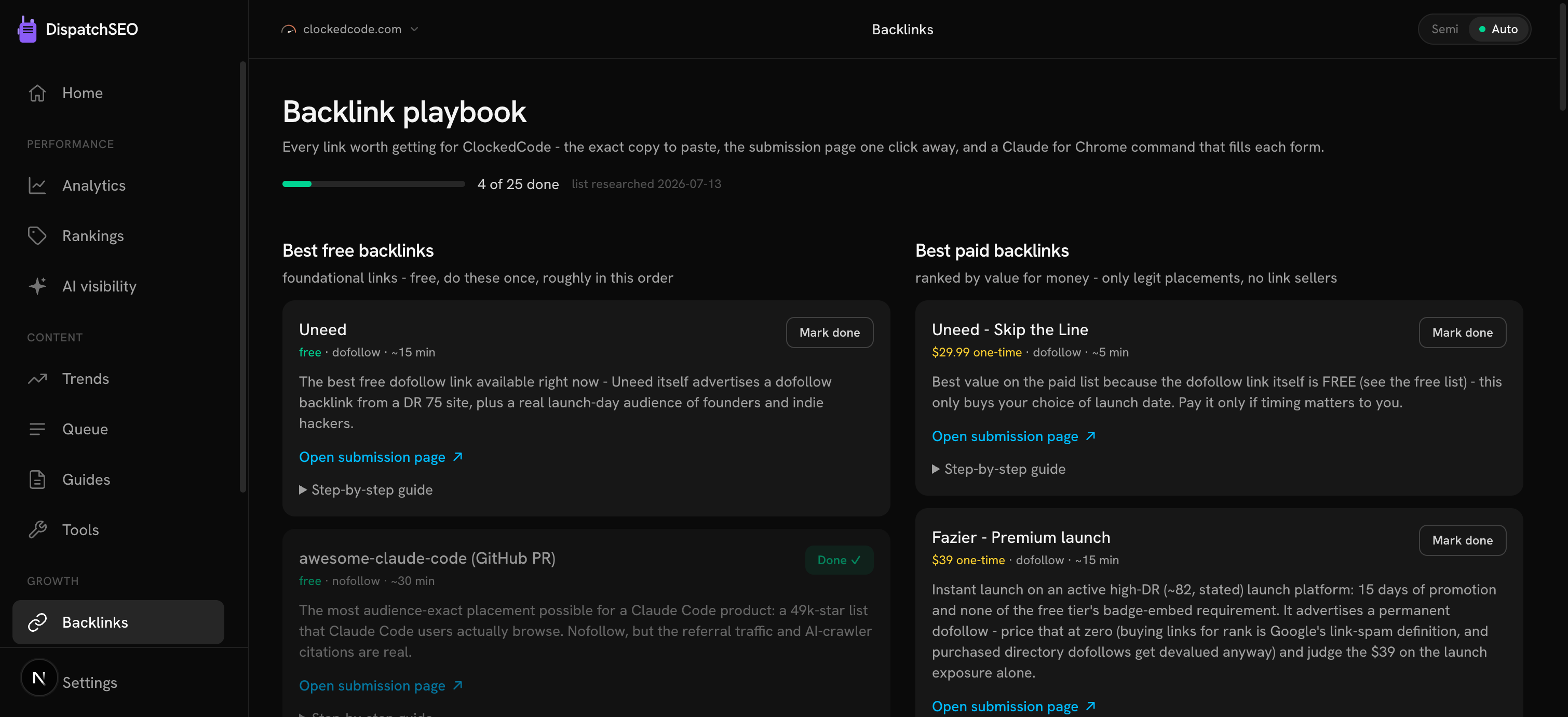
## Automations
`/automations` is where you decide how hands-off the pipeline runs - see
[Automations and modes](/docs/automations) for the full breakdown of every
automation and what Semi, Auto, and Custom mean.
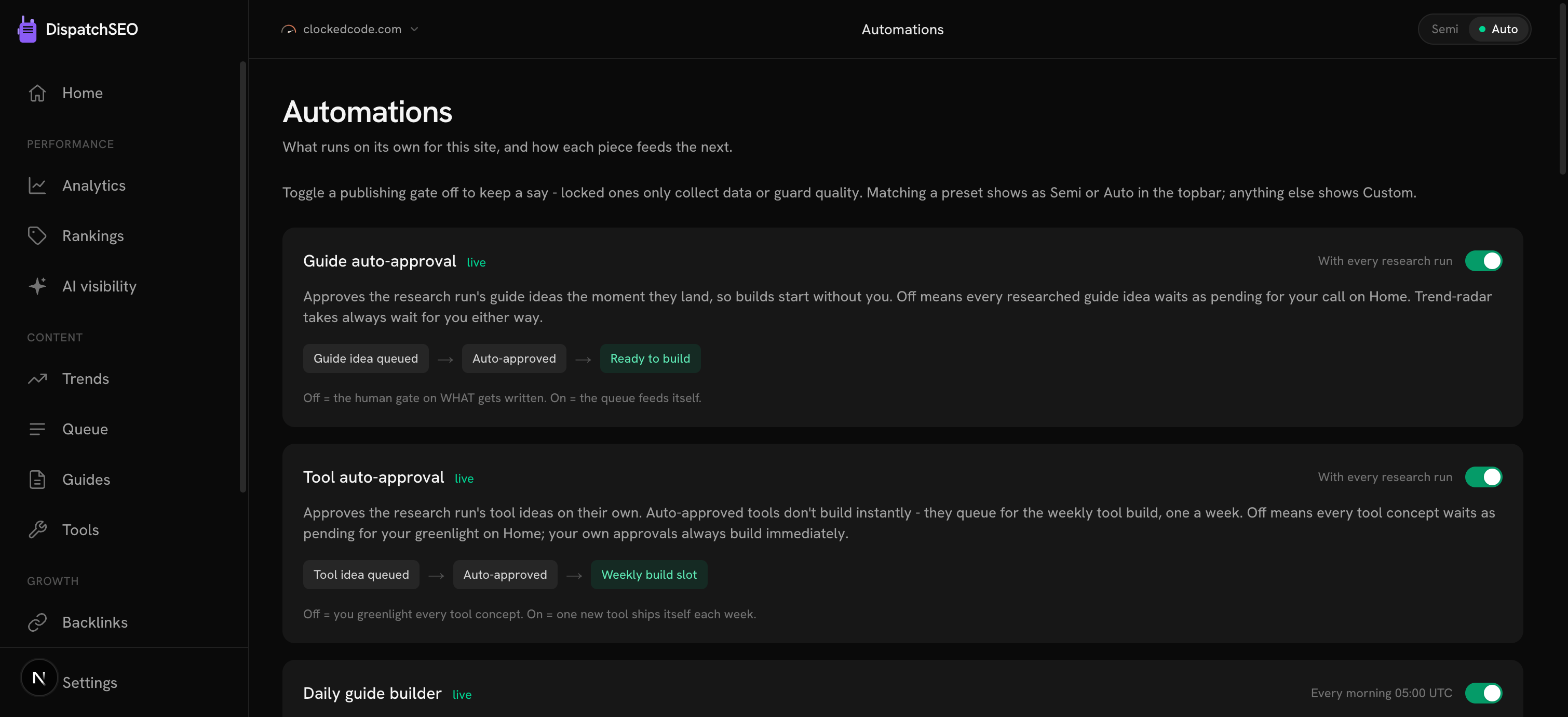
## Instructions
`/instructions` is a "show, don't tell" page. It renders two live wireframe
previews - a generated guide page and a generated tool page - painted in
the site's own actual theme colors, pulled from
`.dispatchseo/conventions.md`. A facts strip above them shows what your
own Claude Code found when it ran setup: theme tokens, voice rules, stack.
A **House rules** editor lets you tune the plain-English preferences every
build obeys (guide length, tone, and similar knobs) without touching code.
An **Also in the playbook** strip lists the smaller workflows - research,
backlinks, reporting, setup - with their steps and cadence.
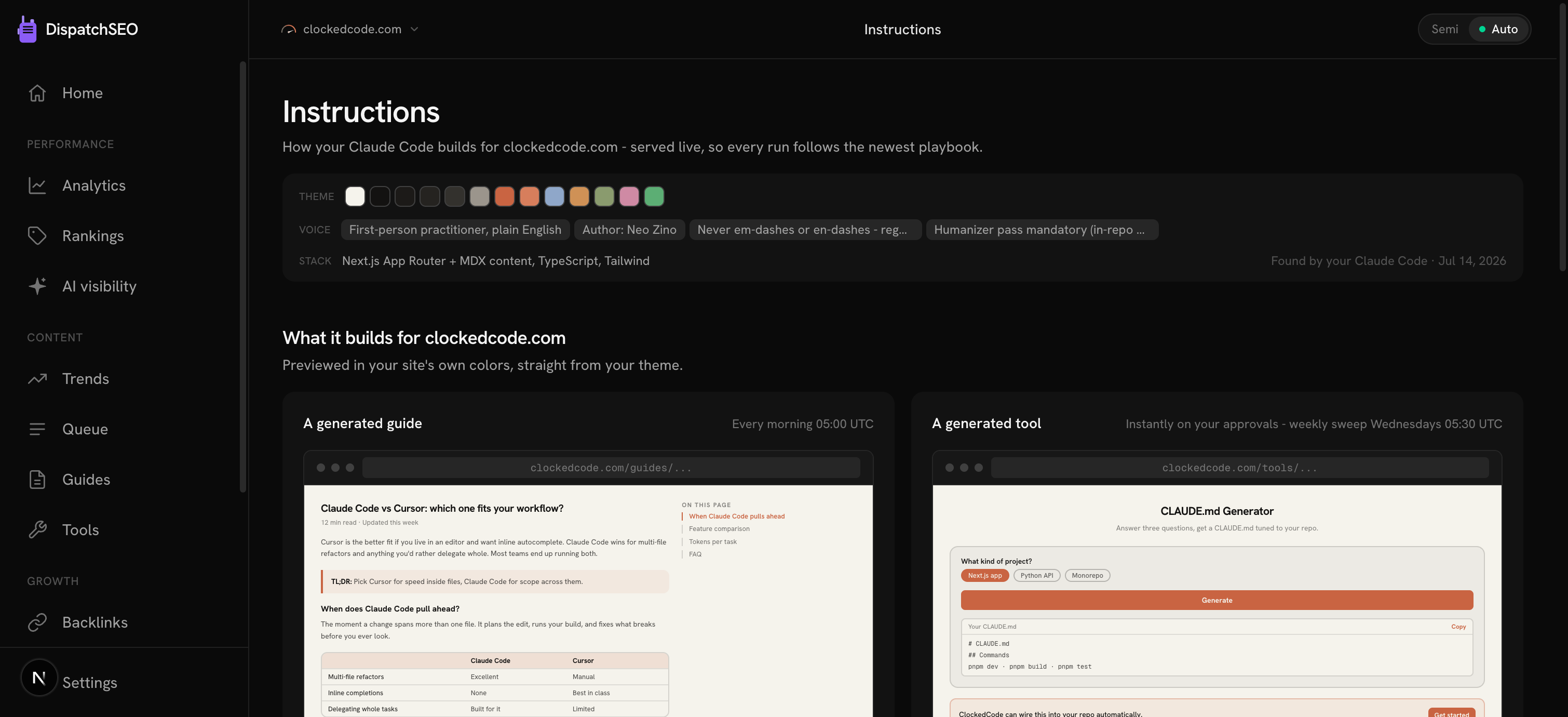
If setup hasn't run yet for this project, the page shows a **Not adapted
to this site yet** card instead, with the command to run.
## Search Console
`/google` connects the traffic data source. On a cloud project this is
one-click OAuth: press connect, sign in with the Google account that owns
the property, and the page shows every property that account can see plus
a live 28-day sample query proving the connection actually works. Switch
which property is tracked right there if the wizard guessed wrong.
On self-host, OAuth is usually not configured (it needs
`GOOGLE_OAUTH_CLIENT_ID` / `GOOGLE_OAUTH_CLIENT_SECRET` env vars this page
will ask for if you want it), so the normal self-host path is instead the
service-account JSON described in
[Google Search Console](/docs/search-console) and the "Connect Google
Search Console" setup card on Home - both keep working regardless of
whether OAuth is ever set up.
## What's new
"What's new" opens the public changelog in a new tab rather than a page
inside the dashboard - it's the same list the `get_changelog` MCP tool
returns and the `/changelog` page anyone can read. A banner on the
dashboard itself announces an unseen release the first time you load a
page after it ships.
## Settings
Footer
`/settings` shows the account you're signed in to, then this project's
facts (name, domain, GitHub repo, Search Console property, DataForSEO
connection, publish mode, site-launched date - several of these are
editable inline), the keyword data source picker, a Claude Code token
rotation control (cloud projects with the GitHub App installed), the
project's MCP key with its ready-to-paste connect command, a cron key
(self-host only - the key your scheduled jobs use to call this backend),
and a danger zone for deleting the project or the whole account. The home
project can't be deleted. With no project yet, the page still shows your
account and a way to close it.
## Billing
Cloud only
`/billing` shows your current plan, the three tiers with their site and
keyword limits, a DataForSEO usage meter for bundled-plan customers (with
a note if usage has slowed or capped rank checks for the rest of the
period), and links out to the Polar-hosted checkout and billing portal for
invoices, payment method, and cancellation. Self-hosted deployments have no
billing at all - both `/billing` and `/plans` redirect straight to
`/dashboard` there.
## Log out
A plain link, not a page - it signs you out, clears the dashboard cookie,
and resets the local analytics identity so a shared computer's next sign-in
never gets linked to the previous session.
## Two old URLs that still work
`/new` redirects to `/dashboard?add=1`, which opens the add-site dialog on
whatever page you land on - it used to be its own form. `/playbook`
redirects to `/backlinks`, which absorbed it. Both exist only so old
bookmarks and links keep working.
## Everything here also works from chat
Every one of these pages has an MCP equivalent - reading a table, approving
a suggestion, toggling an automation, reordering the queue, all of it is
also a tool call the agent can make from Claude Code chat. That parity is
a hard rule in this codebase: a dashboard feature without a matching MCP
tool is considered unfinished. See [MCP tools](/docs/mcp-tools) for the
full list.
---
# Automations and modes
> The three publish modes, all 12 automations, the publishing pace, and the quality bar every build obeys.
Source: https://dispatchseo.com/docs/automations
The [Automations](/docs/dashboard#automations) page is where you decide how
hands-off DispatchSEO runs. This page explains the modes, every automation
in the registry, the pace content actually ships at, and the quality bar
that keeps an unsupervised build honest.
## The three modes
The topbar's mode switch is really just a readout of five toggles
underneath it - there's no separate "mode" setting, only a combination of
flags that happens to match a name.
- **Semi** - the agent researches and builds, you approve and merge.
Researched ideas wait for your decision, but once you approve one, both
the guide builder and the tool builder still run themselves; you just
press Merge on the finished PR.
- **Auto** - fully hands-off. Researched ideas approve themselves, builds
run themselves, and a PR that passes every check merges itself. You
never have to open the dashboard for content to keep shipping.
- **Custom** - what the pill shows when your own mix of toggles doesn't
match either preset. You never pick Custom directly; it's just the
honest label for "something in between," and matching a preset again
(by hand or by luck) flips the pill back to that preset's name on its
own.
Switching down to Semi is instant - de-escalating trust never needs a
confirmation. Switching up to Auto asks you to confirm once, because from
that moment content starts publishing without a human reading it first.
## The 12 automations
Five of the twelve are toggles you control from this page. The other seven
are locked - either because they only collect data and publish nothing, or
because they're a safety gate every build has to pass through regardless of
mode.
| Automation | What it does | Schedule | Control |
| --- | --- | --- | --- |
| Nightly rank check | Checks this site's Google position for every tracked keyword. Top-30 rankings get checked nightly; everything gets a full top-100 sweep every Monday. | Nightly ~04:00 UTC, full sweep Mondays | Locked - always on |
| Nightly traffic snapshot | Pulls yesterday's clicks and impressions from Search Console into the Home graph. | Nightly ~04:00 UTC | Locked - always on |
| AI visibility check | Records whether Google's AI Overview cites the site (rides the Monday rank sweep at no extra cost) and runs a weekly scan asking the questions customers would ask an AI assistant, on the owner's own Claude subscription. | Google: with the Monday sweep. Claude scan: Wednesdays 06:00 UTC | Locked - always on |
| Weekly research run | A Claude research agent reads the product as it exists that week, derives keyword ideas, validates them through DataForSEO, and queues suggestions. Also fires the moment the queue runs dry, so a missed weekly run never starves the builder. | Mondays 06:00 UTC, plus automatically whenever the queue empties (at most once a day) | Locked - required |
| Trend radar | Two stages: **Scan now** finds the subjects your niche is talking about right now with evidence attached; **Get takes** turns a picked subject into 3-5 validated guide angles, pending your call. | On demand - your clicks only | Locked - manual-only |
| Guide auto-approval | Approves the research run's guide ideas the moment they land, so builds start without you. Off means every researched guide idea waits pending on Home for your decision. | With every research run | Toggle |
| Tool auto-approval | Approves the research run's tool ideas on their own - they still queue for the weekly tool build, not an instant one. Off means every tool concept waits for your greenlight; your own approvals always build instantly either way. | With every research run | Toggle |
| Daily guide builder | Builds the guide at the top of the queue into a finished post - template, live SERP gate, bespoke visuals, a humanizer voice pass - and opens a PR. Ships at most one guide a day and pauses while any SEO PR is still open. | Every morning 05:00 UTC | Toggle |
| Tool builder | Builds an approved tool idea through the tool pipeline. Your own approvals fire it instantly; auto-approved ideas wait for the weekly sweep. | Instant on your approval, weekly sweep Wednesdays 05:30 UTC | Toggle |
| Tool validation | The functional reviewer for tool PRs: builds the branch for production, exercises the tool in a real browser, and posts a pass/fail verdict as a label and comment. A pass authorizes the merge. | On every tool PR | Locked - required |
| Hands-off publishing | Merges PRs on their own once every automated check passes - build, preview deploy, code review, and (for tools) the live validation verdict. Off means green PRs wait for your Merge click on Home. | The moment checks finish, hourly sweep as backup | Toggle |
| Auto-indexing ping | Tells Bing and Yandex about every new page the moment it ships. Google ignores this protocol, so new pages instead get a one-paste "Get it on Google" request on Home. | On every merged content PR | Locked - always on |
## How fast content actually ships
The pace is flat and permanent: **at most one guide per UTC calendar day**,
site-wide - your own manual merge uses that day's slot exactly the same as
an automated one, and it never bursts to catch up after a quiet stretch.
It used to be different: publishing pace ramped up with the site's age on
a rolling weekly budget. That got replaced because the only real effect of
a rolling window was burst payback - a good launch week silenced the
builder for days afterward while approved ideas sat queued, which helps
no one.
The reason it isn't tied to site age is Google's own guidance: velocity
itself is neither a ranking signal nor a spam signal on its own - low
value-per-page at scale is, and that risk is carried by the sameness,
thin-content, and SERP-weakness gates below, not by a calendar. A few real
competitor products in this space ship a flat daily cap or a drip queue for
the same reason; none of them claw back budget after a good day. So: one
guide a day, steady, forever - the gates below are what actually keeps a
young site from reading as spam, not the pace.
## The quality bar every build obeys
Every guide and tool suggestion has to clear the same bar before it's
allowed to auto-approve, whatever mode the project runs in:
- **Volume floor**: search volume above 500/month, or above 300 only when
the search intent fits the product perfectly. This only applies when
volume data actually exists - DataForSEO-connected projects. A free
GSC-only project has no volume data, and "no data" is never treated as
"failed the bar."
- **KD ceiling, and it's dynamic** - it scales with the site's own
authority. At the start of every research run the agent checks the
site's DR-equivalent (0-100, refreshed weekly) and applies the matching
row:
| Site's DR-equivalent | Auto-approve zone | Pending zone (needs you) |
| --- | --- | --- |
| Under 10 (including unindexed) | KD under 10 | KD 10-20 with strong SERP weakness |
| 10-19 | KD under 15 | KD 15-25 with strong SERP weakness |
| 20-34 | KD under 25 | KD 25-35 with strong SERP weakness |
| 35+ | KD under 35 | KD 35-45 with strong SERP weakness |
A newer, lower-authority site is held to a stricter ceiling; the bar
loosens as the site earns more authority. "Strong SERP weakness" means
page 1 shows at least two of: forum or Reddit threads, raw gists or
repos, thin or outdated listicles, or docs-only results with no
guide-shaped competitor - the agent has to name which signals it saw.
Above the pending zone, an idea isn't proposed at all, just noted as a
future target once the site's authority grows.
- **Audience fit (the ICP test)** - a winnable SERP isn't enough. Every
proposal has to name who actually types that query and why that person
overlaps this site's buyer or user. Reader isn't always buyer: a
tutorial keyword can clear volume and KD while pulling in an audience
that will never need the product - the classic trap is writing about the
product's own tech stack, which attracts people building similar tech,
not people shopping for what it does. At most one tangential-audience
pick is allowed per research run, and only with a rationale for what it
does for the site.
And the hard rules that never bend regardless of mode: never push to
main - always a PR, always labeled `seo`; never fabricate data, ever; and
don't touch an existing page's voice or styling unless the suggestion is
explicitly type `update`.
## The sameness gate
Right before a guide PR opens, the builder calls `check_sameness` on the
finished draft. It's a deterministic, dependency-free check - plain string
math, no model judgment - that compares the draft against the site's last
8 published guides on three things:
- **Opening word-run** - an identical 6-word phrase at the start is the
clearest single tell that a draft reused a template.
- **Heading skeleton** - H2s compared with the keyword itself stripped
out, so two guides on completely different topics still get caught
sharing the same "What is X? / How does X work? / X vs Y" shape.
- **Stock phrases** - 5-word phrases repeated across most of the recent
catalogue, the prose crutches that harden into house style without
anyone noticing.
This exists because template convergence across a site's **own** back
catalogue - not against competitors - is exactly the scaled-content-abuse
fingerprint search engines watch for. It's invisible reading any one
article in isolation, and no commercial content tool checks for it either:
Surfer, Clearscope, and MarketMuse all benchmark a draft against
competitors, never against the site's own history.
A fail returns the exact offending strings, so the fix is mechanical: a
genuinely different opening, reworded and reordered headings, the named
phrases gone. The builder gets three honest rewrite attempts; if it still
fails after that, the topic itself substantially duplicates something
already published, and the idea gets parked pending for you instead of
forcing a duplicate through.
In Auto mode, content publishes without anyone reading it first - which
also means nobody is casually opening the dashboard to notice if something
breaks. Set up the two-minute failure email before you rely on Auto for
real, so a broken job reaches you instead of silently piling up. See
[Get emailed when something breaks](/docs/troubleshooting#get-emailed-when-something-breaks).
---
# Agent commands
> The slash commands and workflows the pipeline installs into your own repo, and why they stay so thin.
Source: https://dispatchseo.com/docs/agent-commands
Everything on the dashboard runs on DispatchSEO's own servers. This page is
about the other half: what the pipeline install actually puts into **your**
site's repo, and how you drive it from Claude Code.
## The six slash commands
Each one is a thin shim: it calls the `get_instructions` MCP tool with a
workflow name and follows whatever markdown comes back, word for word.
None of them contain the actual playbook.
| Command | What it does | When it runs |
| --- | --- | --- |
| `/seo-setup` | Writes `.dispatchseo/conventions.md` (the site facts file) from your repo's actual stack, theme, and voice, and personalizes the backlink playbook. | Once - right after install, and again any time the site changes enough to re-run it. |
| `/seo-research` | Researches SEO keywords from product knowledge, tracks winners, and queues suggestions. | Weekly, automatically - or run it yourself any time. |
| `/seo-build` | Builds the oldest approved guide suggestion into a PR. Guides only. | Daily, automatically - or on demand. |
| `/seo-build-tool` | Builds the oldest approved tool suggestion into a PR. Tools only. | On approval, or the weekly sweep - or on demand. |
| `/seo-backlinks` | Finds and queues backlink prospects for a keyword or competitor (takes an argument). | On demand. |
| `/seo-report` | Summarizes rankings, GSC trends, and next SEO actions. | On demand. |
## The four workflows with no slash command
These fire from a dashboard button or a schedule instead of something you'd
type - there's no matching command because nothing about them is meant to
be run casually from a terminal.
- **install** - the one-time pipeline install itself. Fired by the
one-line `setup.sh` command the dashboard shows, or by re-running it from
Home's install card. It has to exist before any slash command does, so
it can't be one.
- **trend-scan** - fired by the **Scan now** button on Home or Trends.
Deliberately no schedule - the owner decides when to sweep the niche.
- **trend-expand** - fired by **Get takes** on a picked radar subject. The
dashboard sends the subject's id and title along with the trigger.
- **geo-scan** - the weekly AI-visibility scan. Runs Wednesdays, with two
same-day retries later if the morning attempt gets dropped or delayed by
GitHub's scheduler.
## Why the shim design matters
Your repo never holds the actual pipeline logic - only triggers, secrets,
and these thin command files. The real playbooks - what "good" looks like,
the quality bar, the exact steps for each workflow - live in
`src/lib/instructions/` on the DispatchSEO backend, and every single run
fetches them fresh through `get_instructions` before doing anything.
That means improving a workflow is one edit on the backend, and every
connected project picks it up on its very next run - no commits to a
hundred connected repos, no version drift between sites, nothing for you
to keep in sync. Each response is stamped with the instructions version it
was built under, so if a run ever produces something odd, it can be traced
back to exactly which instruction set produced it.
## What install actually puts in your repo
- **`.github/workflows/seo-*.yml`** - the real GitHub Actions workflows:
the daily guide builder, the weekly tool build, auto-merge, tool
validation, trend scan, trend expand, the geo scan, weekly research, a
token-health check, and a canary that proves the PR machinery works.
- **`.github/mcp-ci.json`** - wires up the DispatchSEO MCP (this backend,
authenticated with your project's bearer token) alongside DataForSEO's
own MCP server, for workflows that need raw keyword and SERP research.
- **`.github/mcp-validate.json`** - adds only the Playwright MCP
(headless, isolated) for the tool-validation workflow, which needs to
click around a real browser rather than call DataForSEO.
- **`.claude/commands/seo-*.md`** - the six slash-command shims above.
- **`.dispatchseo/conventions.md`** - the site facts file: stack, build
command, content directories, design tokens, voice rules. This is what
turns generic instructions into "how this specific repo builds."
Two smaller files ride along outside the fetched pack on purpose, so a
pack update can never clobber them: `.dispatchseo/publish-paths` (the
allowlist auto-merge checks a guide PR against) and
`.dispatchseo/pipeline-version` (lets a re-install skip rewriting files
that are already current).
## Just talking to the agent
The slash commands exist for muscle memory and for triggering things from
a schedule - they aren't the only way in. The same MCP tools are already
loaded, so plain conversation works just as well:
- "Research keywords for me" - the same thing `/seo-research` does.
- "What should I write next?" - reads the current queue and its order.
- "How are we ranking?" - the same summary `/seo-report` produces.
## Alternate connect path: the Claude Code plugin
`.claude-plugin/marketplace.json` registers a `dispatchseo` plugin as
another way to connect, alongside the per-project `setup.sh` script and a
manual `claude mcp add`. It wires the same MCP server through two
environment variables - `DISPATCHSEO_URL` (defaults to
`https://dispatchseo.com`) and `DISPATCHSEO_MCP_TOKEN` (your project's
bearer token) - installed through Claude Code's plugin marketplace flow
rather than pasted as a one-line command. Useful if you'd rather manage the
connection as a plugin than run the setup script, but it connects to the
exact same MCP server either way.
---
# Concepts and glossary
> Every term DispatchSEO uses, defined plainly - what it means, where it lives, and why it exists.
Source: https://dispatchseo.com/docs/concepts
DispatchSEO invents a few words and borrows a few others. This page defines all
of them. If something in the dashboard or in your agent's output doesn't make
sense, it's probably here.
## The core objects
### Project
One managed website. A project owns its own keywords, queue, rankings,
settings, and its own MCP token.
One DispatchSEO install can run any number of projects. Which one a request
belongs to is resolved three different ways: the dashboard uses a cookie, the
MCP server uses the bearer token (the token *is* the site selector), and
scheduled jobs simply loop over every project.
### Suggestion
One idea in the queue. It's the unit everything else revolves around.
A suggestion has a **type** - `guide`, `tool`, `backlink`, or `update` - and a
**status** that moves in one direction:
`pending` → `approved` → `in_progress` → `done`, or `rejected` at any point.
Your agent files suggestions as `pending`. You approve them on the
[Queue](/docs/dashboard) page. The builder picks up `approved` ones in queue
order. Each carries a rationale (why this is worth doing) and a spec (the
brief: angle, outline, search-result notes).
### Keyword
A search term you're tracking. Carries search volume, difficulty, and intent
when you have a paid data source connected, and a status of `tracking` or
`paused`.
### Rank check
One measurement of where you placed for one keyword at one moment. Append-only
- a keyword accumulates a history you can see as a trend line. A null position
means you weren't in the top 100.
### Page
Something you published - a guide, a tool, a landing page. Recorded with its
URL, type, target keyword, and the pull request that shipped it.
A page is marked **live** only once its URL actually returns HTTP 200. Merged
is not the same as published, and the dashboard tells the two apart.
### Backlink prospect
A domain worth trying to get a link from. Moves through `new` → `contacted` →
`acquired`, or `rejected`.
## Content and quality
### Guide vs tool
The two things the pipeline builds. A **guide** is an article. A **tool** is a
small interactive widget - a calculator, a converter, a checker - that earns
links because it's useful rather than because it's persuasive.
Tools get an extra gate: a real headless-browser test that the thing actually
works before the PR can merge.
### Archetype
The shape of a guide - tutorial, comparison, data study, opinion, reference.
You can disable archetypes you don't want on the
[Instructions](/docs/dashboard) page.
### Quality bar
The rule set every research and build run obeys. A search-volume floor, an
audience-fit test, and a **difficulty ceiling that scales with your domain's
strength** - so a three-week-old site isn't sent after keywords it has no
chance at, and an established one isn't held back.
Plus the hard rules: never push to main, always open a labeled pull request,
never fabricate data.
### Sameness gate
A check that a draft doesn't read like a re-skin of your own existing posts.
It compares the opening word run, the heading skeleton, and stock phrases
against everything you've already published, and fails the draft if it
converges.
This is the fingerprint of scaled content that a competitor-only tool can't
see, because it requires knowing your corpus.
### Publishing pace
At most **one guide per UTC calendar day**. Flat, permanent, not tied to your
site's age.
The pace isn't what protects you from looking spammy - the quality gates are.
It exists so a queue of thirty approved ideas doesn't become thirty posts in a
week.
### Content preferences
Your overrides on the above: free-text house rules injected into every build,
archetypes you've disabled, and skeleton blocks (TL;DR, comparison table,
visuals, FAQ) you don't want.
## Automation
### Mode
How much you're in the loop:
- **Semi-automatic** - the agent researches and builds, you approve ideas and
merge pull requests. The default.
- **Automatic** - hands-off. Ideas self-approve, green PRs self-merge.
- **Custom** - shown when your individual toggles don't match either preset.
### Automation
One toggleable behaviour - the nightly rank check, the weekly research run,
auto-merge, and so on. Twelve of them, each with a schedule and evidence of
when it last ran, on the [Automations](/docs/automations) page. Some are locked
on because the product doesn't work without them.
### Journey stage
Where your site sits on the honest SEO timeline: `setup` → `foundation`
(months 1-2) → `first signals` (month 3) → `traction` (months 4-7) →
`compounding` (6-12+).
It's derived only from things that can't go backwards - first-ever events and
cumulative counts - so a bad week can never demote you.
## The agent side
### Playbook / instructions
The versioned procedure your agent follows for a given job. Ten of them:
`install`, `setup`, `research`, `build-guide`, `build-tool`, `report`,
`backlinks`, `trend-scan`, `trend-expand`, `geo-scan`.
These live on the backend, not in your repo. Your repo keeps only thin
commands that fetch the current playbook before acting - so improvements reach
every connected site on its next run without anyone updating anything.
### Conventions
Your site's facts, written by the agent during setup and kept in
`.dispatchseo/conventions.md` in your own repo: the stack, the build command,
where content lives, theme tokens, voice rules, example posts to imitate.
This is what stops the agent guessing at your project's shape every time.
### Site profile
Your product's identity in the lengths directories ask for - name, tagline
(60 characters), short description (160), long description (300-600),
categories, tags. The backlink playbook fills submission forms from it.
### Pipeline pack
The set of files an install writes into your repo: the `seo-*` GitHub Actions
workflows, the MCP configuration, the slash commands. Served from the backend
so it stays current.
### In-stack builder
On a self-hosted Docker install, a container running headless Claude Code that
polls for scheduled work. It exists because a machine at home has no public
URL for GitHub Actions to call back into, so the schedule has to run inside
your own stack instead.
## Data and tracking
### Keyword source
Where difficulty and volume numbers come from: `gsc` (free, Search Console and
Autocomplete only), `serpapi` (free tier, live search results), or
`dataforseo` (paid, full metrics). See [Keyword data
sources](/docs/keyword-data).
### GSC stats
A daily snapshot from Google Search Console - clicks, impressions,
click-through rate, average position, and your top queries and pages. Free, so
it's re-snapshotted every few hours.
### Domain rating
A 0-100 estimate of how strong your domain is, refreshed weekly. Feeds the
dynamic difficulty ceiling in the quality bar.
### AI visibility
Whether AI answer engines - Google's AI Overview, ChatGPT, Claude, Perplexity,
Gemini - cite your site when asked questions you should own. Sampled on a
schedule and recorded per engine, along with which domains got cited instead
of you.
### Trend topic
A subject the trend radar caught being talked about right now - not yet a
guide idea.
The radar runs in two stages on purpose. Stage one finds subjects with
evidence (why now, what signals, which sources). Stage two takes one subject
you picked and expands it into three to five concrete, validated angles. This
keeps the noisy step cheap and the expensive step deliberate.
### Cron run
A logged execution of a scheduled job. Failures raise a banner on the
dashboard and send an email. Read [Schedules and jobs](/docs/schedules) for
what runs when.
## Setup
### Install progress
The six-step checklist stamped while your agent installs the pipeline:
workflows → adaptation → repo settings → content home → site facts → research.
It's what the wizard's live progress screen is reading.
Finishing all six is not the same as being installed - a separate,
stricter check verifies the work before the dashboard unlocks.
### Project key
The per-project bearer token your agent uses to reach the MCP server. Viewable
and rotatable on the Settings page. Anyone holding it can read and change that
project's data, so treat it like a password.
### Cron secret
The shared secret scheduled jobs present when calling the backend. Generated
during setup and stored in the database.
## Next
All 52 tools, grouped by what they touch.
Every page, and what it's for.
How the pieces fit together.
---
# MCP tools
> Every tool the DispatchSEO MCP server exposes - what it does, its parameters, and what it returns.
Source: https://dispatchseo.com/docs/mcp-tools
Everything below is the same server your agent already talks to. This
page exists so you can look up one tool's exact contract without asking
your agent to read the source for you.
## Overview
The server lives at **`/api/mcp`** over streamable HTTP - no SSE, no
Redis, one endpoint for every connected site. What tells your project's
data from anyone else's is the bearer token you connect with: the token
**is** the tenant. There's no separate "pick a project" step and no way
for one token to see another project's rows.
Every tool returns pretty-printed JSON as its response text, so your
agent gets structured data back, not prose to parse. A call that fails
comes back as an error with a plain-English message - usually naming the
actual fix (a missing credential, a cooldown, a bad id) rather than a
raw database error.
The MCP is a door to **state**, not a research or writing tool. It reads
and writes the suggestions queue, tracked keywords, published pages, GSC
stats, and backlink prospects - the same tables the dashboard reads and
writes. It does not call DataForSEO on your behalf and it does not
generate content: your agent does the thinking, using its own research
tools (including DataForSEO's own MCP server, if you run one) plus the
two thin research primitives below - `check_serp` and `suggest_keywords`
- that route through whatever keyword source your project is set up
with.
Parity is the rule that keeps the two faces of the product honest:
anything the dashboard can do, your agent can do here, and vice versa.
If a dashboard screen doesn't have a matching tool on this page, that's
a gap worth reporting, not a feature you should expect to live without.
### Connecting
Your dashboard's Settings screen shows a ready-to-paste `claude mcp add`
command with your project's slug, domain, and key already filled in -
copy that one rather than typing this by hand:
```bash
claude mcp add dispatchseo- /api/mcp \
--transport http --scope local \
--header "Authorization: Bearer "
```
`--scope local` pins the connection to the repo folder you run it in, so
a second connected project never leaks into an unrelated repo and starts
answering for the wrong site.
Claude Code on Windows has a long-lived bug where a configured
`--header` is stored and `claude mcp list` reports Connected, but real
tool calls go out with no Authorization header at all. The key can ride
in the URL instead - `/api/mcp?key=` - which
survives that bug. The dashboard hands you this exact form on Windows,
no `--header` involved.
## Suggestions queue
The queue is the heart of the product: every idea - guide, tool,
backlink, or update - starts here as `pending`, and a build workflow
only ever touches what the owner (or auto-approve) moved to `approved`.
### `get_suggestions`
Lists items in the queue. Defaults to `approved` - which is what a build
workflow asks for when it wants to know what to work on next. Items come
back in build order (front-placed ideas first, then oldest first), so a
workflow can simply take the first one.
One of `pending`, `approved`, `rejected`, `in_progress`, `done`.
Defaults to `approved`.
Filter to `guide`, `tool`, `backlink`, or `update`.
Returns the matching rows, sorted in build order.
### `propose_suggestion`
Adds one new idea to the queue, normally landing as `pending` for the
owner to decide on the dashboard. Use it after research - one call per
idea.
`guide`, `tool`, `backlink`, or `update`.
The idea's title.
The keyword this idea targets.
Monthly search volume, if known.
Keyword difficulty, if known.
Why it's worth doing - volume, KD, intent, the gap it fills.
A free-form brief: an outline/angle/SERP notes for a guide, the
functionality for a tool, the target url for a backlink. A take
grown from one specific viral post can add `spec.seed_url` (+
`spec.seed_stats`) - the guide builder writes from that source
directly: credits it, pulls real quotes, embeds it, then covers
what the original missed.
`research` (the default), `trend-scan`, or `manual`. Trend
workflows must pass `trend-scan` - it's what puts the idea on the
Trend radar with the owner-only approval gate. `manual` is only for
ideas the site owner dictated in the current conversation
("add a guide about X"), never for an autonomous run.
Only from the trend-expand workflow - groups this take under its
radar subject.
Skips the pending gate and lands the idea straight in the build
queue. Only takes effect when `source` is `manual` - an autonomous
run passing `approved:true` without `source:"manual"` still lands
`pending`.
`front` or `back`. `front` means "do this one next" - since guides
ship one per morning, front means tomorrow.
`now` fires the tool builder immediately instead of queueing. Only
has an effect for `type:"tool"` combined with a manual approval.
Returns the created row, or `{ note, suggestion }` when front-placement
or an instant build changed what happened.
### `update_suggestion`
Updates a suggestion's status and/or attaches a PR url. A build workflow
marks an item `in_progress` when it starts and `done` with
`result_pr_url` when the PR opens.
An agent asking for `status:"approved"` normally lands as `pending`
instead, so the owner still decides on the dashboard - the response
says so, and that's success, not a failure to retry. Passing
`decided_by:"owner"` is the one thing that unlocks a real approval: it
means the site owner just made the call in this conversation ("approve
that one", "reject it", "restore the X idea"). Never set it from an
autonomous workflow run. Owner-approving a trend-scan idea also puts it
at the front of its queue, and owner-approving a rejected item restores
it from History.
The suggestion to update.
`pending`, `approved`, `rejected`, `in_progress`, or `done`.
Approving/rejecting stamps `decided_at`; `done` stamps
`completed_at`.
The opened PR's url, typically paired with `status:"done"`.
`owner` or `agent`. Only `owner` bypasses the approval coercion
above.
Returns the updated row, with a `note` when the approval was coerced to
pending or when a tool build was (or wasn't) dispatched.
### `reorder_queue`
Owner only
Rewrites the build order of one queue - the MCP side of the dashboard's
drag-to-reorder. Guides and tools are separate queues. Only use this
when the site owner asked to re-prioritize in the current conversation,
never from an autonomous run.
`guide` or `tool`.
The queue's approved suggestion ids, in the exact order they should
build (first id builds next). Read the current order with
`get_suggestions` first. Ids you omit keep their place after the
ordered set.
Returns `{ reordered: true, group, order }`.
### `build_suggestion_now`
Owner only Tools only
The dashboard's "Build now" button. Approves a **tool** suggestion (if
it isn't already) and wakes the tool builder immediately. Guides have no
instant build, by design: at most one guide ships per day so the
publishing pace stays steady instead of bursty, so a guide id is instead
approved and placed at the front of its queue - the next daily build
picks it up, tomorrow at the latest. Only use this when the site owner
explicitly asked for it in the current conversation; autonomous runs
queue via `propose_suggestion` and wait.
The suggestion to build now.
Returns `{ ok: true, message }` for a tool, or `{ ok: true, note }` for a
guide (explaining the front-of-queue placement instead).
### `check_sameness`
The pre-publish sameness gate: does this draft read like the guides this
site already published? Pass the full guide markdown (frontmatter and
code fences are ignored) plus its primary keyword, and the backend
compares it against this project's most recently published guides for an
identical opening, a heading skeleton that's the same once the topic is
removed, and stock phrases repeated across the catalogue. A failure
means rewrite the flagged elements and call again - never loosen the
check. It fails open (passes, with a note) if the published corpus can't
be read, so a network or database hiccup can never block a build.
The full draft guide.
Stripped out of both the draft and the published corpus before
comparing, so two guides about different topics with the same
shape still get caught.
Returns `pass` (boolean), `compared_against` (how many published guides
it checked against), and `flags` - the exact offending strings when it
fails.
## Keywords and rankings
The tracking set is separate from one-off research: what you track here
is what the nightly rank cron checks going forward.
### `track_keywords`
Upserts keywords into the tracking set, matched by keyword text. The
rank cron checks every tracked keyword daily while it ranks in the top
30, plus a weekly full-depth sweep for everything else. Fields you omit
are left as-is on existing rows.
On the bundled cloud plan, tracked-keyword slots are capped per plan -
but only **net-new** keywords count against it. Updating the metrics on
an already-tracked keyword is always allowed, even at the cap.
One object per keyword: `keyword` (required), `volume`, `kd`, `cpc`,
`intent` (all optional).
Returns `{ upserted, keywords }`.
### `get_rankings`
Rank history for tracked keywords over the last N days. Each keyword
comes back with its current position, its earliest position in the
window, and the change between them (positive means it improved, moving
toward #1).
`checked:true` with `position:null` means confirmed not in the top 100.
`checked:false` means the keyword was never successfully checked in this
window - unknown, not "not ranking".
Scope to one keyword instead of every tracked one.
Window size. Defaults to 30.
Returns each keyword with its position history, best-position-first;
keywords outside the top 100 are ordered last, by search volume, so the
tail reads as an opportunity list.
## Published pages
### `log_page`
Records a published page, matched by url (re-logging updates it). Call
this right after a PR opens, not after it merges - the system already
treats a freshly logged page as "awaiting publish" until its url first
serves HTTP 200, which is verified automatically.
Must be on this project's own domain.
Page title.
`guide`, `tool`, or `landing`.
The page's main target keyword.
The PR that shipped this page.
ISO date/datetime. Only pass this when backfilling a page that
published earlier - omit it for a page shipping right now. The
daily publishing pace reads this field, so a backfill stamped "now"
wrongly eats today's build slot.
Returns the upserted page row.
### `get_pages`
Lists every published page. Call this before writing new content, to
pick 2-3 existing pages to link to and to avoid covering a topic twice.
Takes no parameters.
Each row carries `live:true|false` - `false` means the page was logged
(its PR opened) but its url hasn't served 200 yet. Don't link to
not-yet-live pages.
### `mark_indexing_requested`
Reports the outcome of a Search Console "Request indexing" browser
session, so the dashboard's Get-it-on-Google card clears itself. Urls
must match already-logged pages (`get_pages`); anything left over (daily
quota hit, login wall) just stays on the card - omit it rather than
guessing.
Pages you clicked Request indexing for.
Pages the inspection showed were already on Google.
Returns `{ requested_marked, already_indexed_marked, unknown_urls }` -
`unknown_urls` is any url that matched no logged page, so it wasn't
actually cleared.
## Traffic and stats
### `get_site_stats`
Google Search Console snapshots for the last N days, newest first, plus
a trend summary (totals and first-half vs second-half deltas for clicks
and impressions). For the combined dashboard-style view (traffic,
rankings, and per-page numbers in one call), see `get_overview` under
Dashboard parity instead.
Window size. Defaults to 28.
Returns `{ summary, snapshots }`, plus a `note` explaining an empty
window (Search Console not connected yet, access granted but no sync
yet, or an unreachable property) instead of letting zeros read as a real
traffic story.
## Backlinks
Backlink prospects (domains worth pursuing) and the curated backlink
playbook (directories and paid placements) live together here - both
feed the same Backlinks screen on the dashboard.
### `add_backlink_prospect`
Adds a domain worth pursuing a link from, status `new`. Deduplicates by
normalized domain (case-insensitive, `www.` stripped) - a repeat call
returns the existing row with `already_queued:true` instead of creating
a second one.
The prospect's domain.
The specific page worth targeting, if you have one.
Why it's relevant, or where it was found.
The prospect's own DR, if known.
Returns the new row, or the existing one with `already_queued:true`.
### `get_backlink_prospects`
Lists backlink prospects, newest first.
`new`, `contacted`, `acquired`, or `rejected`.
### `update_backlink_prospect`
Moves a prospect through its pipeline: `new` to `contacted` to
`acquired` (or `rejected`). Call it after outreach actually happened or a
link actually went live.
The prospect to update.
`new`, `contacted`, `acquired`, or `rejected`.
### `get_playbook`
The curated backlink playbook: free directories and ROI-ranked paid
placements, with this project's done/skipped progress. Without a slug
you get the compact list; with one, the full submission brief -
prefilled field copy personalized from the site profile, plain-English
steps, gotchas, and a paste-ready `@browser` command.
An item's slug (from the compact list) for its full brief.
### `set_playbook_status`
Marks a playbook item `todo`, `done`, or `skipped` - the same checkbox
as the dashboard's Backlinks screen. Call it after a submission actually
went through (e.g. the `@browser` session finished), not before.
The playbook item (from `get_playbook`).
`todo`, `done`, or `skipped`.
## Research primitives
Two of these work in every mode with no credentials
(`suggest_keywords`, `check_serp` when a free SerpApi key is connected);
the rest need a connected SERP/DataForSEO account of some kind - your own,
or the platform's bundled plan on cloud.
### `check_serp`
Fetches live Google organic results for a keyword through the project's
connected SERP provider, billed to the project's own account or quota.
Use it to judge winnability before proposing content - page 1 full of
Reddit threads and thin posts is winnable, page 1 full of big brands
isn't. Unavailable in GSC-only mode.
30 checks/day when billed to the platform's shared DataForSEO account,
resetting at UTC midnight. Own-account and self-host projects aren't
affected. Use `track_keywords` for anything worth ongoing monitoring
instead of repeated ad-hoc checks - the rank cron checks tracked
keywords daily for free. SerpApi's own free tier is separately capped at
250 searches/month.
The keyword to check.
How many results to return, up to 100. Defaults to 10.
Returns `{ keyword, source, results, ai_overview }` - each result has
position, title, url, and domain.
### `get_domain_rank`
The site's cached Domain Rating snapshot (0-100 DR-equivalent, referring
domains, backlinks, spam score), refreshed weekly by a cron - never a
live paid call. Takes no parameters. A `null` dr means the domain isn't
indexed yet, or the cron hasn't run its first pass for this project.
### `get_dataforseo_usage`
This project's DataForSEO billing status: who it's billed to, month-to-
date spend against the platform's monthly budget (when applicable), the
projected month-end spend under the rank cron's current pacing, and
today's `check_serp` count against its daily cap. Takes no parameters. A
project on its own account (or self-host) isn't metered here - the spend
fields stay zero.
### `suggest_keywords`
Expands a seed keyword into related searches via Google Autocomplete -
free, works in every mode, no credentials needed. Returns real queries
people type, without volume numbers. Pair it with `get_site_stats`'s top
queries for seeds, then `check_serp` on the shortlist to judge
winnability.
The seed keyword to expand.
Up to 8 modifier words to combine with the seed.
### `keyword_ideas`
Expands seed keywords into related searches with real monthly search
volume and keyword difficulty, via DataForSEO. Works whenever the
project has DataForSEO access - its own account, or the platform's
bundled plan on cloud - so it's how bundled-plan projects get the
numbers the quality bar gates on. Batch multiple seeds in one call: each
call is one metered DataForSEO request regardless of how many seeds you
send.
1 to 20 seed keywords.
Max ideas returned, 1 to 200. Defaults to 100.
Returns `{ seeds, ideas }`, sorted by volume, highest first. Returns an
empty `ideas` list with a `note` (never an error) when the project has
no DataForSEO access or its monthly budget is spent - fall back to
`check_serp` and product judgment then.
## AI visibility
How AI answer engines see this site - the GEO half of the product.
### `get_ai_visibility`
Per-engine summary (queries checked, AI answers seen, citation rate), a
per-day trend, the latest verbatim answers, and a gap list of domains AI
cites on queries where this site isn't. Takes no parameters. Google AI
Overview data arrives automatically from the weekly rank sweep; the
other engines fill in only when a geo-scan workflow runs. Use the gap
list to pick what to write next.
### `record_ai_citations`
Writes geo-scan results: for each query asked of an AI answer engine,
whether an answer came back, whether it cited this site, and every
source it cited. Called by the geo-scan workflow after sampling each
query - `google_ai_overview` is cron-only and can't be written here.
1 to 100 entries. Each has: `engine` (`claude`, `chatgpt`,
`perplexity`, or `gemini`, required), `query` (required),
`has_ai_answer` (required), `cited` (required), `cited_url`
(optional), `answer_excerpt` (optional - a short verbatim quote so
the owner can read the real answer behind the number), and
`citations` (optional, up to 30 `{ domain, url, title }` sources).
Returns `{ recorded }`, the count written.
## Trends
The Trend radar is two stages: a scan finds trending subjects, then the
owner picks one to expand into guide-idea takes.
### `record_trend_scan`
Stamps the project's `last_trend_scan_at` with now. Takes no
parameters. Called by the trend-scan workflow itself at the end of every
run, found something or not - it backs the Trend radar's "Scan now"
cooldown, not something the owner calls directly.
### `propose_trend_topic`
Puts a trending subject on the Trend radar - a conversation the niche is
having right now, not a guide idea. Called by the trend-scan workflow,
once per shortlisted subject (up to 5 per scan). Deduplicates by title
across every status - if the subject is already on the radar, the
existing row comes back with a note instead of a duplicate.
The trending subject.
The trigger event and its date, leading the explanation.
Up to 8 threads/launches/trend lines actually seen.
Up to 8 vendor posts or threads that prove it.
The single most viral piece of content driving the subject - the
builder later writes from it directly (credit, quotes, embed).
That content's public numbers and date, e.g. "512k views, Jul 12".
### `get_trend_topics`
Lists radar subjects, newest first.
`new`, `expanding`, `expanded`, or `dismissed`.
### `update_trend_topic`
Moves a subject to `expanded` (the trend-expand workflow's last step) or
`dismissed` (housekeeping for subjects older than 14 days, or the owner
passing on one). `expanding` isn't settable here - that's what
`expand_trend_topic` does, since picking a subject to expand is the
owner's move.
The subject to update.
`expanded` or `dismissed` only.
### `trigger_trend_scan`
Owner only
The Trend radar's "Scan now" button. Wakes the project repo's trend-scan
workflow; subjects appear on the radar (`get_trend_topics`) a few
minutes later. Shares the dashboard's 30-minute cooldown - a refusal
means the radar is already current, don't retry. Only use this when the
site owner asked for a scan in the current conversation; the scan
workflow itself must never call this (it reports back through
`record_trend_scan` instead). Takes no parameters.
### `expand_trend_topic`
Owner only
The radar's "Get takes" button. Wakes the trend-expand workflow for one
subject; its takes land in the suggestions queue a few minutes later,
waiting `pending` like every trend idea. Refuses dismissed subjects and
repeats within a 30-minute cooldown (per subject) - a refusal means
takes are already on their way. Only use this when the site owner picked
the subject in the current conversation.
The radar subject to expand.
## Site config and profile
### `get_site_profile`
Reads the site profile the backlink playbook personalizes from - name,
tagline, descriptions, categories, tags. Takes no parameters. Returns
`null` if `/seo-setup` hasn't written it yet.
### `set_site_profile`
Writes the site profile that prefills every directory submission and
`@browser` command. Called by the `/seo-setup` command after researching
the product.
The site's name.
Must be a valid url.
Up to 60 characters.
Up to 160 characters.
300-600 characters is the target directories in the playbook
expect (the field itself accepts 100-700).
1 to 5 categories.
1 to 10 tags.
### `set_gsc_property`
Corrects which Google Search Console property this project tracks.
Onboarding guesses `sc-domain:`, but plenty of real properties
are URL-prefix (`https://example.com/`) - if GSC data never arrives and
access checks keep failing, the guess was probably wrong.
The property exactly as Search Console names it.
### `set_github_repo`
Cloud only
Picks which repository of the project's GitHub App installation the
content pipeline lives in. Validated against the installation's live
repo list - a repo outside the installation is refused. Self-host
connects its repo during project creation instead, so this tool fails
there on purpose.
`owner/repo`, must be part of this project's App installation.
### `get_project`
The project this token belongs to and how it's set up: domain, mode,
the effective auto-approve flags, keyword source, whether a SERP
provider and Search Console are connected, whether this repo has its own
DataForSEO MCP server, the content-pipeline repo, and whether one-tap
merge is available. Takes no parameters. Worth calling first in a
session, since it tells you which of the other tools will actually work.
Secrets are never returned - credentials stay dashboard-only.
## Dashboard parity
These read tools call the exact same modules the dashboard's screens
render from, so the two views can never drift apart.
### `get_overview`
The dashboard Home/Analytics view in one call: 28-day traffic totals,
live last-24h numbers, domain rating, the keyword ranking table, top
search queries, and per-page traffic for every built guide and tool -
plus the journey (which SEO stage the site is in, what to expect next)
and this week's real movement. Takes no parameters. Start here for
"what's going on with my SEO" - it's the whole picture. For raw daily
GSC snapshots use `get_site_stats`; for rank history use `get_rankings`.
### `get_activity`
What the SEO manager has been doing. Takes no parameters. Returns
`today` (a granular checklist since UTC midnight, each publish/approval
named) and `week` (the last 7 days, aggregated into counts).
### `get_automations`
The automations registry: what runs on its own, on what schedule, and an
evidence line per automation (last run, last snapshot, last build) drawn
from the data it actually writes. Takes no parameters. Answers "is the
nightly rank check running?" or "when does the guide builder fire?".
### `get_cron_health`
The latest run of this project's background jobs - deploy-check, the SEO
GitHub workflows, the secrets canary, and (self-host only) the
platform's own instance-wide crons too. Takes no parameters. Each entry
carries ok/failed, error strings, and whether the job is stale. An empty
result means no job has ever logged a run; an entry with
`update_available:true` isn't a failure, just an installed pipeline pack
a version behind.
### `mark_cron_fixed`
Clears a background-job alert after you've actually fixed and verified
the underlying problem - logs a synthetic ok run for that job. Call this
only after re-running the workflow (or hitting the endpoint) and seeing
it succeed; if the problem persists, the next real failure or missed
window re-raises the alert on its own.
The exact job name from `get_cron_health`, including any
`--` suffix. Fails if that job has no active alert.
### `get_next_actions`
Everything waiting on a human decision: suggestions awaiting approval,
approved items waiting for their build, builds in progress, open SEO PRs
ready to merge, and pages waiting for a Search Console "Request
indexing" click. Takes no parameters.
Returns `{ awaiting_approval, approved_waiting_build, building_now,
open_seo_prs, indexing_queue }` - the indexing queue comes with a
paste-ready `@browser` command; report the outcome with
`mark_indexing_requested`.
### `merge_pr`
Squash-merges an open SEO PR on the project's repo - the dashboard's
one-tap merge. Only merge PRs listed by `get_next_actions`, and only
when the user asked for it or its checks are green. Requires the
server's merge token to be configured; without it, this fails and the
PR page link is the fallback.
The PR number to merge.
### `get_changelog`
What shipped in DispatchSEO itself, newest first - the same list the
dashboard shows at `/changelog`. This is about the product, not your
site's own activity (for that, use `get_activity`).
Trims the list, 1 to 50. Defaults to 10.
## Instructions and install
The install/setup pipeline is served as content, not hardcoded into any
repo - so an instructions update reaches every connected project's next
run without touching a single user repo.
### `get_instructions`
The operating instructions for one SEO workflow, personalized to this
project. Automations and agents must call this before running a
workflow and follow the returned markdown exactly - it's the live
version of the playbook.
`install`, `setup`, `research`, `trend-scan`, `trend-expand`,
`build-guide`, `build-tool`, `report`, `backlinks`, or `geo-scan`.
Returns `{ project, version, workflow, summary, markdown }`. The
`project` field names who this token belongs to - confirm it matches
the site you mean to operate on before following the playbook, since a
mismatched token would act on another site's data. Site-specific facts
live in the repo's `.dispatchseo/conventions.md`, which the setup
workflow writes.
### `get_pipeline_pack`
The repo-side shim files (GitHub workflows, MCP configs, slash
commands), personalized to this project. Call it with no arguments for
the manifest - a list of file paths only, since the full pack overflows
one response - then call it again with a path to get that one file's
content, writing each one at a time.
A path from the manifest. Omit for the manifest itself.
### `mark_install_step`
A progress ticker for the owner's wizard finale - stamp one step the
moment you finish it, so the checklist the owner is watching ticks in
real time instead of sitting dark for 20-60 minutes. Purely
informational: it unlocks nothing (`mark_pipeline_installed` does that),
and a failure here must never stop the install.
`workflows`, `adaptation`, `repo_settings`, `content_home`,
`site_facts`, or `research`. Call once per step, right after
finishing it.
### `mark_pipeline_installed`
Stamps this project as pipeline-installed. Called once, by the install
workflow's final step, only after its own verification checklist
passes. Takes no parameters. This call unlocks the owner's dashboard, so
it fails loudly - with the specific problem named - rather than
stamping an unverified install.
### `set_conventions`
Mirrors the repo's `.dispatchseo/conventions.md` site facts to the
backend, so the dashboard's Instructions page can show how DispatchSEO
adapted to this site. Called by the setup workflow right after writing
the repo file, with the complete current facts - this is a full
replace, not a patch.
What the site/product is.
The repo's tech stack.
e.g. `pnpm`, `npm`.
How to build/typecheck the repo.
Where guide content lives.
How a new tool page gets wired in.
`{ name, value }` pairs - include resolved color values (hex/oklch)
where the token is a color, so the dashboard can render real
swatches.
Font names in use.
Style/voice rules content should follow.
Example guide urls or paths worth imitating.
Example visual references.
An existing tool page worth using as a pattern.
How analytics is wired on the site.
Anything else worth recording.
### `get_conventions`
The site facts last mirrored via `set_conventions`, with `updated_at`.
Takes no parameters. `null` data means the setup workflow hasn't run
yet - the repo's own `.dispatchseo/conventions.md` remains the
agent-facing source of truth; this copy exists for the dashboard and for
agents working without the repo checked out.
## Content preferences
### `get_content_prefs`
The owner's template controls from the dashboard's Instructions page:
`house_rules` (free text injected into every build), `disabled_archetypes`
(guide shapes removed from rotation), and `disabled_blocks` (skeleton
parts dropped). Takes no parameters. Build workflows don't need to call
this directly - the same preferences are already rendered into
`get_instructions`.
### `set_content_prefs`
Owner only
Changes the owner's template controls. Use this only when the owner
asked for the change in the current conversation - an autonomous build
run must never adjust its own content preferences. Provided fields
replace their current value wholesale; fields you omit keep their
current value.
Up to 2000 characters, injected into every build.
Any of `tutorial`, `comparison`, `data-study`, `opinion`,
`reference`. At least 2 must stay enabled.
Any of `tldr`, `comparison_table`, `visuals`, `faq`.
### `join_waitlist`
The odd one out in this section - it doesn't touch content preferences
at all, it's just the last tool registered on the server. Adds an email
to the DispatchSEO Cloud waitlist, the same list the public landing page
feeds. Duplicate emails are fine; re-joining is a no-op, not an error.
The email address to add.
---
# Environment variables
> Every variable DispatchSEO reads, what it does, and where to get the value.
Source: https://dispatchseo.com/docs/environment-variables
The setup wizard generates `MCP_API_KEY`, `CRON_SECRET`, and your dashboard
password the moment you first open the app, and stores all three in the
database. Nearly everything below is an **override**, not a requirement -
you only set an env var when you want to force a specific value, or when a
feature (Search Console, DataForSEO, email alerts) needs a credential the
wizard has no way to generate for you. Self-hosted Docker installs need
exactly one required variable, `CRON_SECRET`, and `start.sh` writes that
for you automatically.
There are two example files, matching the two ways to run DispatchSEO:
- [`.env.local.example`](https://github.com/NeoZi12/dispatchseo/blob/main/.env.local.example) -
for a Vercel deploy (copy to `.env.local` for local dev; set the same keys
in Vercel's project settings for production).
- [`.env.docker.example`](https://github.com/NeoZi12/dispatchseo/blob/main/.env.docker.example) -
for the self-hosted Docker stack (copy to `.env` next to `docker-compose.yml`).
Fields below are tagged **Cloud only** or **Docker only** where a variable
is meaningless outside that mode. An untagged field applies to both a
self-hosted Vercel deploy and DispatchSEO's own cloud.
## Database
Self-hosted Docker skips this whole section - it bundles its own Postgres
and PostgREST (see [Install on your computer](/docs/docker-compose)) and
never talks to Supabase. This section matters if you deploy your own
instance to Vercel, or if you're looking at what backs the hosted
dispatchseo.com.
Your Supabase project's URL, e.g. `https://your-project-ref.supabase.co`.
Create a free project at [supabase.com](https://supabase.com), then apply
the migrations in `supabase/migrations/`. Find the URL on the project's
**Settings → API** page.
The `service_role` secret key from the same **Settings → API** page - not
the `anon` key. It bypasses row-level security, which is intentional: every
caller in this codebase is trusted server code (MCP tools and crons), and
there is no end-user auth model to enforce.
The Vercel Marketplace's Supabase integration injects this same value under
a different name, `SUPABASE_SECRET_KEY`, when you connect a project through
it instead of pasting the key yourself. Both names work - the code checks
`SUPABASE_SERVICE_ROLE_KEY` first and falls back to `SUPABASE_SECRET_KEY`,
so you never need to rename anything either integration gives you.
## Authentication and secrets
The bearer token an external Claude Code agent uses to authenticate to your
`/api/mcp` endpoint. Fresh deploys generate this at `/setup` and store it in
the database - most installs never set this env var. Set it yourself
(`openssl rand -hex 24`) only to force a specific value, which overrides
whatever is stored; that is how a pre-wizard install keeps working.
Authenticates scheduled requests to every `/api/cron/*` route. Self-hosted
Docker: required - `start.sh` generates one into `.env` for you, or you can
set your own with `openssl rand -hex 24`; the app container refuses to
start without it. Vercel/cloud: same wizard-generated-and-stored pattern as
`MCP_API_KEY` above, so you rarely need to touch it - except that Vercel's
own cron scheduler and any GitHub Actions workflow you run against your
instance can only send a value they were explicitly given, not read your
database. If you want those higher-frequency schedules to authenticate
against a self-hosted Vercel deploy, set this as a real env var and use the
same value as the matching GitHub Actions secret.
Overrides this deploy's own URL. Normally you never set this: the setup
wizard captures the deploy's own URL at claim time and every connected
repo's pipeline uses that automatically (falling back to Vercel's
`VERCEL_PROJECT_PRODUCTION_URL` for installs claimed before that column
existed); on Docker, `start.sh` fills it in and the in-stack builder never
even needs it to be publicly reachable. Set it only to force a specific
domain - for example, you front the deploy with a custom domain the claim
request never saw.
Overrides the dashboard's login gate. Fresh deploys choose this at `/setup`
and store a hash of it; setting the env var overrides the stored one, which
is how pre-wizard installs keep working. If you do set it, make it strong -
on a self-hosted, non-cloud install it is the only thing standing between
the internet and your data.
## Google Search Console
The full service-account JSON key, pasted as a single line. Create one in
[Google Cloud Console](https://console.cloud.google.com/) (APIs & Services
→ Credentials → Create service account → Keys → Add key → JSON), then add
that service account's email as a **Restricted** user on your Search
Console property - the setup wizard walks you through exactly this step.
Free; no paid Google API involved.
Your Search Console property identifier, in the exact format Search
Console uses: `sc-domain:example.com` for a domain property, or
`https://example.com/` (trailing slash required) for a URL-prefix property.
Getting the format wrong is the most common cause of "no GSC data" - see
[Troubleshooting](/docs/troubleshooting#search-console).
Client ID for the dashboard's "Connect Search Console" button - an
alternative to pasting a service-account JSON, mainly relevant to cloud and
demo installs. Self-hosters normally use the service-account path above
instead. Create an OAuth client (**Web application** type) in Google Cloud
Console, with redirect URI `https:///api/oauth/google/callback`.
The matching secret from the same OAuth client in Google Cloud Console.
Any long random string (`openssl rand -hex 32` works) - signs the CSRF
state for the Google OAuth flow above. Cloud deploys set this so
`DASHBOARD_PASSWORD` can be removed entirely in favor of real accounts;
self-hosters can leave it empty, since the dashboard password already
doubles as the signing key in that mode.
## Keyword data (DataForSEO)
Leaving all of these empty runs DispatchSEO in GSC-only free mode - paid
features skip gracefully instead of failing. See the data tiers table in
[Day to day](/docs/day-to-day#data-tiers) for what each tier actually
unlocks.
Your DataForSEO account email.
The **auto-generated API password** from
[app.dataforseo.com/api-access](https://app.dataforseo.com/api-access) -
this is not your dashboard login password, and pasting the login password
here is the single most common DataForSEO setup mistake. Only the default
project falls back to this pair from the environment; every other project
brings its own DataForSEO account, since each project's calls bill its own
owner.
Encrypts per-project DataForSEO API passwords at rest (AES-256-GCM).
Generate with `openssl rand -base64 32`, and use the same value in local
dev and in Vercel - rotating it makes already-stored passwords
undecryptable. Not needed in the GitHub Actions pipeline your site's repo
runs; those workflows carry their own `DATAFORSEO_*` secrets directly.
Since migration 0027 this is fully optional: a claimed instance
auto-generates a key into `instance_settings.enc_key`, and the env var only
overrides it.
If you set `DATAFORSEO_ENC_KEY` **after** a project has already saved
DataForSEO credentials under the auto-generated key, those credentials
become permanently undecryptable - they will show as "not connected" on the
dashboard with no error explaining why. If this happens to you, reconnect
the credentials on the dashboard after switching keys; there is no way to
recover the old ciphertext.
Comma-separated topics around your product (e.g. `time tracking,invoicing
for freelancers`) that give the weekly research run extra starting points.
Optional - research already seeds itself from your tracked keywords and
your top Search Console queries; use this to nudge it toward topics you
don't rank for yet.
## GitHub
A GitHub personal access token (`repo` scope) that lets the dashboard's
merge and re-run-validation buttons act directly, instead of only linking
out to the PR or Action on GitHub for you to click through. Without it
those buttons still show - they just open GitHub instead of firing in one
tap. Create one at
[github.com/settings/tokens](https://github.com/settings/tokens).
An `owner/repo` string, e.g. `you/your-site`. This one isn't in either
example file - it's read directly in `src/lib/projects.ts`, and only by the
synthetic "env fallback" project that the app builds in memory on the rare
occasion its `projects` table query fails (usually because migration 0004
hasn't been applied yet). Normal project resolution never touches it. Set
it only if you've hit that specific fallback and want it to point at the
right repo instead of nothing; nearly every install can ignore this
variable completely.
For cloud's one-click "Connect GitHub" install flow, see the `GITHUB_APP_*`
variables under Cloud-only settings below - that's a separate integration
from the personal-access-token path here.
## Email alerts
Optional, but strongly recommended once you're running in automatic
publish mode - see
[Get emailed when something breaks](/docs/troubleshooting#get-emailed-when-something-breaks)
for the full two-minute walkthrough.
A free API key from [resend.com/api-keys](https://resend.com/api-keys) -
no credit card, no domain setup required to get started.
Where failure emails go - at most one per job per 24 hours. Must be **the
same email you signed up to Resend with**, unless you've verified your own
domain there (see `ALERT_EMAIL_FROM` below).
Leave empty to send from Resend's shared test sender. Once you verify your
own domain in Resend, set this to something like
`DispatchSEO ` to send from it, and to any address
rather than only your own.
## Docker-only settings
None of these apply to a Vercel deploy - they configure the bundled
container stack described in
[Install on your computer](/docs/docker-compose).
The host port the dashboard is published on (the container always listens
on 3000 internally). Leave unset and `start.sh` picks 4005, or the next
free port up if something already holds it. Set it to pin a specific port.
The host interface the dashboard is published on. Defaults to `127.0.0.1` -
reachable from the machine running Docker and nowhere else, which is what
you want, since it holds your GitHub and Claude tokens. Only set this to
`0.0.0.0` if you deliberately want it reachable on your LAN and you have a
firewall in front of it - Docker's published ports bypass tools like `ufw`,
so "I enabled my firewall" isn't the protection it sounds like.
Puts the dashboard on your own domain with automatic HTTPS. Point the
domain's DNS A record at the machine, set this, and re-run `start.sh` - the
bundled Caddy proxy (the `domain` compose profile) handles certificates and
renewal on its own. Leave unset if you run your own reverse proxy instead
(then set `APP_URL` above).
Forces building the app and builder images from your own clone's source
instead of pulling the prebuilt ones from GHCR. Set this if you forked the
repo and changed code - otherwise `start.sh` prefers the prebuilt images
when they're pullable, and your local changes would silently not run.
Your Claude Code OAuth token - lets the in-stack `builder` container run
your agent headlessly, on your own existing Claude subscription. Get one by
running `claude setup-token` on your own machine and copying the
`sk-ant-oat...` token it prints, with no line breaks. **Easiest path:**
skip this entirely and paste the token on the dashboard's "Turn on
automatic builds" step instead - it's stored encrypted and the builder
picks it up within a few minutes, no file to edit. Setting it here still
works and overrides the dashboard-stored value, which is handy for
scripted or headless installs. Without either, the builder idles and tells
you so in its logs.
Overrides the GitHub token the builder uses to clone, push, and open PRs.
Normally not needed - the builder reuses the token you connected in the
setup wizard's "One-tap merge" step.
How often the builder asks the backend whether anything is due, in
seconds. Default `600` (10 minutes). Lower it if you want a build to start
sooner after you approve something; the backend's own suggested cadence
takes over once this is unset.
Password for the bundled Postgres container. **Only takes effect before
the first boot** - it's baked into the `dispatch-pgdata` volume at
creation, and changing it afterward requires wiping that volume
(`docker compose down -v`, which deletes all data). The default is fine for
most setups: Postgres is reachable only inside the compose network, never
from the host or the internet.
## Cloud-only settings
Everything in this section only matters for `CLOUD_MODE=true` deploys - the
hosted dispatchseo.com and anyone running their own multi-tenant instance
of it. Self-hosters running a single site leave all of this unset.
Switches the dashboard from a single self-host password to real multi-user
accounts: Supabase Auth sign-in, per-user project ownership (migration
0031), and billing. Self-hosters leave this unset.
Serves the marketing landing page and cloud waitlist at `/` instead of
going straight to the dashboard login. Self-hosted installs leave this
unset.
The same Supabase project's anon/publishable key, from **Settings → API**.
Auth sessions run through this; server code keeps using the service-role
key from the Database section above.
Billing access token from [polar.sh](https://polar.sh) → Settings → API.
The secret from the webhook endpoint you create in Polar, pointed at
`https:///api/polar/webhook`, subscribed to the
`customer.state_changed` event.
Set to `sandbox` to switch to Polar's test environment. Leave unset for the
live one.
The Polar product id for the Starter tier.
The Polar product id for the Growth tier.
The Polar product id for the Scale tier.
The Polar discount id for the "50% off, locked for life" founding offer
advertised on the pricing page. In the Polar dashboard: **Discounts → New**,
type Percentage, 50%, duration **Forever** (not "Once" or "Repeating" - the
promise is for life), applied to all three products, no redemption limit.
Leave unset and checkout charges full list price with no discount applied.
The App ID from your GitHub App's settings page, once you've created one
for the one-click "Connect GitHub" install flow.
The App's URL name (`github.com/apps/`) - if unset, the install link
404s.
The full PEM private key from the App's settings page, newlines and all -
paste it whole. The code tolerates Vercel's `\n`-escaping of multi-line env
values.
The secret you set when pointing the App's webhook at
`https:///api/github/webhook`.
Required alongside the four `GITHUB_APP_*` variables above. The App must
also have "Request user authorization (OAuth) during installation" enabled,
with its Callback URL set to `/api/github/install/callback`. This
proves the person who clicked Install actually controls the installation
being claimed; without it, claim verification falls back to a weaker
freshness heuristic, and the deploy check alarms in `CLOUD_MODE` if it's
missing.
The matching secret for `GITHUB_APP_CLIENT_ID` above.
Set to `1` **only** after you've watched a real install verify
successfully. A callback that carries a `?code` and fails verification is
always refused regardless of this flag - it only controls the ambiguous
case of a callback arriving with no code at all, which usually means the
App isn't actually configured for user authorization. Left unset, that case
falls back to the freshness/suspension gate instead of a hard refusal,
which still closes every orphan-installation class; turning this on before
confirming the App is configured correctly risks blocking honest
customers.
Your own bundled DataForSEO account that bills every paid project which
never connected its own credentials. Per-tier budgets (migration 0035) cap
the spend.
The matching API password for `DATAFORSEO_PLATFORM_LOGIN`, from the same
[app.dataforseo.com/api-access](https://app.dataforseo.com/api-access) page
described above.
## Analytics
Project API token from your PostHog project settings. Self-hosters can
point this at their own PostHog project, or leave it empty to run with
none - both the client and server instrumentation no-op without a token.
`https://us.i.posthog.com` for US Cloud, `https://eu.i.posthog.com` for EU
Cloud - match whichever region your PostHog project is on.
---
# Schedules
> What runs on a timer, when, and what you see when it works or when it fails.
Source: https://dispatchseo.com/docs/schedules
DispatchSEO's automation runs across three different schedulers, not one -
and the split isn't arbitrary. Vercel's Hobby plan (what the hosted
dispatchseo.com and most Vercel self-hosts run on) caps scheduled jobs at
once a day and two jobs total, so anything that needs to run more often
than that lives in GitHub Actions instead - either this repo's own
workflows (for the backend's own data crons) or the 11 workflows installed
into your connected site's repo (for the content pipeline). A self-hosted
Docker install has neither constraint, but it has a different one: a home
machine or a fresh VPS usually has no public URL for GitHub Actions to call
back into, so it runs its own cron container plus an in-stack builder
instead, both of which only ever make outbound connections.
## Backend crons
These are the jobs that keep your numbers current - rank tracking, Search
Console stats, and the post-deploy smoke test. They loop over every project
on the instance; nothing here is specific to one site.
Vercel: daily at 04:00 UTC (`vercel.json`). Docker: the `cron` container, same schedule.
Nothing to be turned on - it loops every project and skips per-project gates on its own.
Red banner on Home, alert email if configured, shown in `get_cron_health` as `daily-ranks`.
**daily-ranks** checks where you rank for every tracked keyword, using
whichever source your project is set to: DataForSEO mode posts cheap
standard-queue tasks here and the actual rank rows land later via
serp-collect below; SerpApi mode checks live, but only on Mondays, to stay
inside the free 250-search monthly quota; GSC mode reads average position
from Search Console, for free, on every run. The same pass also snapshots
yesterday's Search Console clicks and impressions, and refreshes your
domain rating once it's aged past a week.
Cloud: GitHub Actions every 3 hours at :07. Docker: the `cron` container, same cadence.
Search Console connected - skips as an informational no-op otherwise.
Same rails as daily-ranks, job name `hourly-gsc`.
**hourly-gsc** re-snapshots the last few days of Search Console data (
today's numbers are provisional and firm up as the day goes on), checks up
to 10 newly-published pages to see if Google has indexed them yet, and
piggybacks two maintenance sweeps: recovering any build that got stuck
mid-way, and firing fresh research for a project whose guide queue has run
completely dry.
Cloud: GitHub Actions hourly at :37. Docker: the `cron` container, same cadence.
DataForSEO connected with tasks actually pending - most projects on GSC or SerpApi have nothing to collect and don't appear in the report at all.
Same rails, job name `serp-collect`.
**serp-collect** is daily-ranks' companion: it fetches the DataForSEO
standard-queue SERP tasks daily-ranks posted and writes the actual
`rank_checks` rows, usually 30-60 minutes later. Without this job,
DataForSEO-mode rank tracking would queue tasks that simply never land.
After every push to main (cloud) - the workflow polls until the pushed commit is actually live, then runs the check.
Nothing - runs automatically on every deploy.
Same rails, job name `deploy-check`.
**deploy-check** is the post-deploy smoke test: it confirms the core
tables are reachable, projects resolve correctly, GSC credentials still
parse, and (in cloud mode) that billing and the GitHub App are configured.
It also doubles as the generic outcome-reporting door for everything else
on this page - every workflow below, on both schedulers, reports its own
success or failure back through this same endpoint under its own job name,
which is how a broken workflow in your site's repo shows up on your
dashboard instead of dying quietly in the GitHub Actions tab.
`weekly-opportunities` is retired - it's not on any schedule anymore (the
Monday research workflow described below replaced it), but the route still
answers if you call it by hand. It only ever covered the instance's default
project and has no toggle, so nothing else on your dashboard depends on it.
## Workflows in your site's repo
When you connect a site, DispatchSEO installs 11 GitHub Actions workflows
into that repo's `.github/workflows/` folder. These are what actually do
the work of the pipeline - researching keywords, writing guides, building
tools, validating them, and merging the result - while the backend crons
above only track your numbers. Because they run on GitHub's own runners,
they need a public URL to call back into your dashboard; that's exactly
the constraint the self-hosted Docker builder (below) exists to route
around when you don't have one.
Up to three times a day (05:13, 12:13, 19:13 UTC) - later attempts are a no-op once one has already built today.
An approved guide or tool suggestion waiting, and no SEO PR already open.
Reports `job=seo-daily` to your dashboard - banner, email, and `get_cron_health`.
**SEO daily builder** (`seo-daily.yml`) builds the oldest approved
suggestion into a PR: `get_instructions` → template → live SERP gate →
humanizer voice pass → PR. Ships at most one guide a day, and the three
same-day attempts exist so a Claude usage-limit hit is a quiet deferral
instead of a lost day.
Event-driven - the moment any check reports, plus an hourly backstop sweep.
Hands-off publishing turned on, an open PR labeled `seo`, every check green, and (for guides) every changed file under your repo's own `.dispatchseo/publish-paths`.
Reports `job=seo-auto-merge`.
**SEO auto-merge** (`seo-auto-merge.yml`) is the hands-off publish gate. A
tool PR additionally needs the `tool-validated` label from SEO tool
validation below before this workflow will touch it - structural changes
outside the publish paths are never auto-merged, regardless of this
setting.
Mondays, up to three attempts (06:23, 13:23, 20:23 UTC) so a dropped run self-heals the same day instead of losing the week.
Nothing you have to enable - this is what fills the queue in the first place.
Reports `job=seo-weekly-research`.
**SEO weekly research** (`seo-weekly-research.yml`) reads your product as
it exists that week, derives keyword ideas from it, validates them through
DataForSEO, tracks the winners, and queues suggestions - guides
pre-approved, tool ideas pending your review. It also fires on demand the
moment your guide queue runs completely dry, so a missed Monday run never
leaves the daily builder with nothing to publish.
Wednesdays, up to three attempts (06:27, 13:27, 20:27 UTC).
Nothing you have to enable.
Reports `job=seo-geo-scan`.
**SEO geo scan** (`seo-geo-scan.yml`) measures AI visibility: it builds the
questions your customers would ask an AI assistant, answers each one with
real web search on your own Claude subscription, and records which answers
cite your site. No PR - results land directly on the dashboard's
AI-visibility section.
Instantly when you approve a tool suggestion, plus a Wednesday weekly sweep (05:42, 12:42, 19:42 UTC) as a backstop.
An approved tool suggestion waiting.
Reports `job=seo-tools`.
**SEO tool builder** (`seo-tools.yml`) builds the oldest approved tool idea
into a PR - template, live SERP gate, theme discovery, an execution plan
held against the pipeline's value bar (a reskinned template or a
canned-output widget fails this check), then the build itself, labeled
`seo` and `seo-tool`.
On every tool PR (opened, updated, reopened, or labeled).
A PR labeled `seo-tool` - guide PRs never trigger this.
Labels the PR `tool-validation-failed` with the concrete failures as a comment - no dashboard alert, since a failing tool PR is a normal, actionable outcome, not a broken schedule. Only the merge job reports to the dashboard (`job=seo-tool-validate`); the validation job itself runs LLM-authored PR code and deliberately holds no secrets.
**SEO tool validation** (`seo-tool-validate.yml`) is the functional
reviewer for tool PRs: it builds the branch for production, exercises the
tool in a real browser, and only a pass earns the `tool-validated` label
that auto-merge requires.
Daily at 04:18 UTC, ahead of the 05:13 builder.
Nothing you have to enable.
Reports two job names: `seo-token-check` (a dead Claude token) and `seo-pipeline-version` (an outdated pipeline pack - shown as an update notice, not a failure).
**SEO health check** (`seo-token-check.yml`) proves your Claude token still
works with one minimal model call, before the day's build attempts depend
on it, and checks whether your installed pipeline is a version behind.
Because it runs every day without fail, its own silence over time is a
useful signal too - see the pipeline heartbeat note below.
Once, dispatched by the backend right after it installs the pipeline (cloud zero-touch onboarding), or by hand.
Nothing - this workflow is the setup step.
Reports `job=seo-setup`.
**SEO setup** (`seo-setup.yml`) is the one-time personalization run: it
reads your repo, finds or scaffolds the content home, writes
`.dispatchseo/conventions.md`, fills in the site profile, then confirms
itself back to the backend. Safe to re-run any time - it reconciles rather
than duplicating.
Once, dispatched by `setup.sh` at the end of an install.
Nothing.
Fails visibly in the GitHub Actions tab during install - this is a one-time proof, not an ongoing schedule, so it isn't something you'll see fail months later.
**SEO install canary** (`seo-canary.yml`) opens a real, throwaway PR from
inside a workflow - the exact permission GitHub's default settings block on
brand-new repos - then closes it and deletes the branch. Nothing is ever
merged. If any repo permission is wrong, this is where the install fails,
in front of you, instead of three days later at 05:00.
Manual only - fires when you click "Scan now" on the Trends page.
Nothing - always available, no schedule on purpose.
Reports `job=seo-trend-scan`.
**SEO trend scan** (`seo-trend-scan.yml`) is stage one of the trend radar:
it reads your niche for subjects being talked about right now - launches,
Reddit and Hacker News buzz, Google Trends - and puts them on the radar
with evidence. It proposes no guide ideas and spends no SERP budget; that's
stage two, below.
Fires when you click "Get takes" on a trend-radar subject.
A subject on the radar for you to pick.
Reports `job=seo-trend-expand`.
**SEO trend expand** (`seo-trend-expand.yml`) is stage two: it turns the
one subject you picked into 3-5 validated guide angles, queued as pending
suggestions - this is where SERP validation spends money, which is exactly
why it only ever runs on a subject you chose.
## Self-hosted Docker
A Docker install runs neither the Vercel cron nor the GitHub Actions
workflows above by default - it has its own `cron` container and its own
`builder` container, both defined in `docker-compose.yml`, that only ever
make outbound connections. That's what makes a fully-automatic install
possible on a machine with no public URL at all.
BusyBox crond, hitting the same three endpoints as the cloud schedule above: daily-ranks at 04:00 UTC, hourly-gsc every 3 hours at :07, serp-collect hourly at :37.
Nothing - always on.
Same banner/email/`get_cron_health` rails as every other job on this page. `docker compose logs cron` shows every hit as it fires.
The **cron container** (`docker/cron/crontab`) deliberately does **not**
schedule `weekly-opportunities`, even though it's part of the same file:
that route is retired, hard-scoped to a single project, duplicates
research the builder below already runs on its own cadence, and spends
DataForSEO balance with no toggle to turn it off. It stays callable by
hand; it just no longer runs behind your back.
Polls `/api/builder/jobs` every `BUILDER_POLL_SECONDS` (default 600s / 10 minutes) and executes whatever comes back.
A Claude Code OAuth token (dashboard "Turn on automatic builds" step, or `CLAUDE_CODE_OAUTH_TOKEN` in `.env`) - without one it idles and says exactly what it's waiting for.
Each job reports under `builder---`, same rails as everything above.
The **builder** container is the in-stack replacement for the four
schedule-driven workflows above (research, build-guide, build-tool,
geo-scan) - the scheduling logic lives entirely on the backend, so cadence
fixes ship as ordinary backend deploys, never as "rebuild your builder
image." It runs each job with headless Claude Code inside a clone of your
site's repo: research and geo-scan roughly every 6.5 days, build-guide and
build-tool roughly daily (20-hour windows, so a run that fired a bit early
yesterday is still due today). If the builder claims a job and then dies
before reporting back - a crash, a bad token - the claim expires after 3
hours and the job becomes due again, rather than sitting falsely "done"
for the rest of its whole cadence window.
It also runs its own **merge sweep** for auto-merge projects: it checks
every open, green `seo`-labeled PR against your repo's own
`.dispatchseo/publish-paths`, and merges the ones that qualify -
functionally the same gate GitHub's `seo-auto-merge.yml` enforces on cloud,
just running from inside the stack instead.
## What happens when a job fails
Every job on this page - backend cron, workflow, or builder job - reports
its outcome through the same function, `reportCronRun()`. A run always
gets logged to the `cron_runs` table; a failed run additionally triggers,
in order:
1. A red banner on the dashboard **Home** page.
2. An email through Resend, if you've set up
[failure alerts](/docs/troubleshooting#get-emailed-when-something-breaks) -
debounced so a job that stays broken doesn't spam you: 24 hours for the
three backend data crons, 6 hours by default for everything reported
from GitHub Actions or the builder, and every single time for
deploy-check, since each of its failures is a distinct human push. A
one-off vendor blip (a transient DataForSEO or SerpApi error) gets one
free pass too - the email only goes out if the same job also failed on
its previous run.
3. Visibility in the `get_cron_health` MCP tool, so your agent can see
exactly what's broken and, once you've actually fixed and verified it,
clear the alert itself with `mark_cron_fixed`.
See [Troubleshooting](/docs/troubleshooting) for the fixes to the specific
failures you're most likely to hit.
## Setup-incomplete vs. a real failure
A cron or workflow that hits a prerequisite you haven't finished setting up
yet - no Search Console connected, no DataForSEO credentials, a project
still mid-wizard - returns an informational "skipped: setup incomplete"
result and stops there. That is never treated as a failure: no red banner,
no email, no HTTP 500. Being half set up is a completely normal, expected
state while you're onboarding - the dashboard's Home page has its own
"Initial setup" cards for exactly this, and a cron that panicked every time
a project wasn't fully configured yet would make every fresh install look
broken from minute one.
Loudness is reserved for regressions instead: a capability that has
demonstrably worked before - data rows already exist, credentials were
validated when you saved them - and then fails is treated as broken and
alerts every time, because that's the difference between "you haven't
gotten here yet" and "something that used to work just stopped."
## Running on a machine that sleeps
If you're self-hosting on a laptop rather than an always-on VPS, a missed
schedule is a delay, not a failure. Docker's staleness checks measure how
long the app container has actually been running, not wall-clock time - so
a machine that was asleep for ten hours wakes up owing ten hours of
schedules, not flagged as broken for having missed them. Content builds
catch up on their own once the machine wakes (the builder checks what's
due within its next poll), and only a job that misses its window **while
the stack is actually up** counts as a real failure. You'll never get an
alert for a job that was simply powered off.
---
# Architecture
> How the pieces fit together - the tenant model, what runs where, the data model, and the conventions that keep them honest.
Source: https://dispatchseo.com/docs/architecture
For self-hosters, contributors, and any agent reading these docs to
understand the system it's operating inside. [How it works](/docs/how-it-works)
is the friendlier version of most of this page - start there if you just
want the shape of the product. This page is the reference version.
## The core idea
DispatchSEO is state, scheduling, and an approval gate. It is deliberately
not a writer, a researcher, or a strategist - every judgment call about
which keywords are worth chasing, what angle to take, and whether a draft is
any good happens in your Claude Code agent, connected over MCP.
That split exists because the hard part of SEO content isn't the SEO - it's
knowing the product. Your agent already has your repo open: your code, your
README, your existing posts. It doesn't need to guess what you built or
crawl your homepage for clues, the way a generic SEO tool has to. So the
backend doesn't try to be smart about your product at all. It only supplies
the part the agent genuinely lacks on its own: memory between sessions,
a queue, a clock, and a human in the loop.
## Three entry points, three ways of answering "which site"
`src/lib/projects.ts` is the single place that answers "which site" for
every operational table - every one of them carries a `project_id`. The
three entry points each resolve a project a different way, then scope every
query to it:
| Entry point | Resolves project via | Code |
| --- | --- | --- |
| Dashboard | `dash_project` cookie -> slug | `active-project.ts` -> `getActiveProject()` |
| MCP server | **the bearer token IS the tenant** | `getProjectByToken()` |
| Crons | loop over every project | `listProjects()`, one pass per project |
The MCP row is the one worth sitting with: there is no "switch project"
concept over MCP, because there's nothing to switch - the token you
authenticate with *is* the site you're working on, resolved once per request
into an `AsyncLocalStorage` context (`mcp-context.ts`) that every tool reads
from instead of taking a project parameter. One server, any number of sites,
and a token can never see another site's rows.
The default project (called ClockedCode, the operator's own site) has a
fixed id, `00000000-0000-4000-8000-000000000001`, which also happens to be
the column default on every table - so any write that predates
multi-tenancy still lands somewhere valid instead of failing outright. A
legacy `MCP_API_KEY` env token keeps resolving to that same project, which
is why existing CI secrets never needed rotation when multi-tenancy shipped.
## What runs where
- **The app**: a single Next.js App Router deployment holds the dashboard,
the MCP server, and every cron endpoint - one process, one deploy, no
separate API service.
- **The MCP server**, at `/api/mcp`: streamable HTTP, no SSE, no Redis - just
the app's own request/response cycle.
- **The database**: Supabase (service-role access, RLS enabled with zero
policies - only the service-role key can touch anything) on the hosted
product; a bundled Postgres 17 container, fronted by PostgREST, on a
self-hosted install. Same schema either way, applied by the same numbered
SQL files.
- **Crons**: Vercel's Hobby tier caps scheduled jobs at once a day and two
total, so the hosted deployment splits its schedule - `vercel.json` runs
only the once-daily rank check, and every higher-frequency job is a GitHub
Actions workflow in the connected repo that `curl`s the backend's cron
endpoints with `CRON_SECRET`.
- **The self-hosted Docker stack** adds two containers with no cloud
equivalent: `cron`, a small BusyBox crond hitting those same endpoints on
the same schedules, and `builder`, a headless Claude Code process that
polls `/api/builder/jobs` for due work and executes it in-stack. The
builder exists specifically for installs with no public URL - a localhost
or LAN deployment that GitHub's own runners could never call back into.
## The data model
At a glance, the tables that carry a project and the state they hold:
| Table | Holds |
| --- | --- |
| `projects` | The tenant row itself - domain, repo, keyword source, automation flags, encrypted credentials |
| `suggestions` | The idea queue - pending, approved, rejected, in progress, done |
| `keywords` | Every tracked keyword and its known volume/difficulty |
| `rank_checks` | One row per keyword per check - the history behind Rankings |
| `pages` | Published pages - url, type, when it went live, the PR that shipped it |
| `gsc_stats` | Daily Search Console snapshots - clicks, impressions, top queries and pages |
| `backlink_prospects` | Domains worth a link from, and their outreach stage |
| `trend_topics` | What the trend radar is watching, and its scan history |
| `ai_snapshots` | AI answer-engine citation checks - who got cited, on what query, by which engine |
| `cron_runs` | The health log every scheduled job writes to - feeds the dashboard's failure banner and the alert email |
## The MCP parity rule
Anything the dashboard can do, the agent must be able to do over MCP, and
the reverse. This is enforced as a codebase convention, not a runtime check:
the logic for a feature lives in a `src/lib/` module, and both the
dashboard's server action and a registered MCP tool call into it. A feature
that only exists on one side is treated as half-shipped.
The rule is about *state* - reads, writes, approvals, ordering, config - not
a mandate to wire up literally everything. A purely visual chart with no
underlying action doesn't need an MCP counterpart; the expectation is that
the gap gets named explicitly rather than skipped quietly.
## Migrations
Schema changes live in `supabase/migrations/`, numbered and additive - a new
numbered file per change, never an edit to an existing one. New columns ship
with defaults (usually the ClockedCode project id, or a value that keeps
older rows valid) so in-flight code never writes a broken row mid-deploy.
The self-hosted Docker stack has no migration runner: its `migrate`
container simply replays a single concatenated `supabase/migrations/setup.sql`
on every boot, which is also how an existing install picks up new tables on
upgrade. That means **every migration has to work on vanilla Postgres, not
just Supabase** - anything Supabase-specific (the `auth` schema,
`auth.uid()`, storage) has to sit behind a guard that checks the object
exists first, or it breaks self-host at first boot. After any migration
change, `node scripts/generate-setup-sql.mjs` regenerates `setup.sql`, and a
CI workflow applies the regenerated file twice against a clean
`postgres:17-alpine` container - so a migration that isn't genuinely
idempotent fails the push instead of failing someone's first install.
## Next
The repo, issues, and discussions.
The full architecture notes this page is drawn from - written for
agents, precise enough for humans too.
Ground rules before opening an issue or a PR.
---
# Troubleshooting
> What each failure actually means, why it happens, and the fix - grouped by where things go wrong.
Source: https://dispatchseo.com/docs/troubleshooting
Every entry below follows the same shape: what you see, what it means, and
what to do about it. If your problem isn't here,
[Discussions](https://github.com/NeoZi12/dispatchseo/discussions) is the place
to ask.
The commands on this page are bash. On Windows run them in **Git Bash** (it
ships with [Git](https://git-scm.com/downloads/win)), not PowerShell. Anywhere
one ends in `sh start.sh`, running `.\start.cmd` from PowerShell afterwards
works too.
## Where failures surface
Every scheduled job logs its runs. Failures show as a red banner on the
dashboard Home page, and - if you set up the
[failure email](#get-emailed-when-something-breaks) - land in your inbox too,
at most one email per job per day.
**A skipped job is not a failed job.** Capabilities you haven't finished
setting up - no Search Console yet, no keyword data source - skip quietly by
design, and the Home page's setup cards tell you what's missing. This is
deliberate: half-configured is a normal state during onboarding, so it never
raises an alarm.
**A delay is not a failure either.** A machine that was asleep or powered off
never emails you. Schedules catch up on their own, and only a job that fails
while the stack is actually running counts as broken.
## Start here
Three checks answer most problems in under a minute:
In the `dispatchseo` folder: `docker compose ps`. Everything except the
one-shot `migrate` container should say `running`, and `app` should reach
`healthy` once it can talk to the database.
The Home page names the single next action and shows a red banner for any
failed job. If it's asking for a setup step, that's your answer - nothing
is broken.
`docker compose logs app`, or `logs cron`, or `logs builder`. The builder
in particular states plainly what it's waiting for.
## Connecting your agent
**What it means.** Claude Code loads MCP connections when a session starts. A
session that was already open when you added the connection cannot see it.
**Fixes, in order of likelihood:**
1. **Restart the session.** Close every open Claude Code session in that repo
and start a fresh one. Confirm with `claude mcp list` in the repo folder -
your `dispatchseo-` entry should show a check mark.
2. **You're in the VS Code extension.** Its session runtime can miss a
just-added connection even after restarting the chat. Run the paste from a
plain terminal instead: open the repo folder and type `claude`. Or fully
reload the VS Code window.
3. **Wrong folder.** The connection is pinned to the folder you ran the
connect command in. Both pastes have to happen inside your site's repo.
4. **The key changed.** Keys rotate when a project is recreated. Copy the
current connect command from **Settings → Project key** and run it again.
**What it means.** The bearer token isn't valid for any project on this
install.
**Fix.** Get the current one from **Settings → Project key** and re-run the
connect command. If you self-host and recently restored a database or started
over with `docker compose down -v`, every previously issued key is gone -
reconnect each site.
## Installing and starting
**What it means.** Something else on the machine holds that port - often a
second DispatchSEO stack from an earlier attempt.
**Fix.** Pick any free port:
```bash
echo "DISPATCH_PORT=4006" >> .env && sh start.sh
```
**What it means.** The machine ran out of memory compiling from source. This
happens on 1 GB servers when the prebuilt images can't be pulled.
**Fix.** Give the machine swap - spillover memory on disk - then start again:
```bash
fallocate -l 2G /swapfile && chmod 600 /swapfile && mkswap /swapfile &&
swapon /swapfile && echo '/swapfile none swap sw 0 0' >> /etc/fstab
sh start.sh
```
The build gets slower but finishes, and the swap stays useful afterwards.
**What it means.** Usually the app can't reach Postgres, or migrations
haven't finished.
**Fix.** `docker compose logs app` and `docker compose logs migrate` have the
real error. If the database is corrupt or you're mid-experiment, starting
clean is one command - **it deletes all data**:
```bash
docker compose down -v && sh start.sh
```
## Nothing is being built
**What it means.** Almost always one of three things, and the logs say which:
`docker compose logs builder`.
**Fixes:**
1. **No Claude token.** The builder needs `CLAUDE_CODE_OAUTH_TOKEN` in `.env`.
Generate one with `claude setup-token`.
2. **The token got line-wrapped on paste.** This one is nasty because it looks
fine. Terminals wrap long tokens, and copying can bring a real newline with
it, which silently invalidates the value. Re-copy it in one piece and check
there's no line break in `.env`.
3. **Setup isn't finished.** A project whose wizard never completed is skipped
on purpose. The Home page's setup cards say what's missing.
**What it means.** Research hasn't run, or it ran and rejected everything
against the quality bar.
**Fix.** Ask your agent directly: `/seo-research`, or just "research keywords
for me". If it comes back with nothing, the difficulty ceiling is doing its
job - your domain isn't strong enough yet for the candidates it found. That's
information, not a bug. Adding a
[keyword data source](/docs/keyword-data) widens what it can evaluate.
**What it means.** Publishing pace is one guide per UTC calendar day, always.
A queue of ten approved ideas takes ten days to drain by design.
**Fix.** None needed - this is intended. Tools are different: approving a
tool triggers a build immediately.
## Search Console
**What it means.** Either the service account isn't actually on the property,
or the property string doesn't match its type.
**Fix.** Check both:
1. The service account's email is added as a user on the property.
**Restricted** is enough - it's what the wizard tells you to pick.
2. `GSC_SITE_URL` matches the property type exactly: `sc-domain:example.com`
for a domain property, `https://example.com/` **with the trailing slash**
for a URL-prefix one.
First data lands within an hour of a correct setup. See
[Google Search Console](/docs/search-console) for the full walkthrough.
**What it means.** Google's own reporting lags by a couple of days, and
DispatchSEO snapshots what the API returns at the time it asks.
**Fix.** None - the gap closes on its own. Compare like-for-like date ranges
before concluding something is wrong.
## Pull requests
**What it means.** One-tap merge needs `GH_MERGE_TOKEN`. Without it the
dashboard degrades gracefully to a link that opens the PR on GitHub.
**Fix.** Add a GitHub token with repo scope as `GH_MERGE_TOKEN`, or keep
merging on GitHub - nothing else depends on it.
**What it means.** Auto-merge only merges PRs that are labeled `seo` **and**
green. A failing check, or a missing label, leaves it alone on purpose.
**Fix.** Open the PR and look at the checks. If your repo requires reviews via
branch protection, auto-merge cannot satisfy that - either approve manually or
adjust the rule.
## Get emailed when something breaks
Optional, two minutes, and strongly recommended if you picked **Automatic**
publish mode: in auto mode nobody opens the dashboard on a normal day, so the
email is what actually tells you a job broke. In semi-automatic mode you visit
weekly anyway, so the red banner already has you covered - set this up if
you'd rather not wait for your next visit.
Emails go through [Resend](https://resend.com/signup) - free tier, no
credit card, no domain setup needed for this.
Open [resend.com/api-keys](https://resend.com/api-keys), click **Create API
Key**, name it `dispatchseo`, leave the defaults, and copy the key. It
starts with `re_` and is shown only once.
On the machine running DispatchSEO (on a VPS: over SSH, not your own
computer), inside the `dispatchseo` folder. Replace both values. The first
part checks you're in the right folder before writing anything:
```bash
[ -f start.sh ] &&
echo "RESEND_API_KEY=re_PASTE-YOUR-KEY-HERE" >> .env &&
echo "ALERT_EMAIL=you@example.com" >> .env &&
sh start.sh ||
echo "Wrong folder - run this inside the dispatchseo folder"
```
Alerts go out through Resend's built-in sender, which only delivers to its own
account's address. If you've verified a domain in Resend you can send from it
to any address - set `ALERT_EMAIL_FROM` to something like
`DispatchSEO ` in `.env` as well.
From the next run onward, failures email you. No email means everything is
working.
## Docker reference
Every command runs inside the `dispatchseo` folder the install created.
| What you want | Command |
| --- | --- |
| See what's running | `docker compose ps` |
| App logs | `docker compose logs app` |
| Schedule logs | `docker compose logs cron` |
| Builder logs | `docker compose logs builder` |
| Follow logs live | `docker compose logs -f app` |
| Restart everything | `sh start.sh` |
| Stop everything | `docker compose down` |
| Delete everything, including data | `docker compose down -v` |
Cron failures ride the same banner and email rails as any other install, so
you don't have to watch the logs to notice a problem.
## Still stuck
Open a thread in
[Discussions](https://github.com/NeoZi12/dispatchseo/discussions) - include the
failing job's log lines if it's a scheduling issue, and say whether you're on
Docker, a VPS, or the cloud version.
Vulnerabilities go through
[private reporting](https://github.com/NeoZi12/dispatchseo/security/policy)
instead, not a public thread.
---
# Common questions
> Honest answers about cost, fit, and what DispatchSEO actually does - including the ones where "no" is the right answer.
Source: https://dispatchseo.com/docs/faq
Straight answers, in the order people actually ask them. If you don't
see yours, ask in
[Discussions](https://github.com/NeoZi12/dispatchseo/discussions).
## Does this work with WordPress?
No. Content ships as pull requests against a Git repository, so your
site's source has to live in a GitHub repo. WordPress and other
database-backed CMSes can't receive a pull request, so there's no
realistic way to bolt this on - be honest with yourself here rather than
finding out after an install. If your site is Next.js, Astro, Hugo,
Jekyll, or anything else whose source lives in git, you're the intended
user. See [what you need](/docs#before-you-start) before installing.
## Do I need to pay for anything?
Not to run DispatchSEO itself. The free tier (Search Console only) costs
$0 forever and self-hosting has no feature limits - see
[Is the self-hosted version limited?](#is-the-self-hosted-version-limited-vs-the-cloud-one)
below. You bring your own Claude subscription (next question); beyond
that, DispatchSEO never bills you for agent usage - it isn't a
per-token service on top of your plan.
## What does it cost to run?
The keyword-data tiers stack, and you decide how far up to go:
| Tier | Cost | What you get |
| --- | --- | --- |
| Search Console only | $0 | Rankings from GSC, keyword ideas from Autocomplete plus your own impression data |
| + a free SerpApi key | $0 (250 searches/month) | Live SERP checks, real positions weekly |
| + DataForSEO | pay per call | Search volume, keyword difficulty, domain rating |
Free mode finds keywords you can win; paid mode also knows which ones
are worth winning. Full breakdown on
[Google Search Console](/docs/search-console) and
[Day to day](/docs/day-to-day).
## Do I need a Claude subscription? Which plan?
Yes - Claude Code is the engine, and it isn't part of the free Claude
plan. Pro, Max, Team, and current Enterprise plans all include it; Pro
is the cheapest way in if you're starting from nothing. See
[Install Claude Code](/docs/install-claude-code) for the full plan table
and the five-minute setup.
## Can I run it on my laptop?
Yes, for a test drive. DispatchSEO works on schedules, and schedules
only run while the machine is on - a laptop that sleeps overnight is
only running part time. Content builds catch up on their own once it
wakes, and Search Console stats mostly catch up too, but daily rank
checks are sampled live once a day: a day the machine slept through is a
gap in that chart forever, with no way to backfill it. None of this
shows up as a false alarm, though - missed schedules are delays, not
failures, and the health checks know the difference between "this broke"
and "the machine was off." For daily use we recommend something that
stays on - a ~$5 VPS, a Raspberry Pi, or a desktop that never sleeps.
See [Install on your computer](/docs/docker-compose) and
[Install on a VPS](/docs/vps).
## How is this different from SEObot / Outrank / Ahrefs?
Most SEO content tools learn about your product by crawling your
homepage - a shallow proxy for something your Claude Code agent already
knows in depth, from working in your actual codebase. DispatchSEO
doesn't try to replace that knowledge with its own crawler or its own
writer model. It's a backend for the agent you already have: MCP tools
holding the queue, the keywords, the rankings, and the Search Console
data, plus crons that keep that state fresh. The research and the
writing happen in your Claude Code, on your own subscription -
DispatchSEO is state, scheduling, and an approval gate around it, not a
competing content engine.
## Will Google penalize AI-written content?
Google's own guidance is that velocity and authorship aren't the
signal - low-value, mass-produced pages are, whoever wrote them.
DispatchSEO's guardrails target exactly that risk: a flat cap of one
guide a day per site (no burst publishing), a deterministic sameness
check that compares each new guide against your site's *own* back
catalogue rather than just competitors' (which is as far as most
commercial SEO tools check), a live SERP check before writing so the
angle is actually winnable, and - unless you turn on full auto mode - a
human approval step before anything ships. None of that is a guarantee.
It's the same discipline a careful human writer would apply, applied
consistently every time.
## How long until I see results?
SEO is slow, and DispatchSEO's dashboard says so in plain language
instead of pretending otherwise. The honest shape of it:
| Stage | Typically | What's happening |
| --- | --- | --- |
| Foundation | Months 1-2 | Content is being built and indexed |
| First signals | Month 3 | Google starts showing your pages in results |
| Earning clicks | Months 4-7 | Pages start earning real clicks |
| Compounding | Months 6-12+ | Authority builds; every new guide starts from a stronger base |
A real site can run ahead of or behind this - it's the typical
schedule, not a promise - and the dashboard's Home page tells you which
stage you're actually in, computed from your own data instead of a
countdown timer.
## Can I manage more than one site?
Yes. One deployment manages any number of sites - each project gets its
own MCP token, its own queue, its own data, and its own settings. Add
the next one from the dashboard the same way you added the first. See
[Connect your site](/docs/connect-your-site).
## What happens if I stop using it?
Nothing is locked in. Your published content already lives in your own
repo as ordinary commits - it stays exactly as published whether
DispatchSEO keeps running or not. Uninstalling removes the dashboard,
the schedules, and DispatchSEO's own database; it never touches your
site's repo. See
[Uninstalling cleanly](/docs/upgrading#uninstalling-cleanly).
## Is the self-hosted version limited vs the cloud one?
No feature limits either way. Everything the paid cloud does, the
self-hosted repo does today, in your own accounts, at $0 beyond
whichever paid data tier you choose. The cloud version sells
convenience, not capability: bundled keyword data on one bill, a
one-click Google connection instead of the service-account ritual, and
no machine of your own to keep running.
## Can I edit or reject what the agent writes?
Yes. Every guide or tool arrives as a normal pull request against your
repo - review it, request changes, edit it directly, or close it, same
as any other PR. In semi-automatic mode (the default) nothing merges
without you pressing Merge; in automatic mode a page merges itself once
its checks pass, but your repo's normal git history still lets you
revert it. See [Day to day](/docs/day-to-day).
## What model does it use? Can I change it?
Whatever your own Claude Code is already configured to use. DispatchSEO
doesn't pin a model - it runs your agent, on your plan, with whatever
default or manually chosen model your Claude Code session already has.
Change it the same way you'd change it for any other Claude Code work.
## Where does my data live?
Self-hosted: entirely in the Postgres container the install creates on
your own machine, reachable only over Docker's internal network - never
Supabase, never our servers. Hosted (dispatchseo.com): Supabase,
operated by the maintainer. Either way, your site's actual content lives
in your own GitHub repo, not in DispatchSEO's database. Full detail on
[Security and your data](/docs/security).
## Is it really open source?
Yes -
[AGPL-3.0](https://github.com/NeoZi12/dispatchseo/blob/main/LICENSE). In
one sentence: use it, self-host it, fork it, but if you run a modified
version as a service for other people, you have to share that source
too.
## What if my site doesn't have a blog yet?
Not a blocker. The setup wizard asks, and "not sure" is a valid answer -
Claude Code checks your repo during setup and decides what to add. See
[The setup wizard, step by step](/docs/setup-wizard).
## What happens when my GitHub token expires?
Nothing breaks loudly - one-tap merging (and, on a Docker install using
the bundled builder, all content building) quietly stops working on the
date you picked when creating it. Come back to the GitHub connection
step and paste a fresh token; nothing else needs redoing. See
[Troubleshooting](/docs/troubleshooting).
## What happens if a scheduled job breaks?
You get a red banner on the dashboard's Home page, and an email if you
set one up - never silence. A job that's merely skipped (setup
incomplete, or a sleeping laptop) is treated differently from a job that
actually failed, and DispatchSEO is careful to only alert on the second
kind. See [Troubleshooting](/docs/troubleshooting).
---
# Security and your data
> The auth model, what DispatchSEO stores, what leaves your machine on a self-hosted install, and how to report a vulnerability.
Source: https://dispatchseo.com/docs/security
The same codebase runs in two modes, and which one you're on changes
what "secure" means. **Self-hosted** (the default) is a single-owner
app: no user model, no signup, one person owns every project in the
deployment. **Cloud** (`dispatchseo.com`) is genuinely multi-tenant:
many customers' accounts and projects share one database, so tenant
isolation is a real boundary there in a way it simply isn't on your own
install. Everything below says which mode it applies to.
## The auth model
| Entry point | Self-hosted | Cloud (dispatchseo.com) |
| --- | --- | --- |
| Dashboard | One shared password | Supabase Auth (email/password or Google) |
| Crons | `Authorization: Bearer CRON_SECRET` | Same |
| MCP server | Per-project bearer token | Same |
**Dashboard, self-hosted.** One password gates every page -
`DASHBOARD_PASSWORD` if you set it as an env var, or the password you
chose in the setup wizard (stored as a scrypt hash, never in plain
text). The session cookie (`dash_auth`) is an HMAC of a fixed message
keyed by that password or hash, so changing the password invalidates
every existing session immediately, with no sessions table to clean up.
There's no traditional `middleware.ts` doing the enforcement (Next 16
renamed the file to `proxy.ts`, and DispatchSEO's version only checks
whether the cookie is *present*, as a fast redirect to `/login`); the
actual HMAC comparison happens inside each protected page itself, so a
forged or stale cookie value doesn't get past that page's own check
even if it slips past the redirect. Login is rate-limited: 5 failed
attempts from one IP locks that IP out for 15 minutes, tracked in
Postgres so it holds even across restarts.
**Dashboard, cloud.** A Supabase Auth session, checked through one
central gate, replaces the shared password entirely - there is no
password to share on the hosted version. Every project row carries an
`owner_user_id`, and any action that takes a project id or a row id
asserts ownership before touching anything, so one customer's session
can never reach another customer's rows by guessing or reusing an id.
Cross-tenant reads *and* writes are treated as reportable
vulnerabilities here, including subtler ones than plain data exposure -
one tenant clearing another's alerts, or influencing another's
scheduled work, both count.
**Crons and MCP, both modes.** `CRON_SECRET` is one shared,
instance-wide bearer token that authenticates the scheduled jobs. The
MCP server uses a different model entirely: a 192-bit bearer token per
project, and the token itself *is* the tenant - it can only ever touch
its own project's rows, and the server is built never to reveal that
any other project exists, even to a caller poking at it with a valid
token for a different project.
On a self-hosted install, that one password is the only thing standing
between the internet and everything DispatchSEO knows - keywords,
rankings, Search Console data, and every token described below. Make it
long and random, and treat it like an admin password to a real system,
because that's exactly what it is.
## Database access
The application always talks to the database with a service-role
client that bypasses row-level security - there is no per-user auth at
the database layer, because every caller is trusted server code (the
MCP tools and the crons). `src/lib/db.ts`, and anything that touches
the service role, is kept out of any bundle that ships to a browser by
design.
What sits behind that service-role client differs by deployment. On
the **cloud** service, it's Supabase: RLS is enabled on every table with
*zero* policies, so isolation is enforced entirely in application code
(the ownership checks described above), not by the database itself -
which is exactly why those checks matter. On a **self-hosted Docker**
stack there's no Supabase at all: it's the bundled Postgres plus
PostgREST, and that PostgREST layer has no authentication configured
because it's never exposed outside the Docker network in the first
place - neither `postgres` nor `postgrest` publishes a port in
`docker-compose.yml`, so nothing on your host or the internet can reach
either container directly, regardless of firewall.
## What DispatchSEO stores, and what it doesn't
It stores state about your SEO, not your site: tracked keywords and
their rankings, Search Console snapshots (queries, clicks, impressions,
positions), the suggestions queue with its reasoning, a registry of
pages it built (URL, target keyword, publish date), backlink prospects,
your site's product profile, and project settings.
It never stores your website's actual source or content. When the
builder writes a guide or a tool, it works from a clone made locally (the
in-stack builder on a self-hosted install) or on GitHub's own runners
(GitHub Actions) - that clone lives outside DispatchSEO's own database
entirely, which only ever records metadata about the page it produced,
never the page's markup or copy. Your repo is the one and only source
of truth for what you've published.
## What leaves your machine on a self-hosted install
Nothing needs to reach *in* - that's why there's no domain or port
forwarding required by default. The dashboard container is the only one
that publishes a port at all, and it's bound to `127.0.0.1` by default,
reachable from the machine running Docker and nowhere else, unless you
deliberately widen it (giving it a real domain via the bundled Caddy
profile, or setting `DISPATCH_BIND=0.0.0.0` yourself, in front of a
firewall you control).
Outbound, the stack calls out to exactly the services you've connected
it to, and nothing else:
- **GitHub** - to clone your repo, and to open and merge pull requests,
using the token you provide.
- **Anthropic** - the builder container runs your own Claude Code
headlessly, on your own subscription.
- **Google** - the Search Console API, read-only, using your service
account.
- **DataForSEO or SerpApi**, if you've connected either, for keyword
data.
- **Resend**, if you've set up failure-alert email.
That's the complete list. Your Postgres data itself never leaves the
machine - it isn't among the calls above, and it can't be, since
nothing external ever reaches the database container to begin with.
Don't bind the dashboard to `0.0.0.0` (or forward its port) without
also putting it behind a real domain and HTTPS. The VPS install gives
you both together - a domain with automatic HTTPS via the bundled Caddy
profile - specifically so you're never tempted to skip straight to a
bare, unencrypted port facing the world. See
[Install on a VPS](/docs/vps).
## Google Search Console access
Both connection methods request the same scope:
`webmasters.readonly`. Self-hosted installs use a service account (a
Google robot identity you create once, covered in
[Google Search Console](/docs/search-console)); the cloud version uses
one-click OAuth instead. Either way, DispatchSEO can list the Search
Console properties the account can see and read search analytics -
queries, clicks, impressions, position - and nothing else. It cannot
verify a new property, change settings, or modify anything in your
Google account; the code never calls anything but the read-only
endpoints, regardless of what permission level Search Console shows the
service account as holding. See also
[how DispatchSEO uses Google data](/google-data), written for Google's
own OAuth reviewers.
## Tokens and secrets
| Secret | Lives | What it can do | How to rotate |
| --- | --- | --- | --- |
| MCP project key | Encrypted in your database; shown on **Settings -> Project key** | Everything MCP tools can do for that one project - nothing else | No self-service regenerate yet; recreating the project issues a fresh one (see [Troubleshooting](/docs/troubleshooting)) |
| `CRON_SECRET` | Your `.env` (self-host) or the wizard-generated instance row; instance-wide, shown on **Settings -> Cron key** | Triggers this instance's own scheduled jobs | Edit the value in `.env` and restart the stack (`sh start.sh`) |
| GitHub token | Encrypted in your database; connected from the dashboard Home's **Connect GitHub** card | Clones your repo, opens and merges pull requests | Generate a new one on GitHub, paste it into the same card |
| Claude Code token (builder) | Encrypted in your database, or `CLAUDE_CODE_OAUTH_TOKEN` in `.env` (env always wins) | Runs your own Claude Code headlessly to build content | Run `claude setup-token` again and paste it into Home's **Turn on automatic builds** card |
Treat all four as equal-weight, full access to their surface - none of
them is safe to paste into a chat, a screenshot, or a public issue.
## No telemetry on a self-hosted install
Self-hosted installs never initialize PostHog (the product analytics
DispatchSEO's own team uses for the cloud service). The client-side
init code checks for a project token before calling `posthog.init()` at
all and skips entirely when it's unset; the server-side helpers no-op
the same way. That token is never set on a self-hosted install: it
isn't in `docker-compose.yml` or `.env.docker.example`, and the CI
workflow that builds the public prebuilt image
(`ghcr.io/neozi12/dispatchseo`) never passes it as a build argument
either - so even the published image has no analytics token baked in.
The Dockerfile also explicitly disables Next.js's own separate
telemetry (`NEXT_TELEMETRY_DISABLED=1`). Vercel's page-view widget
(``) is present in every build but only sends data on
Vercel's own infrastructure; on a self-hosted install it requests a
script from your own server, gets a 404, and stops there.
## Reporting a vulnerability
Report it privately through GitHub's
[private vulnerability reporting](https://github.com/NeoZi12/dispatchseo/security/advisories/new)
(the "Report a vulnerability" button under the repo's Security tab) -
never in a public issue. This is a solo-maintained project: you'll get
an acknowledgment within a few days, and real vulnerabilities are
prioritized over everything else, though there's no bug-bounty program.
Only the latest `main` is supported, so keep your install
[up to date](/docs/upgrading).
Cross-tenant findings on the **hosted cloud** service are in scope and
worth reporting, including subtle ones (see the auth model above).
Multi-user findings against a **self-hosted** deployment ("user A can
see user B's data") are out of scope - there is only one user there by
design. Full policy in
[`SECURITY.md`](https://github.com/NeoZi12/dispatchseo/blob/main/SECURITY.md).
---
# Upgrading and backups
> How to upgrade a Docker self-host install, back up your data, restore it, move machines, or uninstall cleanly.
Source: https://dispatchseo.com/docs/upgrading
Everything below is for the **self-hosted Docker** install. If you're
on the hosted version at dispatchseo.com, skip to
[the cloud version](#the-cloud-version) - none of this is on you there.
## Upgrading a Docker install
From inside the `dispatchseo` folder the install created:
```bash
git pull && sh start.sh
```
On Windows, in PowerShell: `git pull; .\start.cmd`
You can actually get away with just `sh start.sh` on its own - the
script pulls the latest `main` itself before doing anything else (it
skips quietly on a fork with local commits, a tarball install, or an
offline machine, and just boots what it has) - but running the explicit
`git pull` first is the clearer habit and the one worth keeping.
Each boot **prefers the prebuilt images** published to GHCR over
compiling from source, so a normal upgrade is a fast image pull rather
than a Next.js build. If it can't pull (private package, offline
machine, no network), it falls back to building locally automatically.
The one case that needs your own attention: if you've forked the repo
and changed code, set `BUILD_FROM_SOURCE=1` in `.env` - otherwise
`start.sh` happily pulls the upstream image over your own changes and
your fork silently doesn't run.
## Why upgrading matters
Database migrations in this codebase are additive and zero-downtime by
design - new columns get sane defaults, nothing is dropped out from
under running code. They apply automatically: the one-shot `migrate`
container replays the full schema on every boot (idempotent, so running
it again changes nothing if you're already current) and then tells
PostgREST to reload its schema cache, so new tables and columns become
visible without restarting anything by hand. There's no separate
migration command to remember - `sh start.sh` is the whole upgrade.
Pulling regularly also matters for the reason any software does: fixes
and new capabilities only reach you on `git pull`. See what changed on
the [changelog](/changelog) - the same list also raises an in-dashboard
banner (dismissible, once per release) whenever your install crosses a
new version, so you don't have to go looking on a normal week.
## Backing up
The one thing worth backing up is your Postgres volume
(`dispatch-pgdata`) - it holds everything: your projects, keywords,
rankings, the suggestions queue, and every encrypted secret
(the GitHub token, the builder's Claude Code token, your GSC service
account, DataForSEO credentials). A plain SQL dump, from inside the
`dispatchseo` folder:
```bash
docker compose exec postgres pg_dump -U dispatch dispatchseo > dispatchseo-backup.sql
```
Worth doing before any upgrade you're nervous about, and on whatever
schedule matches how much a day of data loss would bother you - there's
no automatic backup job bundled, so this one is on you.
## Restoring
Restoring means replaying that dump into a database that's usually not
empty - a fresh install seeds one placeholder project the moment it
boots, so a plain restore can collide with it. Stop everything but
Postgres, recreate the database cleanly, then replay the dump:
```bash
docker compose stop app cron builder postgrest
docker compose exec postgres dropdb -U dispatch --if-exists dispatchseo
docker compose exec postgres createdb -U dispatch -O dispatch dispatchseo
docker compose exec -T postgres psql -U dispatch dispatchseo < dispatchseo-backup.sql
docker compose up -d
```
That last `up -d` restarts everything else against the restored data.
## Moving to a different machine or to a VPS
Same idea, on a fresh machine: install DispatchSEO there first
([Install on your computer](/docs/docker-compose) or
[Install on a VPS](/docs/vps)) so `sh start.sh` creates the folder and
boots the stack, then follow the restore steps above using the backup
file you copied over.
Bring your `.env` file along too, not just the database dump - if you
set any override values there (`DATAFORSEO_ENC_KEY`, a pinned
`DASHBOARD_PASSWORD`, and so on), secrets encrypted under one machine's
key won't decrypt under a different one. Copying `.env` alongside the
backup keeps everything consistent.
## Uninstalling cleanly
```bash
docker compose down # stop everything, keep your data
docker compose down -v # stop AND delete all data - no undo
```
After `down -v`, deleting the `dispatchseo` folder itself removes the
rest (the compose file, the scripts, the cloned repo). Nothing about
this touches your website's own repo - your published guides and tools
are ordinary commits there already, and they stay exactly as they are
whether DispatchSEO keeps running or not. See
[What happens if I stop using it?](/docs/faq#what-happens-if-i-stop-using-it)
## The cloud version
None of the above applies on dispatchseo.com. Upgrades roll out on
their own, backups are the maintainer's responsibility, and the same
[changelog](/changelog) and dashboard update banner tell you what
shipped - you never touch a terminal for any of it.